

SME Portal
How to run a Pryvate business account — buying seats, inviting colleagues, managing their accounts and reading the reports.
Contents
- 1.1About Pryvate for Business
- 1.2Setting up your company account
- 1.3Signing in
- 1.4Seats and pricing
- 1.5Paying
- 1.6The dashboard
- 1.7Adding colleagues one at a time
- 1.8Adding many colleagues at once
- 1.9What the person you invited sees
- 1.10Managing your people
- 1.11Remote Wipe across the company
- 1.12Reports
- 1.13Company details and signing out
- 1.14Frequently asked questions
Running your company account
Everything an administrator does — setting the company up, paying for seats, inviting colleagues one at a time or in bulk, managing them afterwards, and reading the reports.
1.1About Pryvate for Business
Pryvate for Business is the portal a company uses to give Pryvate accounts to its people. You buy a number of seats, invite colleagues into them, and manage the accounts from a single dashboard.
The people you invite use the ordinary Pryvate app. They never need this portal — only you, the administrator, sign in here.
- Register the company — Company name, contact email, username, password and a contact mobile number.
- Choose your seats — One seat per colleague. The price updates as you change the number.
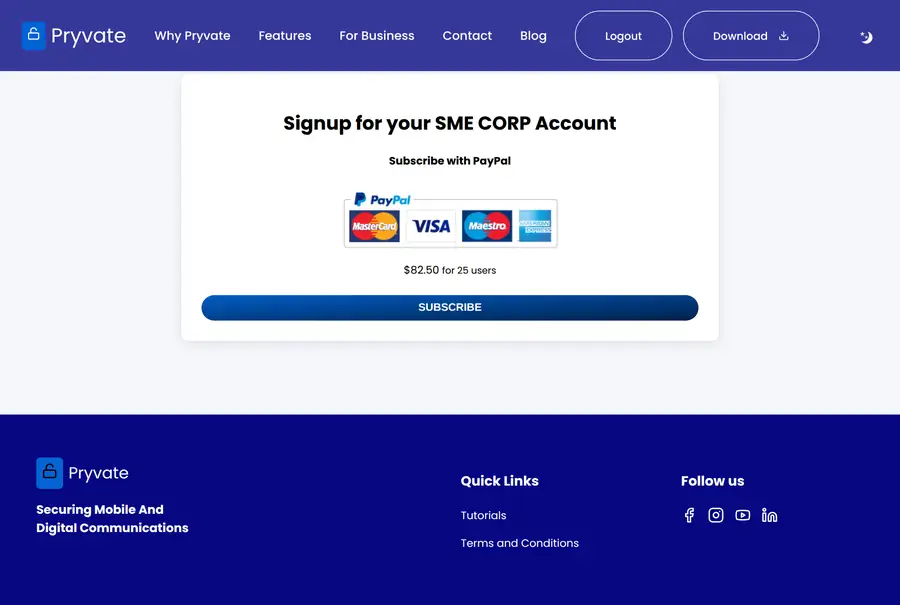
- Pay — Through PayPal, as a monthly subscription. Nothing can be invited until this is done.
- Invite your colleagues — One at a time by mobile or email, or in bulk from a spreadsheet.
- Wait for them to accept — Invitations last 24 hours. Accepted colleagues move to Active Users.
1.2Setting up your company account
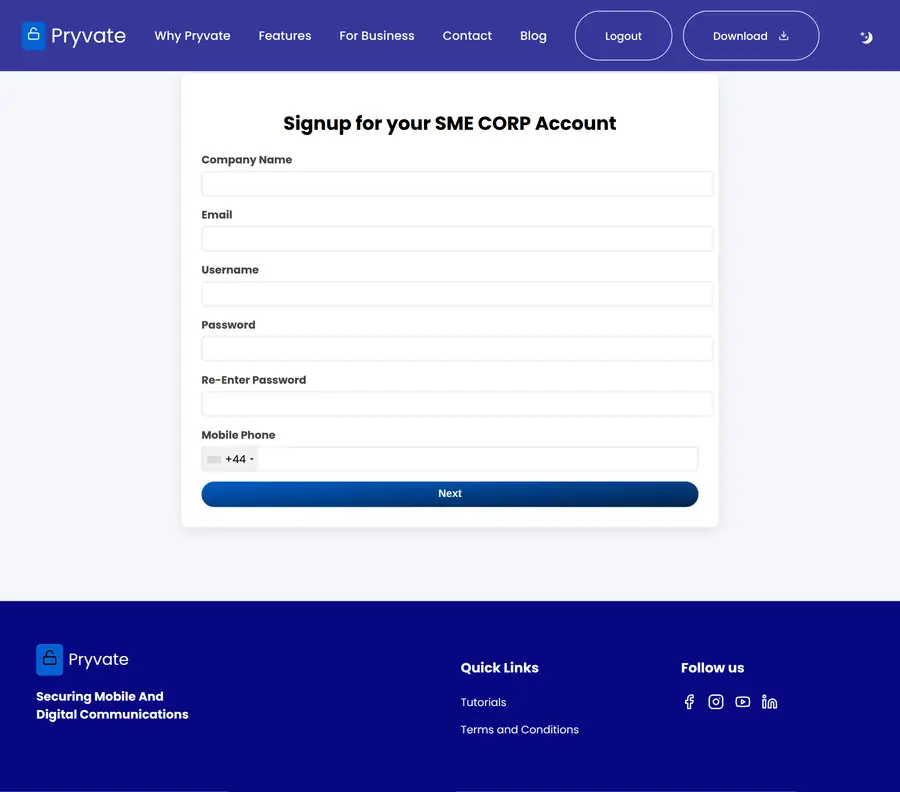
- Go to the business sign-in page and select Register.
- Fill in the company name, a contact email address, the username you will sign in with, and a password.
- Enter the company contact mobile number with the right country code.
- Select Register. You are taken to the pricing page to choose your seats.
1.3Signing in
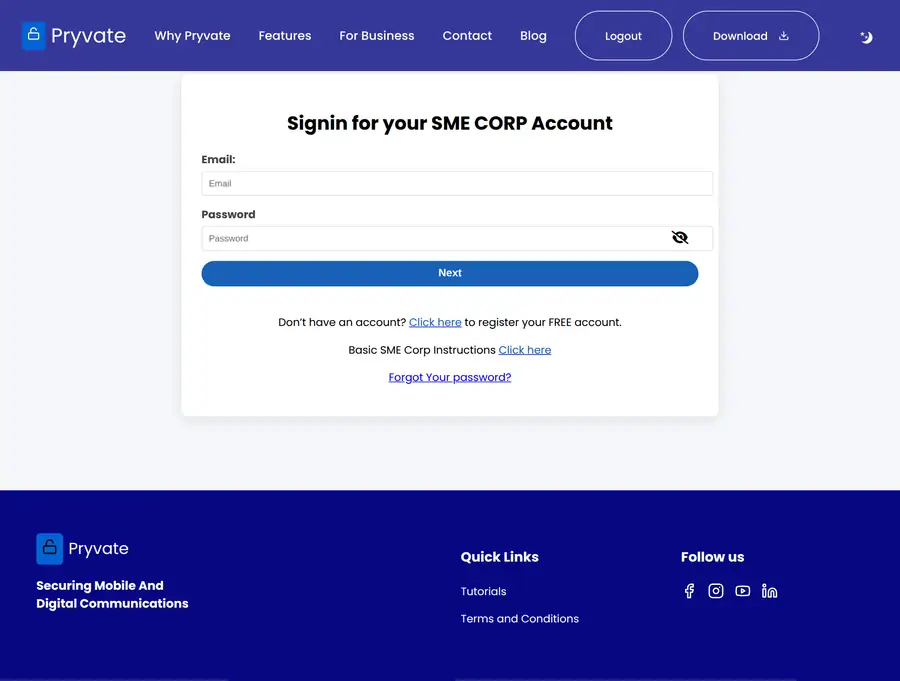
- Enter your email address and password.
- Tick the I am human box.
- Select Login.
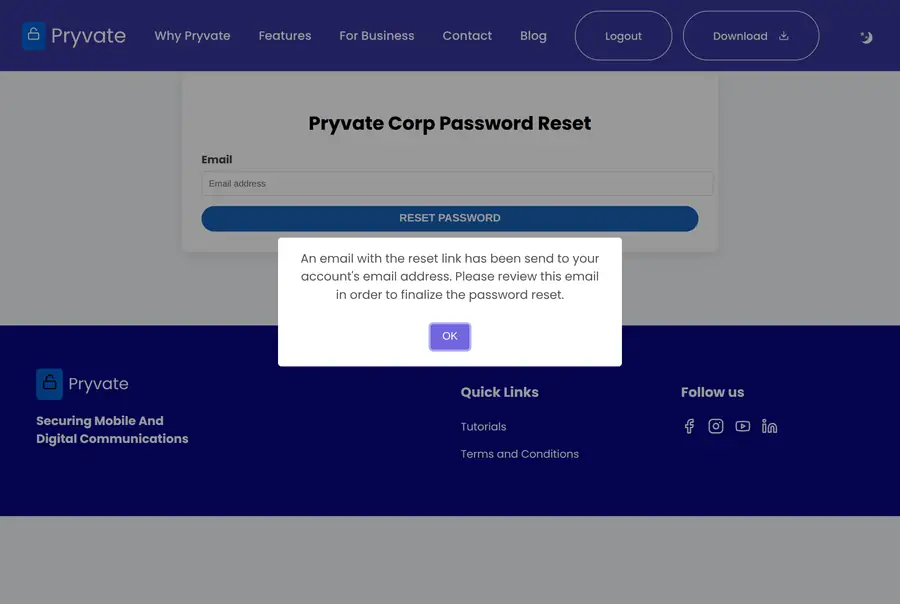
If you have forgotten your password
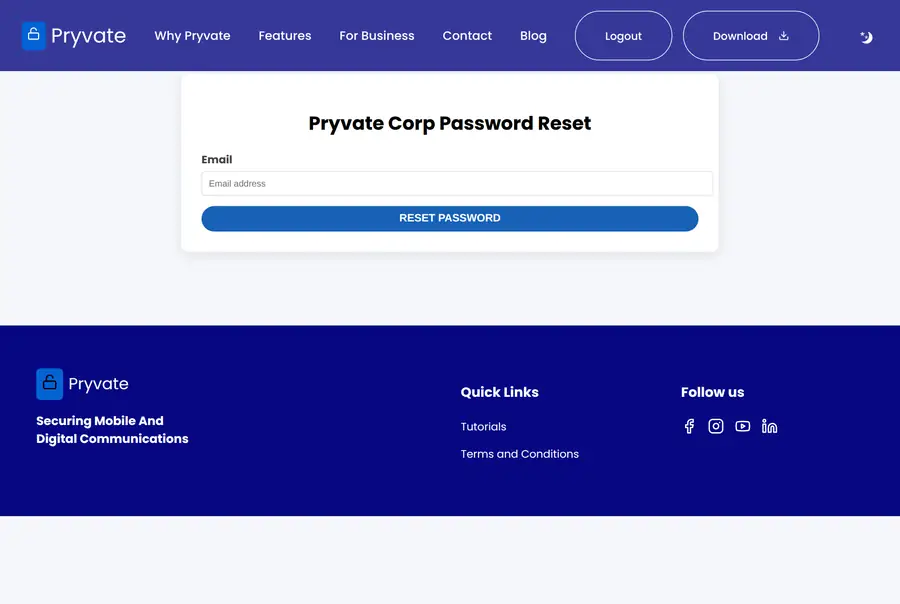
- Select Forgot Password on the sign-in page.
- Enter your company email address and select Submit.
- Pryvate emails you a temporary password and a link.
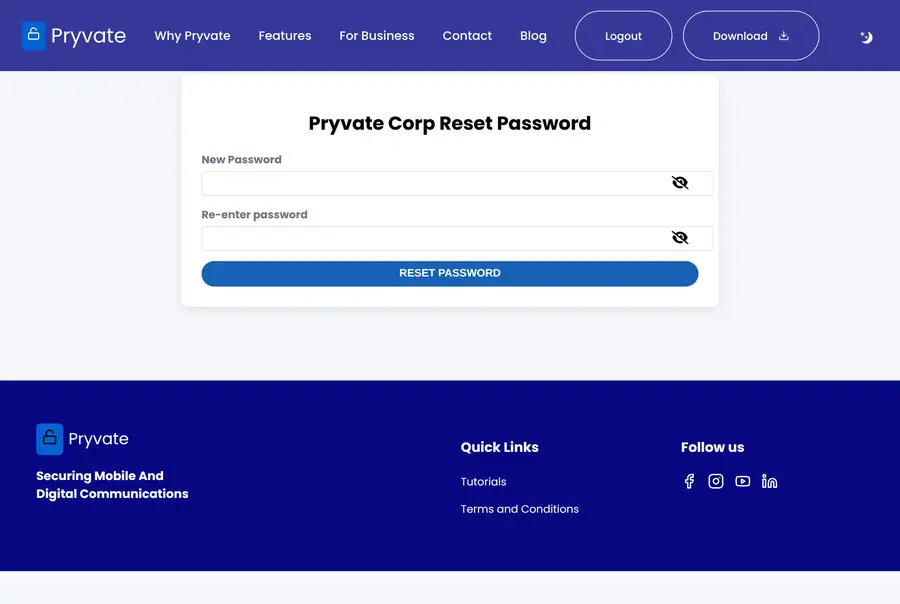
- Follow the link and choose a new password — at least six characters with a capital and a number.
1.4Seats and pricing
A seat is one colleague's place on the company account. You buy seats up front and fill them as people accept their invitations. Removing somebody frees their seat for the next person.
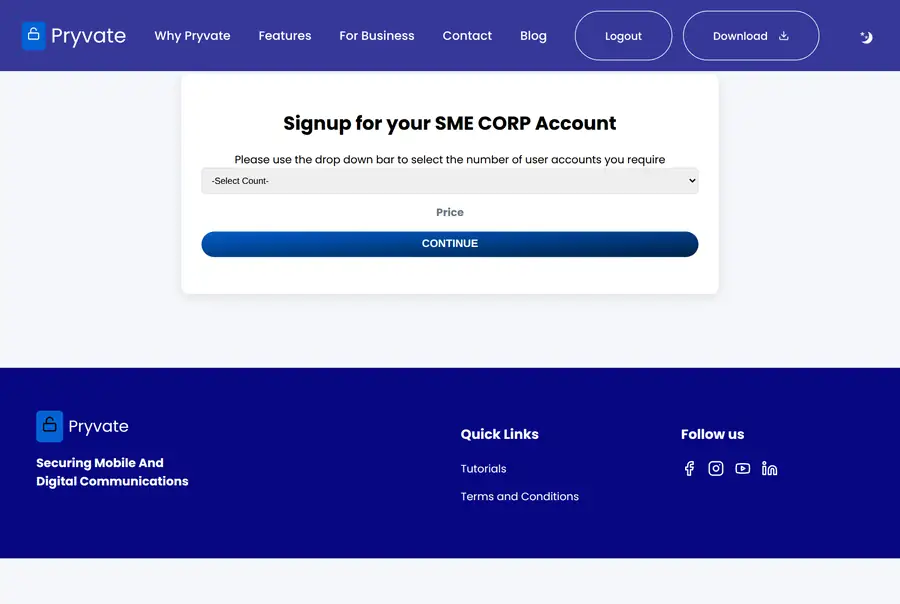
- Select the number of seats from the dropdown.
- The monthly price appears beside it.
- Select Continue to go to checkout.
1.5Paying
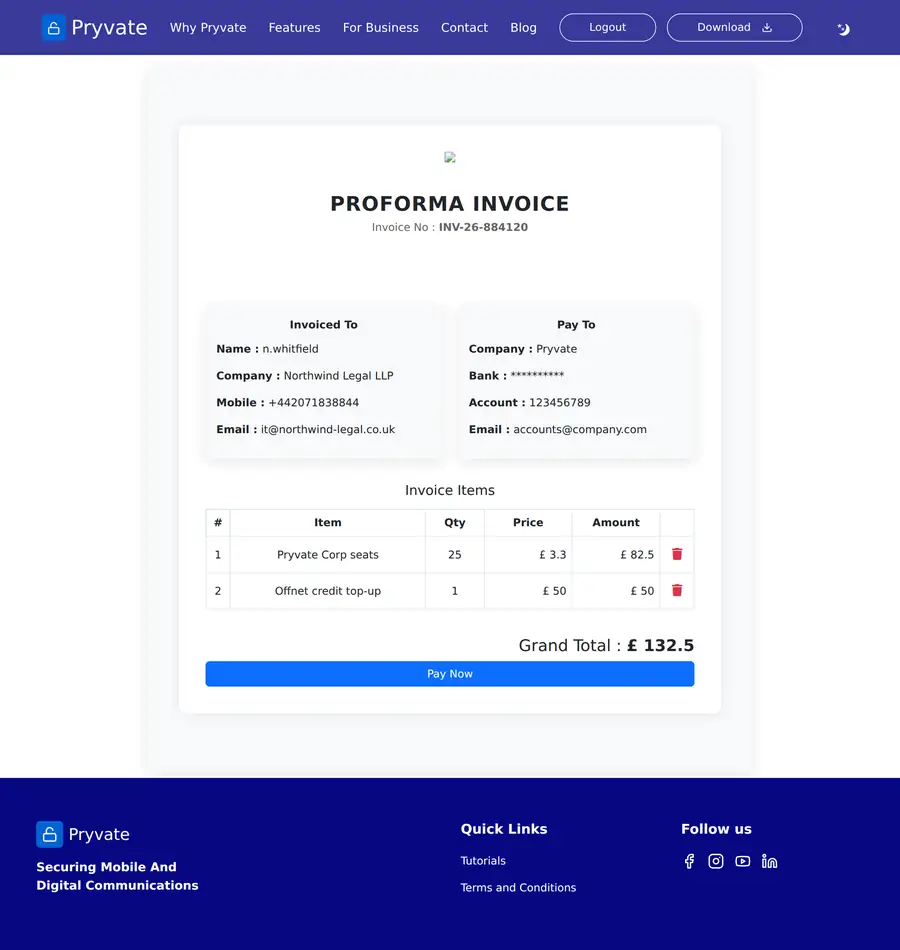
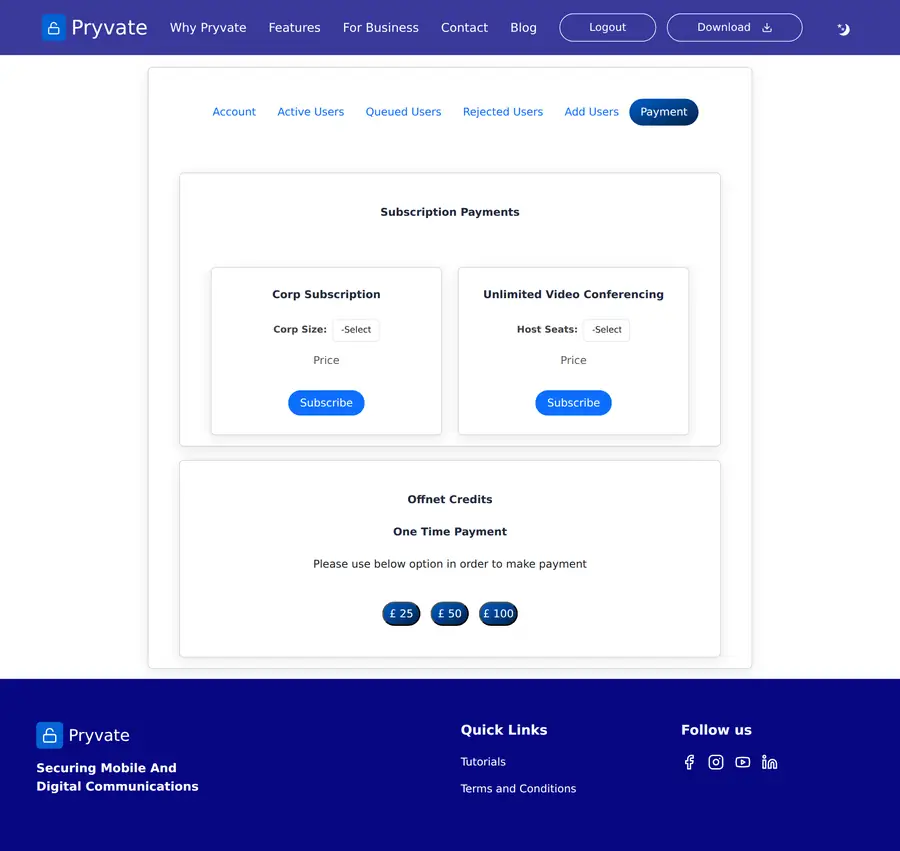
- From pricing, or from the Payment tab of the dashboard, review what you are buying.
- Check the line items and the total on the invoice page. You can adjust quantities or remove a line before paying.
- Select Pay Now and complete the payment in PayPal.
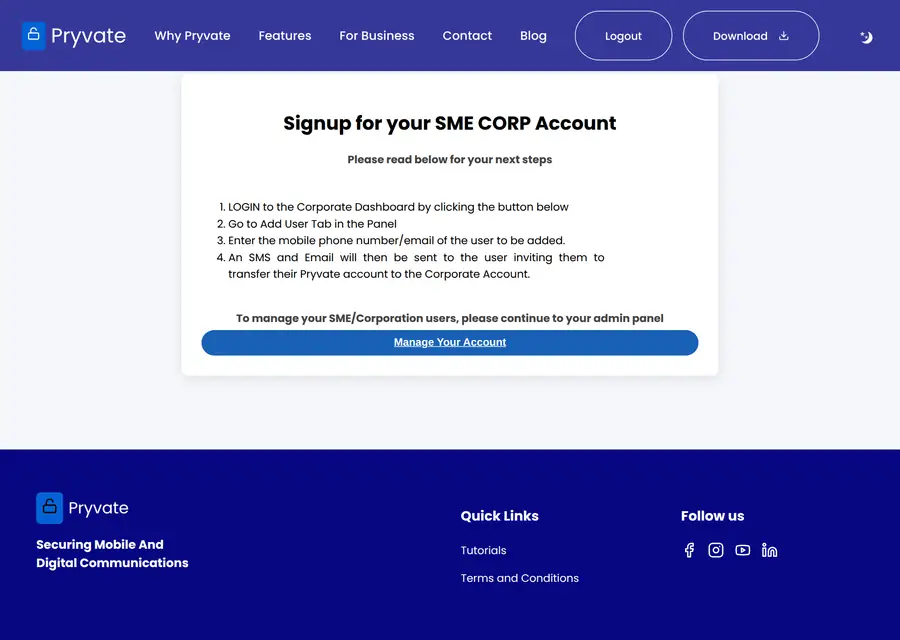
- You are returned to the portal and the subscription becomes active.
1.6The dashboard
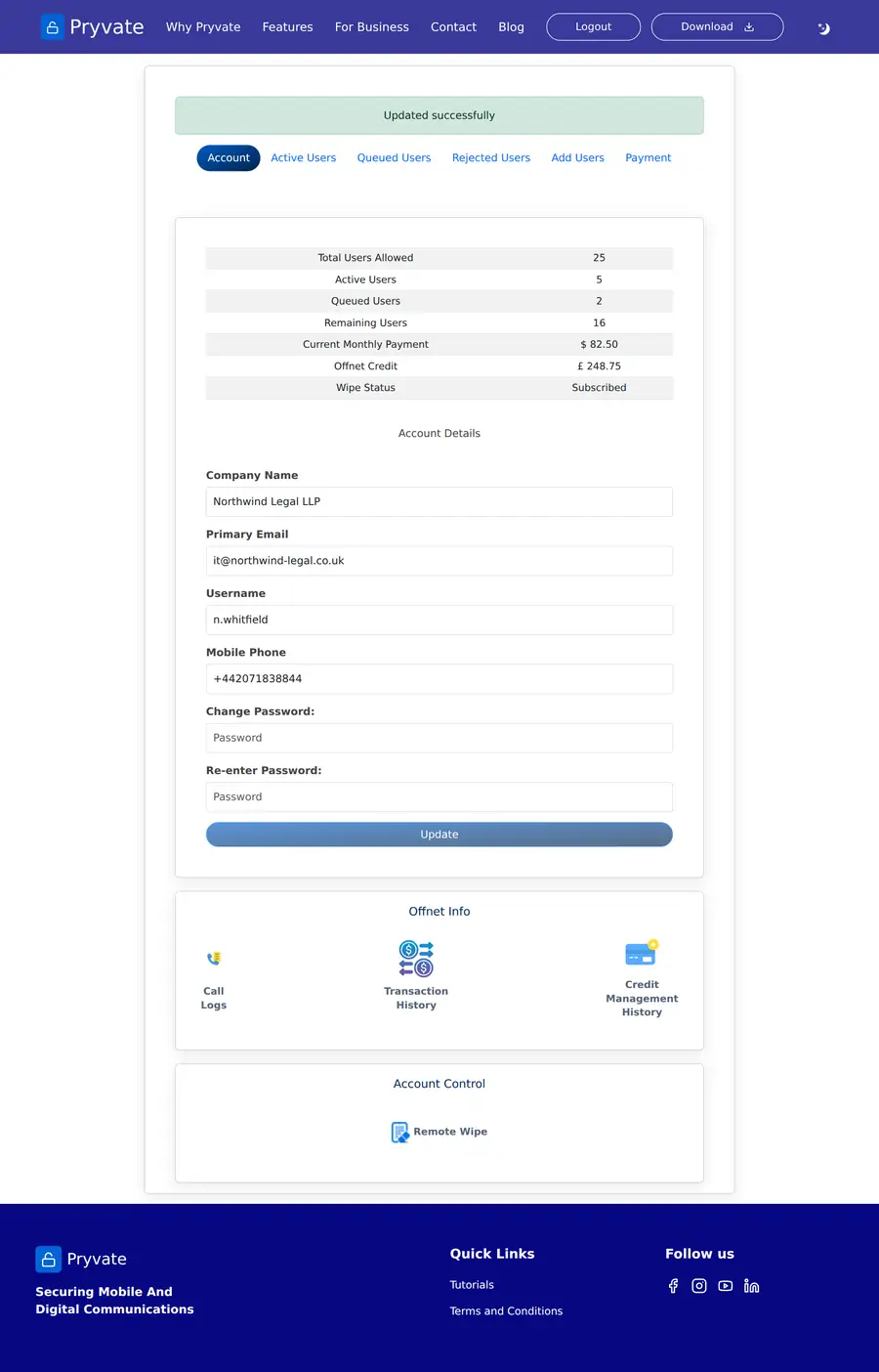
Everything you do is on one page, divided into six tabs. The summary at the top of the Account tab is the fastest way to see where you stand.
| Tab | What it is for |
|---|---|
| Account | Seat summary, company details and password, links to call logs, payment history and credit history, and company-wide Remote Wipe. |
| Active Users | Colleagues who have accepted and are using their account. |
| Queued Users | Invitations sent but not yet accepted, plus people invited who are not on Pryvate yet. |
| Rejected Users | People who declined, or whose invitation ran out. You can invite them again from here. |
| Add Users | Search for one person, or upload a spreadsheet to invite many at once. |
| Payment | Buy more seats or top up Offnet credit. |
Reading the seat summary
- Total Users Allowed — seats you have paid for.
- Active Users — seats in use.
- Queued Users — invitations waiting to be accepted. These still count against your seats.
- Remaining Users — seats you can still fill.
- Current Monthly Payment — what you pay each month at this seat count.
- Offnet Credit — shared credit for calls to ordinary phone numbers.
- Wipe Status — whether company-wide Remote Wipe is available.
1.7Adding colleagues one at a time
Go to the Add Users tab and search for the person first. What happens next depends on whether they already use Pryvate.
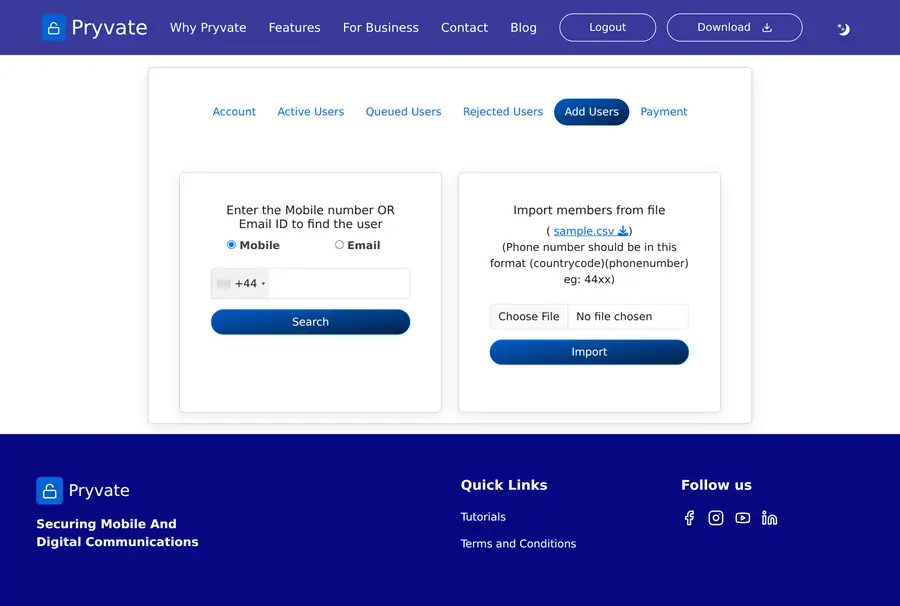
- Choose Mobile or Email.
- Enter the number, with country code, or the address.
- Select Search.
If they already use Pryvate
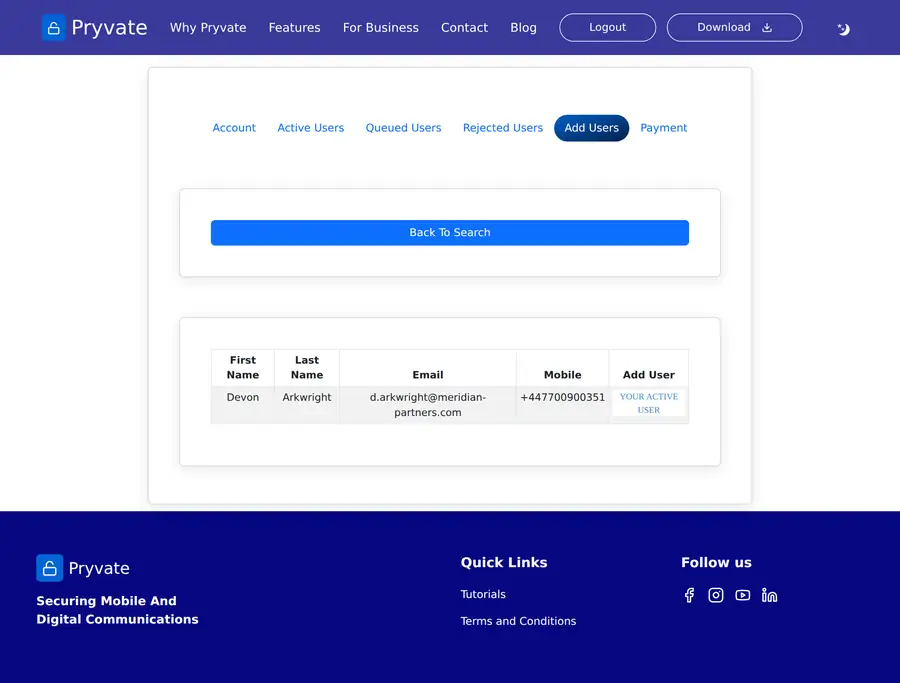
Select the send icon on their row. They receive an invitation to move their existing Pryvate account onto your company group, with a link to accept, and their name appears under Queued Users.
If they do not use Pryvate yet
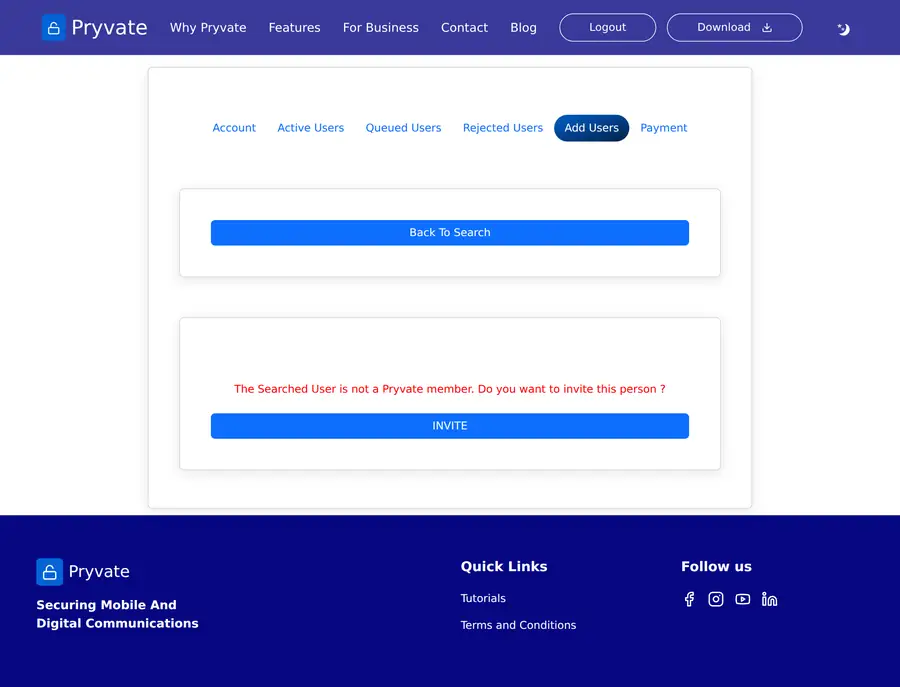
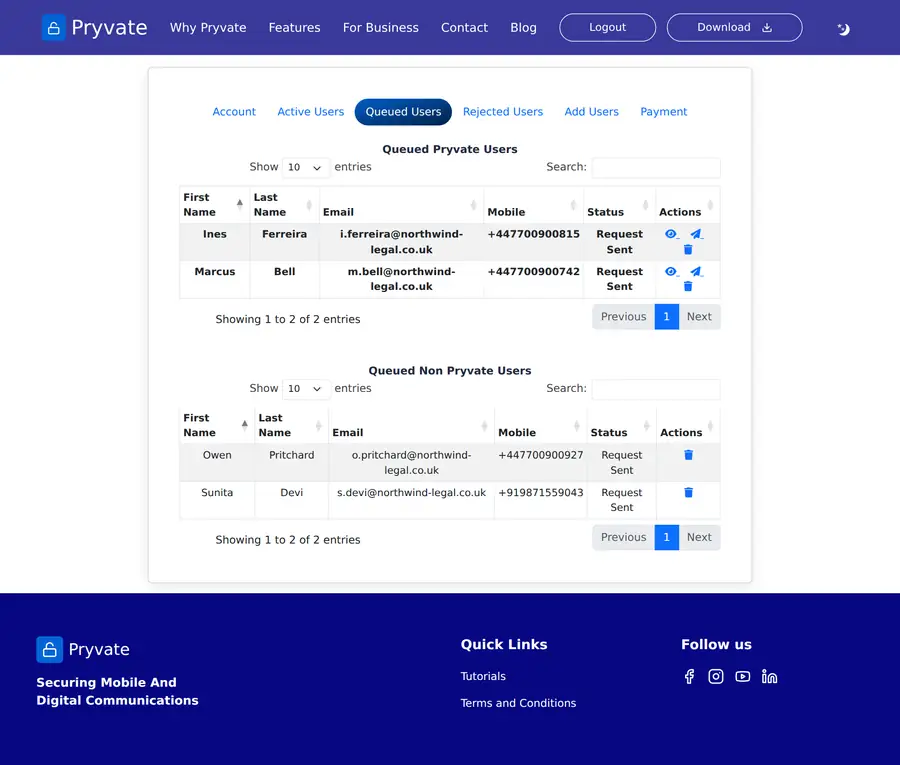
Select INVITE. They are added to the unregistered list on the Queued Users tab and invited to install Pryvate and join your group.
1.8Adding many colleagues at once
The Add Users tab accepts a spreadsheet so you can invite a whole team in one go.
How the file must look
Save it as a CSV file with a header row spelled exactly like this:
| Column | Required | What goes in it |
|---|---|---|
Email | Yes | The person's email address. |
Mobile | Yes | Country code and number run together, with no spaces, plus sign or leading zero — 447700900118, not 07700 900118. |
Firstname | Recommended | Used when the person is new to Pryvate. |
Lastname | Recommended | Used when the person is new to Pryvate. |
- Select sample.csv on the Add Users tab to download a template.
- Fill it in, one person per row, and save it as CSV — not as a spreadsheet workbook.
- Select Choose File, pick your file, then select Import.
- The dashboard reports what happened, row by row.
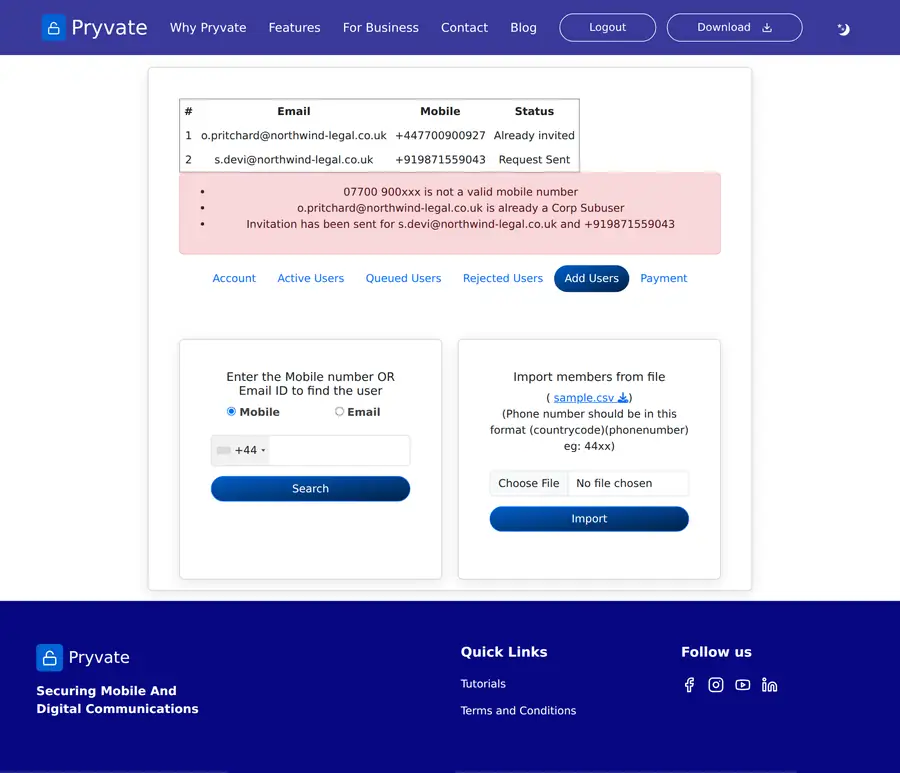
07700 900118 is rejected; 447700900118 is accepted. Drop the leading zero, put the country code in front, and remove spaces and brackets.1.9What the person you invited sees
Your colleague receives an invitation from Pryvate naming your company, with a link to accept.
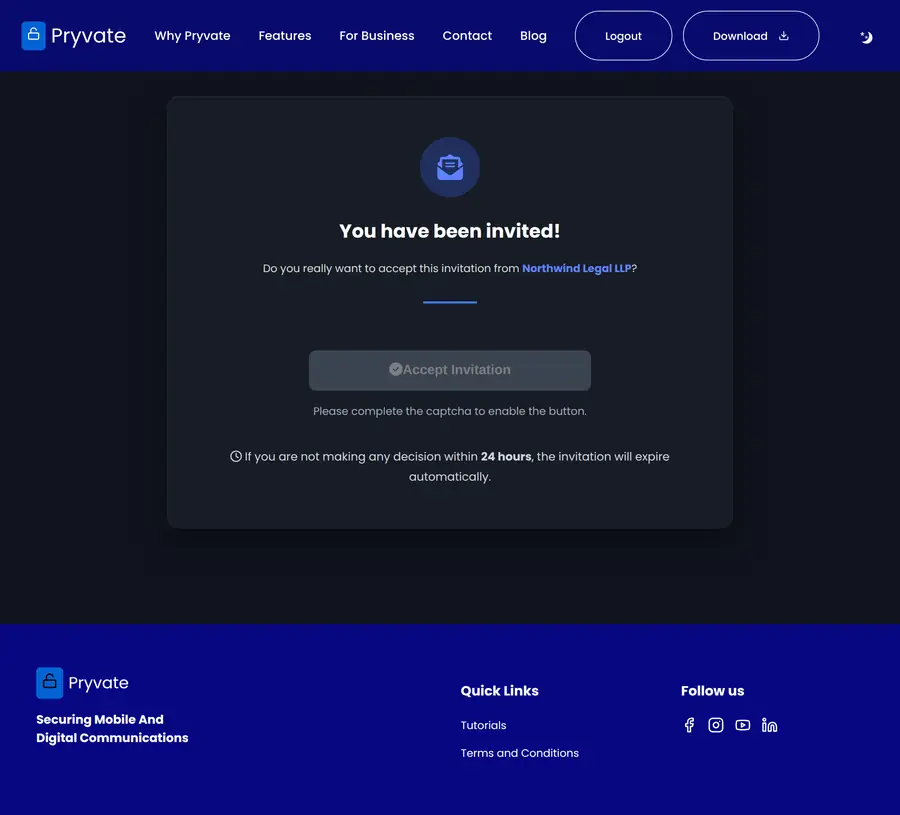
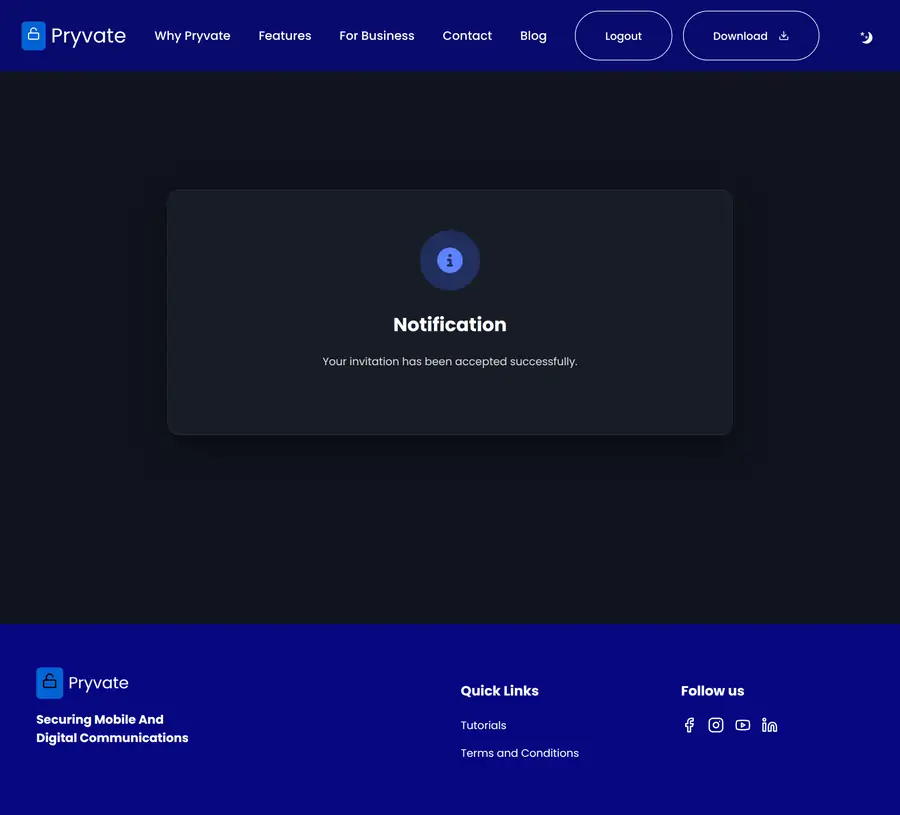
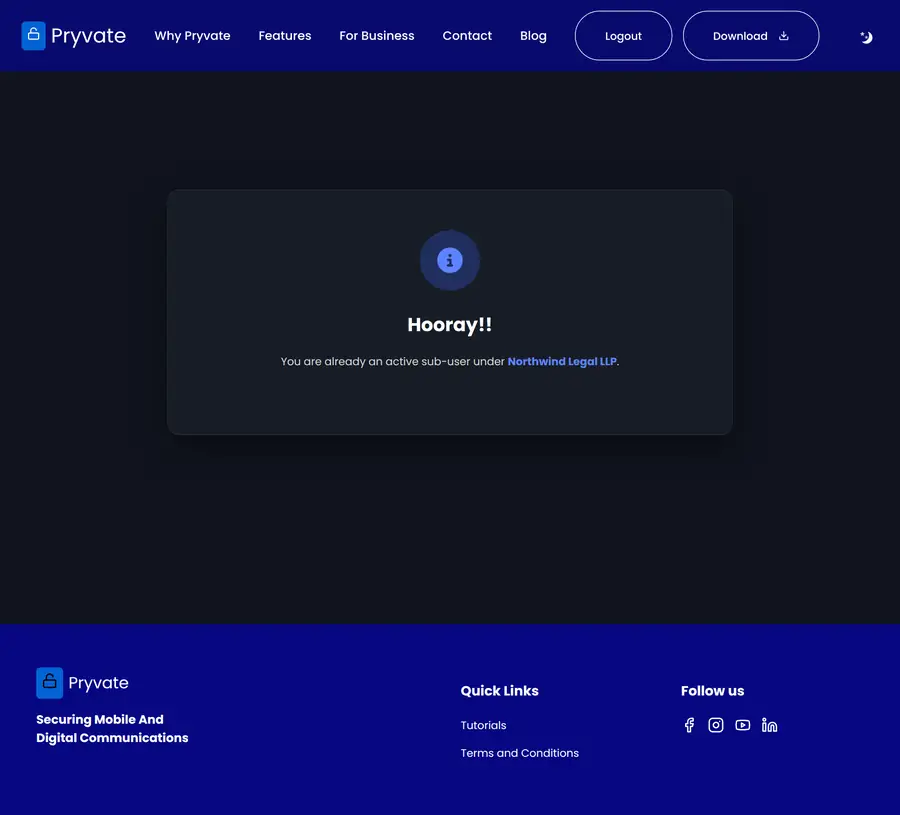
Once accepted, their account runs on your subscription for as long as it lasts, and they move from Queued Users to Active Users on your dashboard.
If they decline, or leave it too long
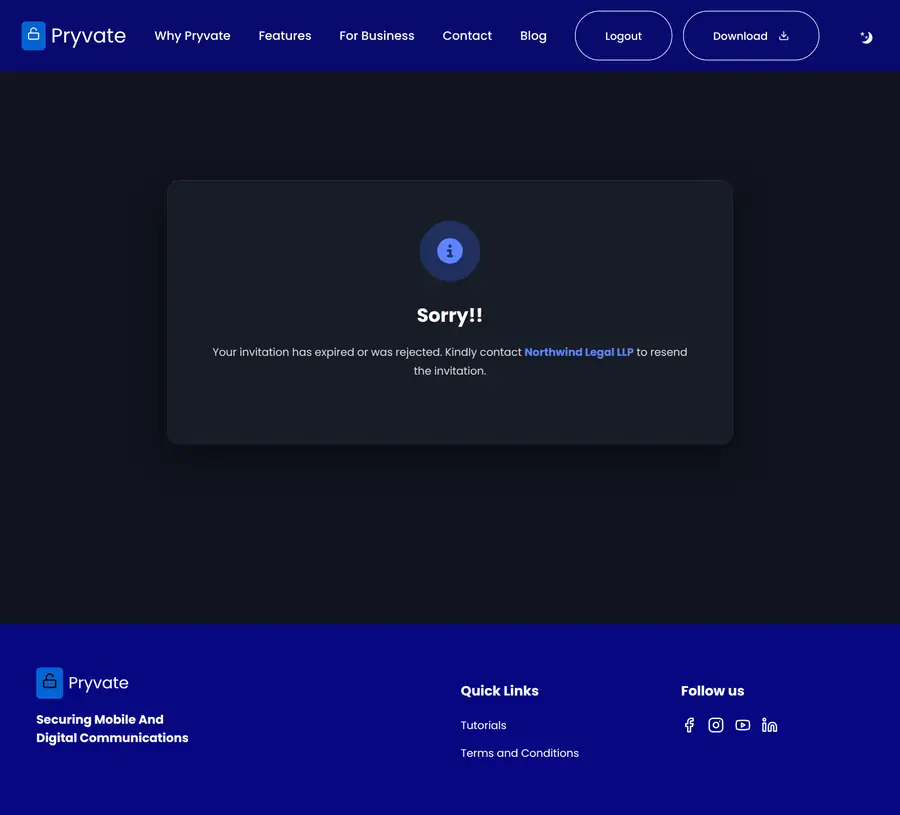
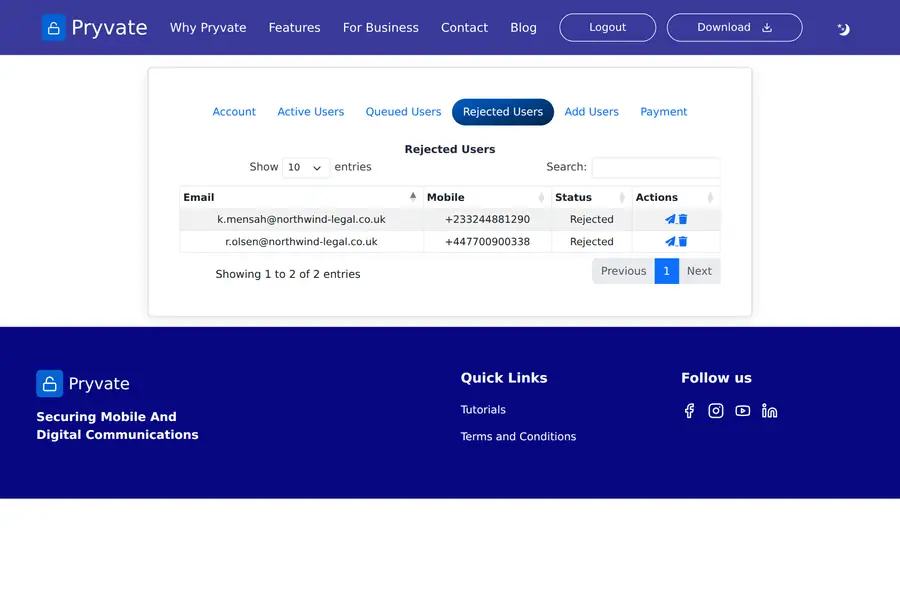
Either way they appear on your Rejected Users tab and the seat is freed. Select the send icon on their row to invite them again.
1.10Managing your people
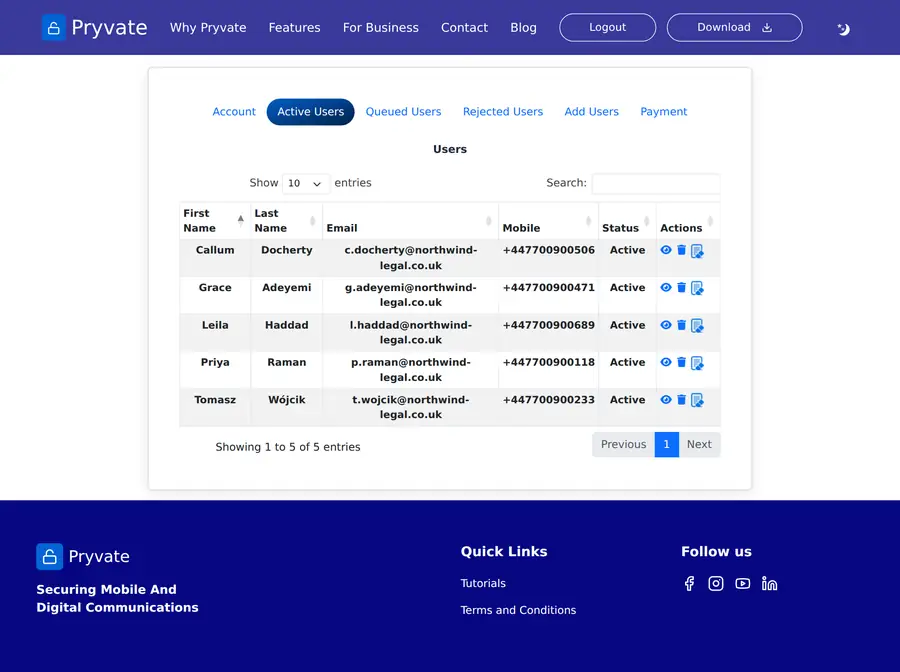
Each row on the Active Users tab carries three controls:
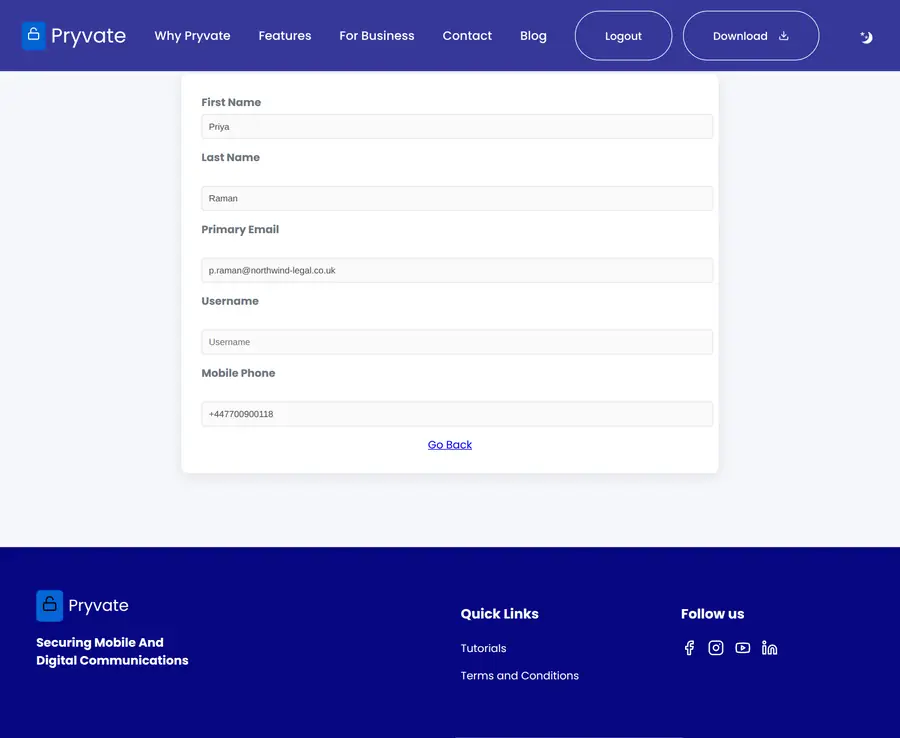
- View (eye) — opens their details.
- Remove (bin) — takes them off the company account.
- Remote Wipe — lists that person's devices so you can wipe one.
Removing somebody
- Select the bin icon on their row.
- Choose what to remove:
| Choice | What happens |
|---|---|
| Corp Account | They leave your company group and the seat is freed. Their personal Pryvate account carries on. |
| Pryvate Account | Their entire Pryvate account is deleted, along with its history. This cannot be undone. |
1.11Remote Wipe across the company
You can erase Pryvate data from a colleague's device if it is lost, or when somebody leaves. As with personal accounts, only Pryvate's own data is removed — the rest of the device is untouched.
- For one person, go to Active Users and select the Remote Wipe icon on their row.
- For everybody, use the Remote Wipe button in Account Control on the Account tab.
- Pick the device from the list, or choose to wipe all.
- Each device is wiped the next time it connects.
1.12Reports
Payment history
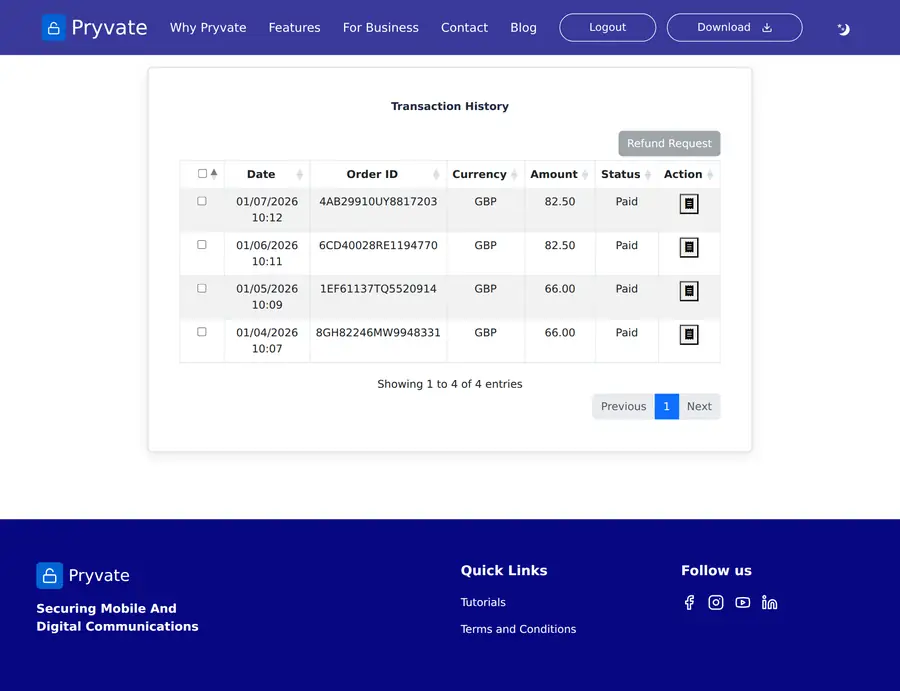
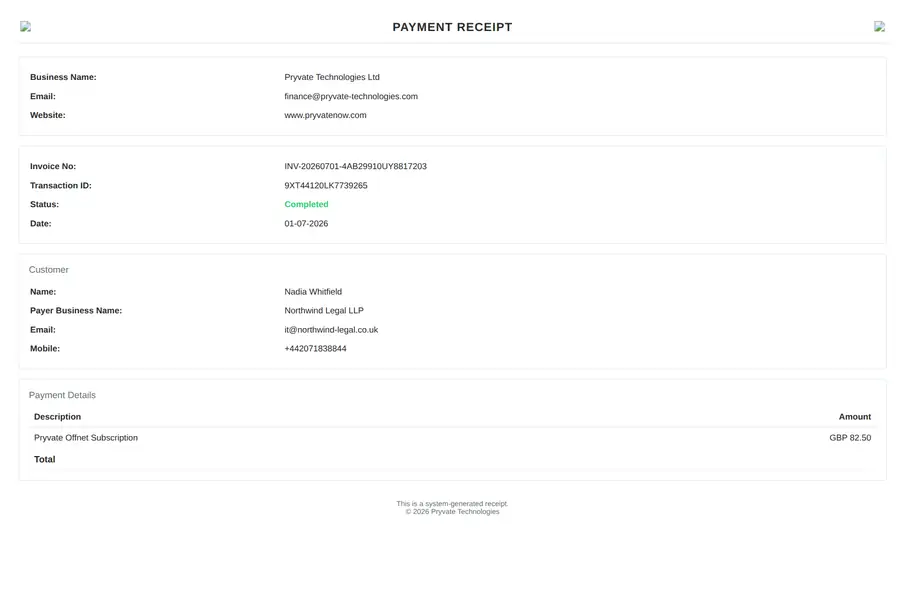
Select the receipt icon on any row to download a PDF receipt showing the payer, the amount, the processing fee and the net.
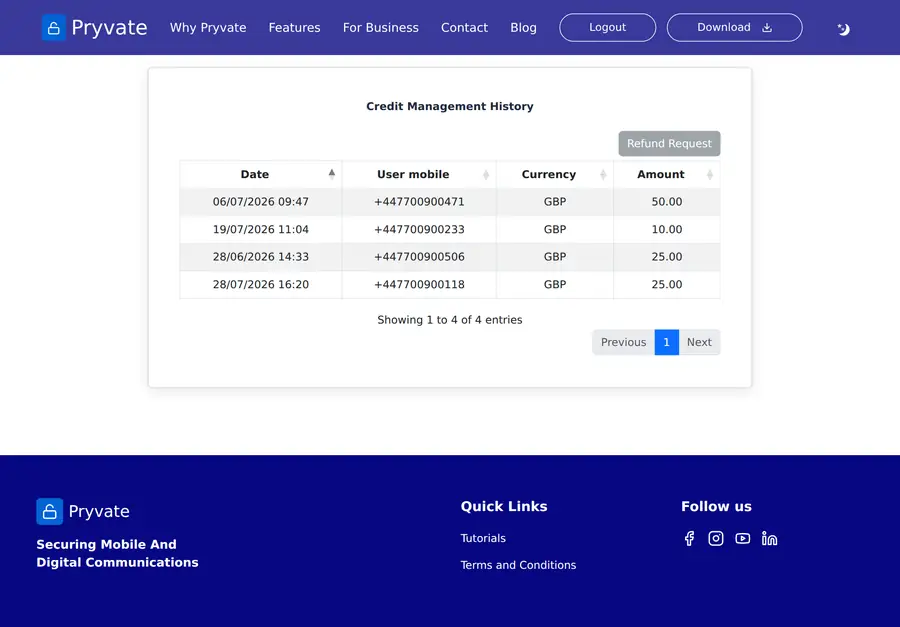
Credit management history
Offnet call history
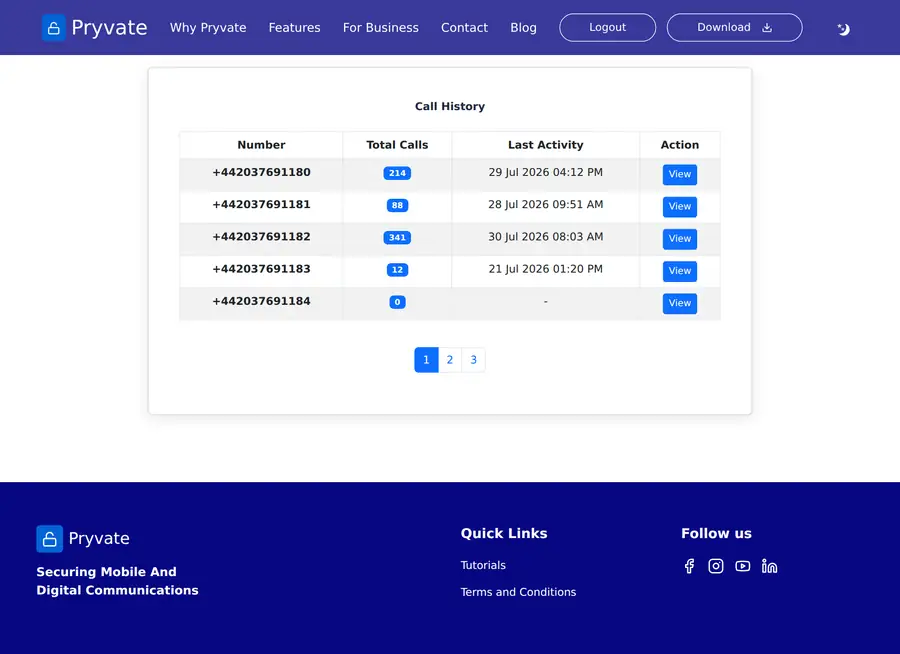
Ten colleagues are shown at a time — use the page numbers underneath to move through the list. Colleagues without an Offnet number do not appear, and no call content is shown anywhere: only counts and timestamps.
1.13Company details and signing out
The Account tab holds your company name, contact email, username, contact mobile number and password. Change what you need and select Update.
Password rules are the same as at registration — at least six characters with a capital and a number. Leave both password boxes empty if you are not changing it.
Select Logout in the top right when you are finished. The portal also signs you out on its own after a period of inactivity.
The built-in FAQ
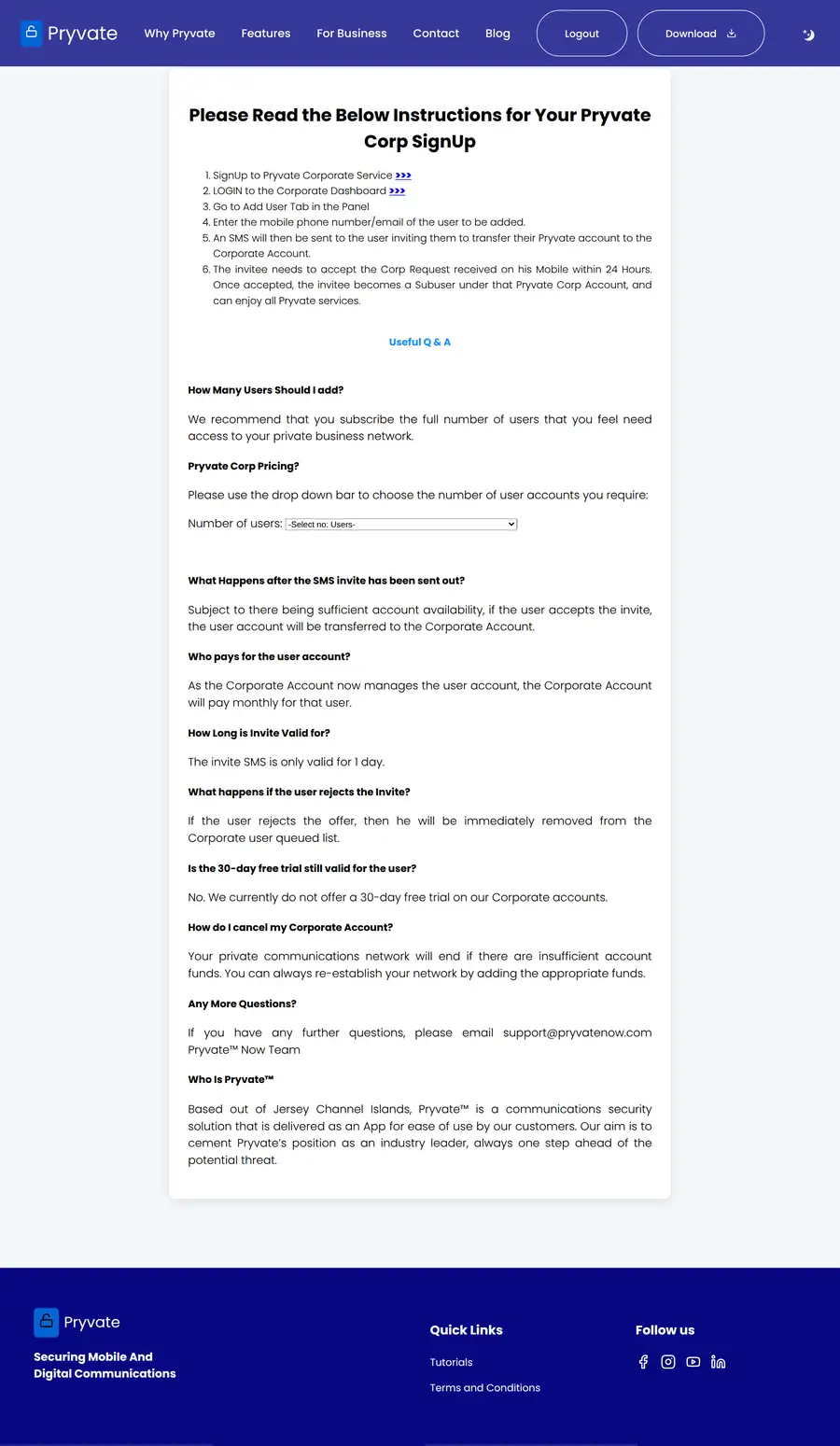
1.14Frequently asked questions
447700900118.Reference
What you need to use the portal, what is and is not visible, the words used throughout, and what to do when something goes wrong.
2.1What you need
| Browser | Any current version of Chrome, Edge, Safari or Firefox. The portal is also usable on a phone browser. |
| Connection | An ordinary internet connection. No plug-in, extension or download is needed to use the portal. |
| Downloads | Receipts arrive as PDF files, so a computer is easier than a phone when you need one. |
| Payments | Payments are taken through PayPal, which opens in its own window. A PayPal account or a card is needed. |
2.2Privacy and what is visible
Colleagues ask this before they accept an invitation, so it is worth being able to answer it precisely: what can Pryvate see, and what can you as their administrator see. The short answer to both is: much less than people assume.
Message and call content is never visible in the portal.
Pryvate-to-Pryvate calls and messages are encrypted end to end. There is no record of them for the portal to show — not to you, not to a company administrator, and not to Pryvate.
Offnet calls are recorded as metadata only.
Because they cross the public telephone network, Offnet calls are logged so they can be billed. What is stored is the other number, the time and the duration — never the audio.
Company administrators see less than people expect.
An administrator can see a colleague's name, username, email, mobile number, Offnet call counts and credit spending. They cannot see message content, call content, or who was called on Pryvate itself.
Remote Wipe touches only Pryvate.
It erases Pryvate's own data from the device — messages, call history and account details. Photos, other apps and the rest of the phone are untouched.
Sessions end on their own.
The portal signs you out after a period of inactivity, which limits what a shared or unattended computer exposes.
2.3Glossary
| Term | Meaning |
|---|---|
| Offnet | Calling ordinary phone numbers rather than other Pryvate users. Offnet calls use credit and are the only calls that appear in call history. |
| Offnet number (DDI) | An ordinary phone number attached to a Pryvate account so people outside Pryvate can call it. |
| Seat | One colleague's place on a company account. Seats are bought up front and filled by invitation. |
| Queued | An invitation that has been sent but not yet accepted. Queued invitations still occupy a seat. |
| Sub-user | A colleague whose Pryvate account runs on a company subscription. |
| Remote Wipe | Erasing Pryvate's own data from a device you no longer control. Bought once, or by monthly subscription. |
2.4Messages Pryvate sends
| Message | How it arrives | When |
|---|---|---|
| Password reset | Email, and SMS where possible | A temporary password and a link to choose a new one. |
| Company invitation | When an administrator invites you into a company group. Valid for 24 hours. | |
| Invitation accepted | Confirms an account has moved onto the company subscription. | |
| Receipts | Downloaded from the portal | Payment history, receipt icon on the row. |
2.5Common problems
| What you see | What to do |
|---|---|
| "Limit Exceeded!.." | Every seat is taken, queued invitations included. Buy more seats or remove somebody. |
| "Payment status error" | The company subscription is not active, so invitations are blocked. Complete payment first. |
| "... is not a valid mobile number" | A spreadsheet row has a number in local format. Write it as country code plus number with no spaces: 447700900118. |
| The page stops responding to your selections | You have been signed out for inactivity. Sign in again — nothing is lost. |
2.6Getting help
If the answer is not here, email [email protected]. The same address handles billing questions and deployments of more than 50 seats.
When you write, it helps to include the email address or mobile number on the account, what you were trying to do, and the exact wording of any message the portal showed you.
Pryvate is a communications security product from Pryvate Technologies Ltd, based in Jersey, Channel Islands.
2.7Index of screens
Every screen shown in this manual, in order.
| Figure | Screen | Section |
|---|---|---|
| Figure 1 | Registering a company account. | 1.2 Setting up your company account |
| Figure 2 | The business sign-in page. | 1.3 Signing in |
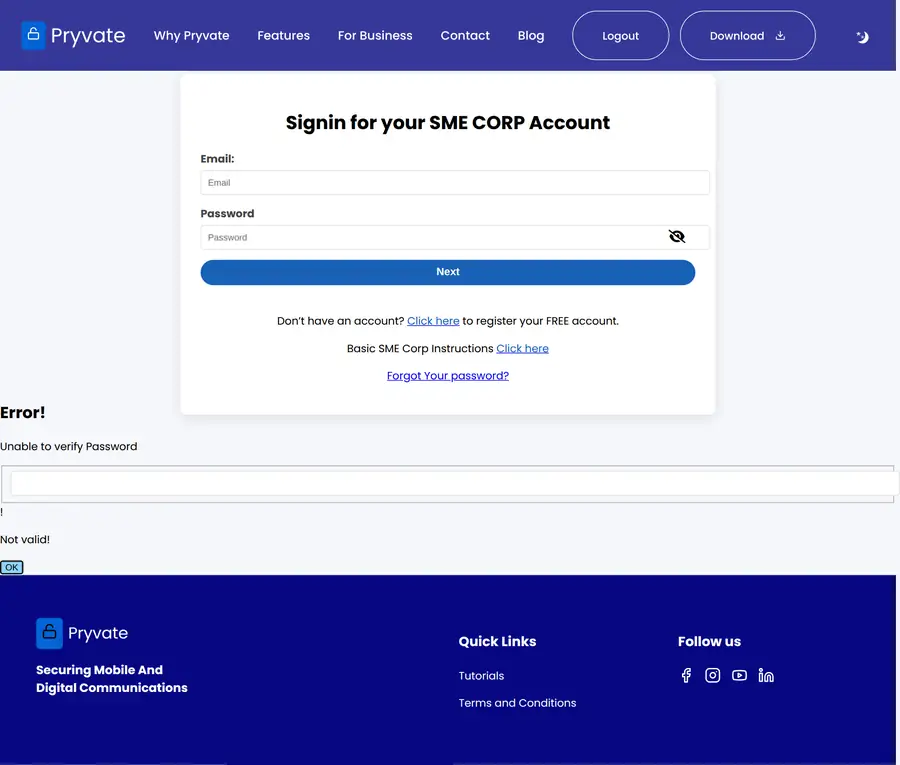
| Figure 3 | If the details are wrong the page says which part did not match. | 1.3 Signing in |
| Figure 4 | Asking for a reset. | 1.3 Signing in |
| Figure 5 | Confirmation that the email is on its way. | 1.3 Signing in |
| Figure 6 | Choosing the new password from the emailed link. | 1.3 Signing in |
| Figure 7 | Choosing how many seats to buy. The price updates as you change the number. | 1.4 Seats and pricing |
| Figure 8 | The invoice review page, with your company details and the total. | 1.5 Paying |
| Figure 9 | Checkout. Payment is taken by PayPal as a monthly subscription. | 1.5 Paying |
| Figure 10 | The Payment tab, for buying more seats or topping up Offnet credit later. | 1.5 Paying |
| Figure 11 | What you see once payment goes through. | 1.5 Paying |
| Figure 12 | The Account tab: seat summary, company details, and shortcuts to the reports. | 1.6 The dashboard |
| Figure 13 | The Add Users tab: search on the left, spreadsheet upload on the right. | 1.7 Adding colleagues one at a time |
| Figure 14 | A match. Select the paper-plane icon to send the invitation. | 1.7 Adding colleagues one at a time |
| Figure 15 | No match. The portal offers to invite them anyway. | 1.7 Adding colleagues one at a time |
| Figure 16 | The Queued Users tab. The upper table is people already on Pryvate; the lower one is people who are not yet. | 1.7 Adding colleagues one at a time |
| Figure 17 | The report after an import. Rows that could not be processed are listed with the reason. | 1.8 Adding many colleagues at once |
| Figure 18 | The acceptance page. They tick the box and select Accept. | 1.9 What the person you invited sees |
| Figure 19 | Confirmation after accepting. | 1.9 What the person you invited sees |
| Figure 20 | Invitations last 24 hours. After that the link stops working. | 1.9 What the person you invited sees |
| Figure 21 | The Rejected Users tab, with re-invite and remove on each row. | 1.9 What the person you invited sees |
| Figure 22 | If they are already active on a company account, there is nothing to accept. | 1.9 What the person you invited sees |
| Figure 23 | The Active Users tab. | 1.10 Managing your people |
| Figure 24 | Viewing a colleague. Details are read-only — only they can change them. | 1.10 Managing your people |
| Figure 25 | Every payment on the company account, with a receipt on each row. | 1.12 Reports |
| Figure 26 | A receipt. | 1.12 Reports |
| Figure 27 | Offnet credit issued to colleagues, by date. | 1.12 Reports |
| Figure 28 | Each colleague's Offnet number with their call count and last activity. | 1.12 Reports |
| Figure 29 | The FAQ reachable from the sign-in page, covering seats, invitations and cancellation. | 1.13 Company details and signing out |