


Pryvate Business
How to run your organisation's secure communications — team and roles, invitations, external calling, secure meetings, devices, security and billing, all from one portal.
Contents
- 1.1About Pryvate Business
- 1.2Creating your company account
- 1.3Signing in & passwords
- 1.4The dashboard
- 1.5The Team lists
- 1.6Inviting people one at a time
- 1.7Inviting people in bulk
- 1.8What the person you invite sees
- 1.9Roles: Owner, Admin, Manager, Member
- 1.10Manager access to this portal
- 1.11Managing a team member
- 1.12External calling & credit
- 1.13Secure meeting licences
- 1.14Devices & remote wipe
- 1.15Organisation security
- 1.16Audit
- 1.17Usage
- 1.18Billing
- 1.19Organisation settings & Pryvate Control
- 1.20Frequently asked questions
Your organisation creates the environment first. People are then invited into it, given the authority and services they need, and managed throughout their lifecycle.
- Register the company — Via the Business sign-in on pryvatenow.com or pryvatemessenger.com — company name, contact email, username, password and a contact mobile number.
- Choose seats and pay — One seat per team member, billed as a monthly subscription. Nothing can be invited until this is done.
- Invite your team — From Add team members — one at a time, or in bulk from a spreadsheet. Pick each person's role as you invite them.
- Assign services — Give out meeting licences and external calling with credit as people join.
- Stay in control — The Overview flags anything needing attention; Audit records everything you and your managers do.
Running your organisation
Everything an administrator does day to day — from first registration to roles, services and security.
1.1About Pryvate Business
Pryvate Business puts your organisation — not individual employees or consumer platforms — in control of its communications environment.
Your organisation decides who belongs, who has administrative authority, which services people can use, how access is protected, and what happens when someone changes role or leaves.
Team members communicate through the Pryvate app, using end-to-end encrypted messaging, calling and secure meetings. Administrators govern the organisation through this portal: membership, roles, services, security, devices and organisational settings — while important administrative actions are recorded in the audit log.
This separation is fundamental to Pryvate Business: people communicate privately; the organisation governs access and administration. Administrators can control the environment without being able to read anyone’s encrypted communications. The result is secure business communication under organisational control — with defined authority, controlled access, and an accountable administrative record.
Access — decide who belongs and what authority they hold.
Devices — protect Pryvate business data if a device is lost or leaves the organisation.
Resources — assign and recover licences, numbers and calling credit.
Record — retain an administrative record of important actions.
The offboarding checklist in section 1.11 walks the same four, in order, when someone leaves.
You reach the portal through the Login on pryvatenow.com or pryvatemessenger.com — choose the Business sign-in. Your team members never need it — everything they use lives in the Pryvate app. The portal is only for the people who run the account: the owner, any admins, and any members you promote to manager with a restricted portal login of their own (section 1.10).
1.2Creating your company account
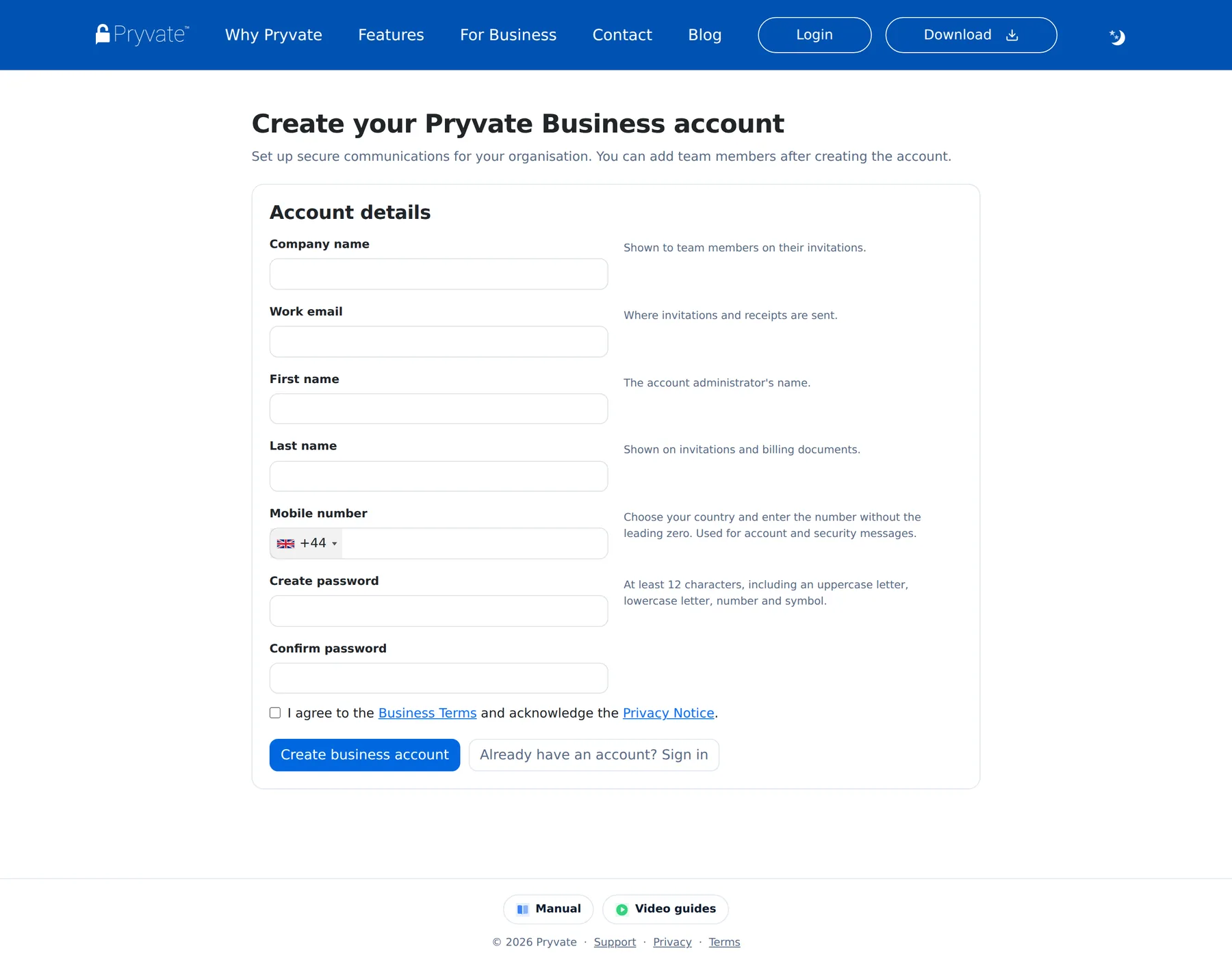
- Go to pryvatenow.com and choose Click here to register.
- Fill in the company name, a contact email address, the username you will sign in with, and a password.
- Enter the company contact mobile number — pick the country from the flag menu and type the number without the leading zero.
- Select Register. You are taken to the pricing page to choose your seats, then on to payment.
One seat covers one team member. Pay through PayPal as a monthly subscription; the price updates as you change the seat count, and you can add seats at any time from Billing. Nothing can be invited until the subscription is active.
1.3Signing in & passwords
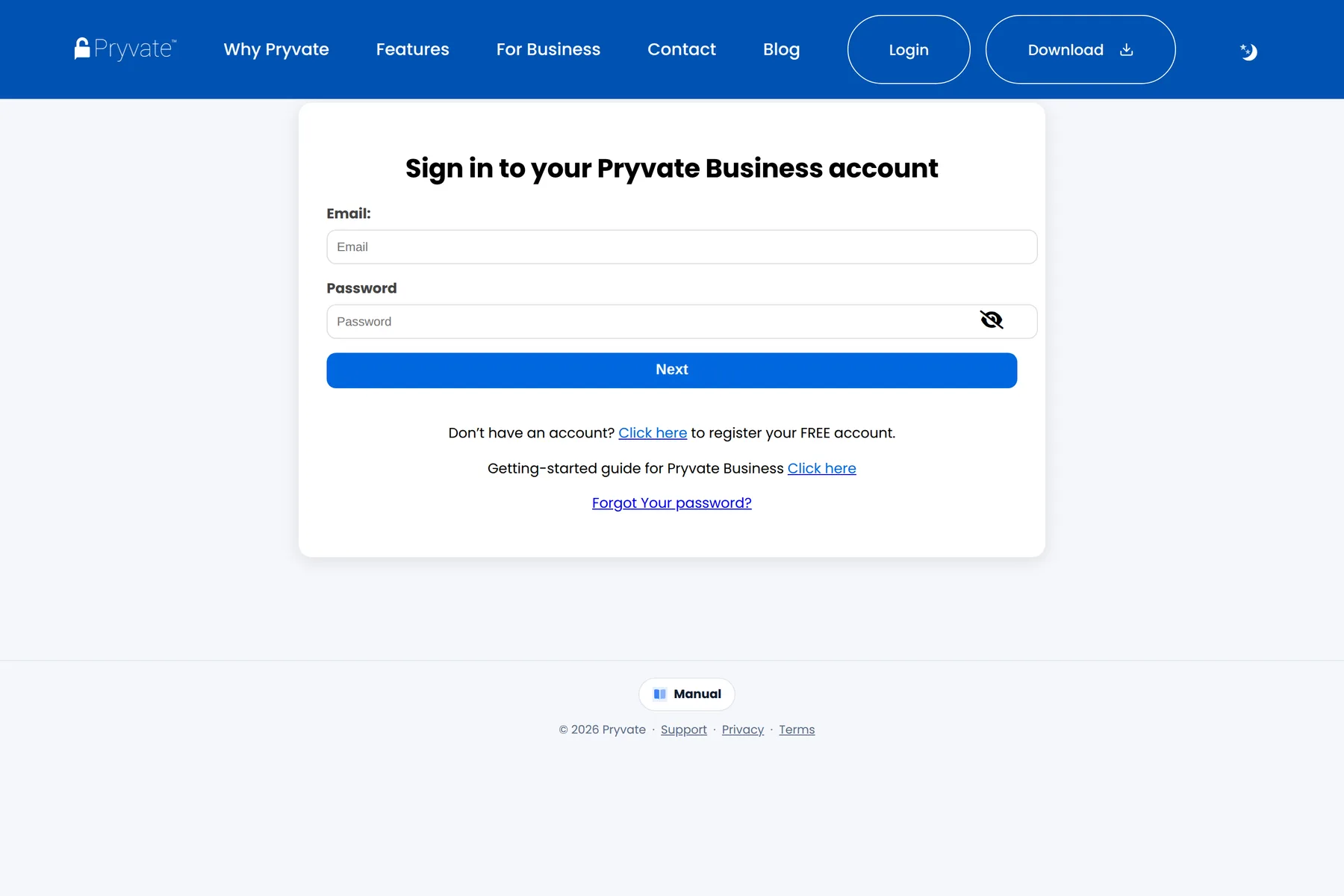
Sign in from pryvatenow.com or pryvatemessenger.com — choose the Business sign-in — with your administrator email and password. Managers use the same page with the credentials the portal emailed them (section 1.10). The portal for individual Pryvate accounts is separate — if a page asks you for a mobile number instead of your password, you are on the personal portal by mistake.
Sign-in codes (MFA)
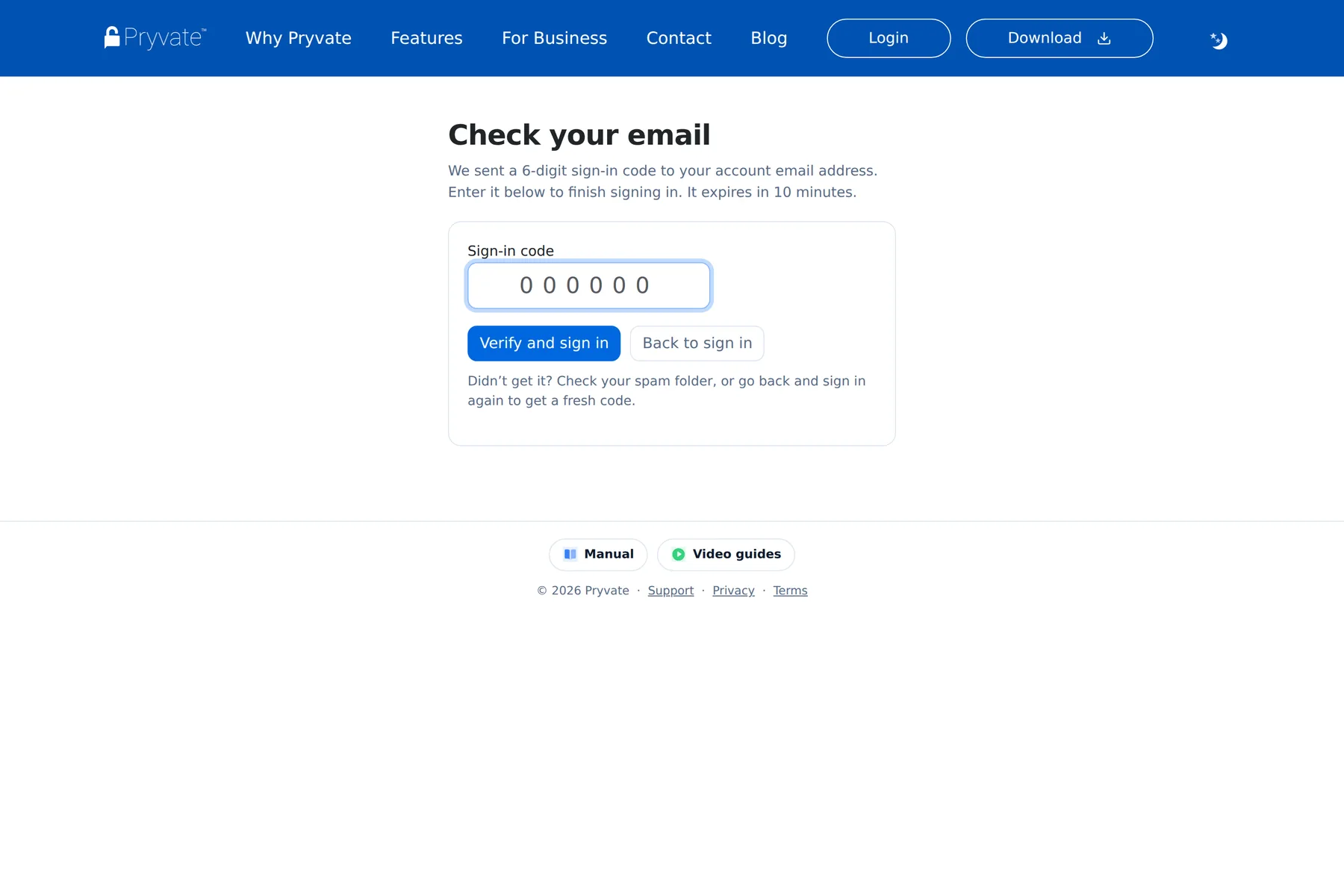
If your organisation has turned on sign-in codes (section 1.15), entering the right password is followed by a six-digit code emailed to you. Type it on the code page to finish signing in. Codes expire quickly and allow only a few attempts before you must sign in again.
Forgotten password
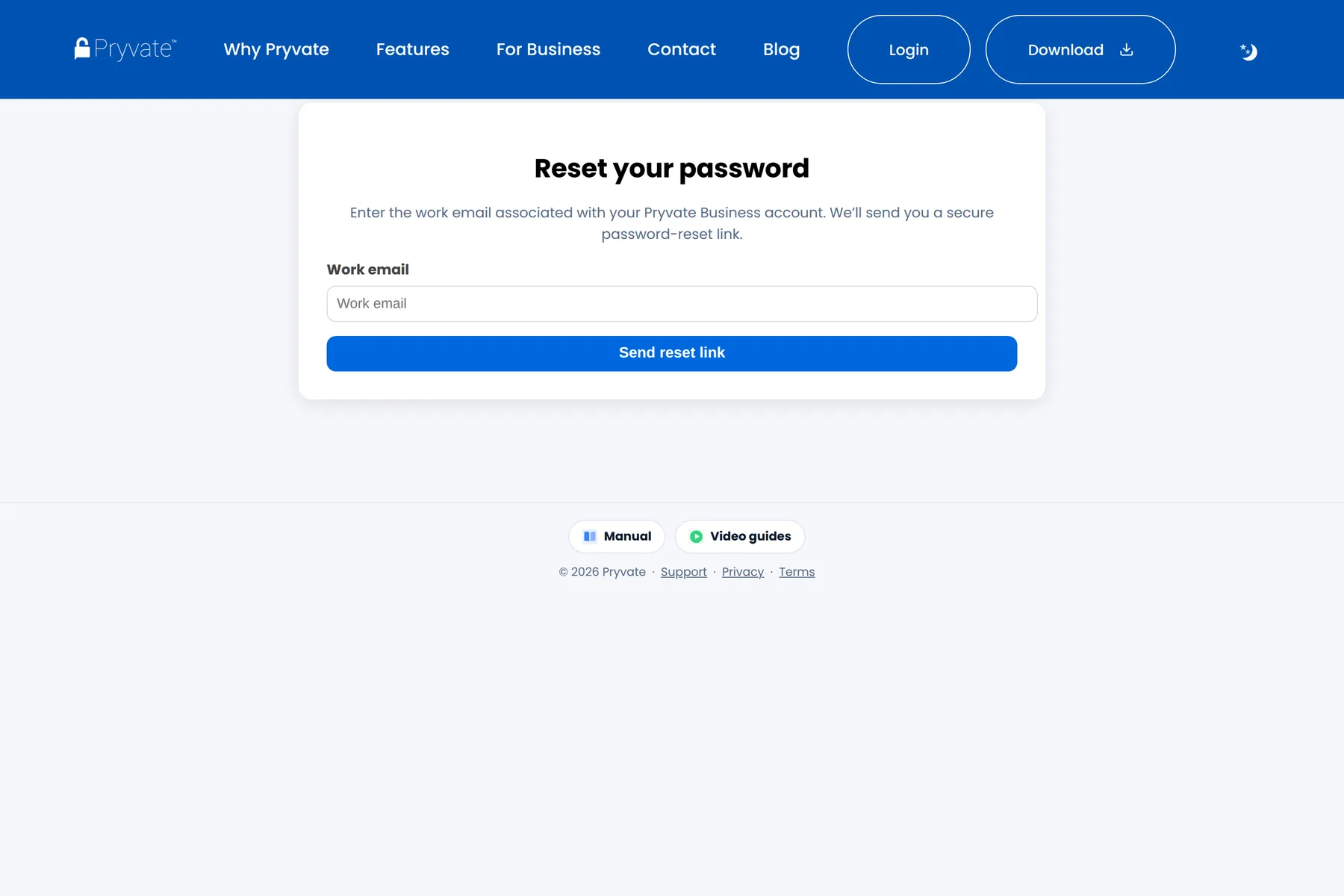
- Choose Forgot Your password? on the sign-in page and enter your account email.
- You return to the sign-in page with a confirmation, and an email titled “Pryvate Business Portal — Password Reset” arrives. It holds a temporary password and a Reset Password link.
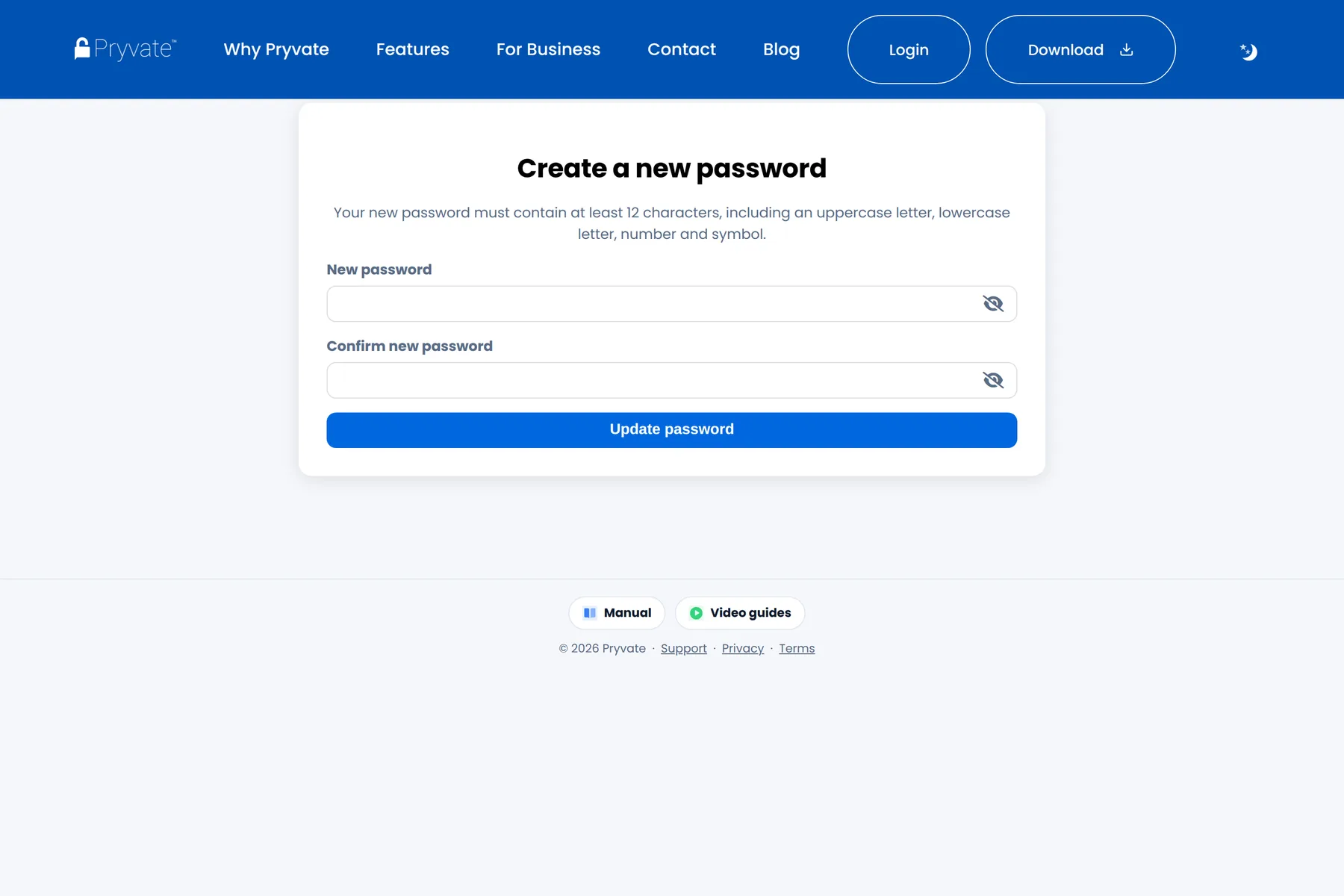
- The link opens the portal's Create a new password page. Choose a new password of at least 12 characters including an uppercase letter, a lowercase letter, a number and a symbol.
- You land back on the sign-in page with confirmation — sign in with the new password.
1.4The dashboard
After signing in you land on the dashboard. A sidebar on the left carries every area of the portal — Overview, Team, Communications, Meetings, Devices, Security, Audit, Usage, Billing, Organisation Settings and Pryvate Control — and the main pane shows the area you have picked. Each area opens with a row of tiles; a tile's Open reveals its panel in place, and the Open all / Close all / Hide tiles buttons act on the whole area at once. The portal remembers, per browser, which panels you keep open.
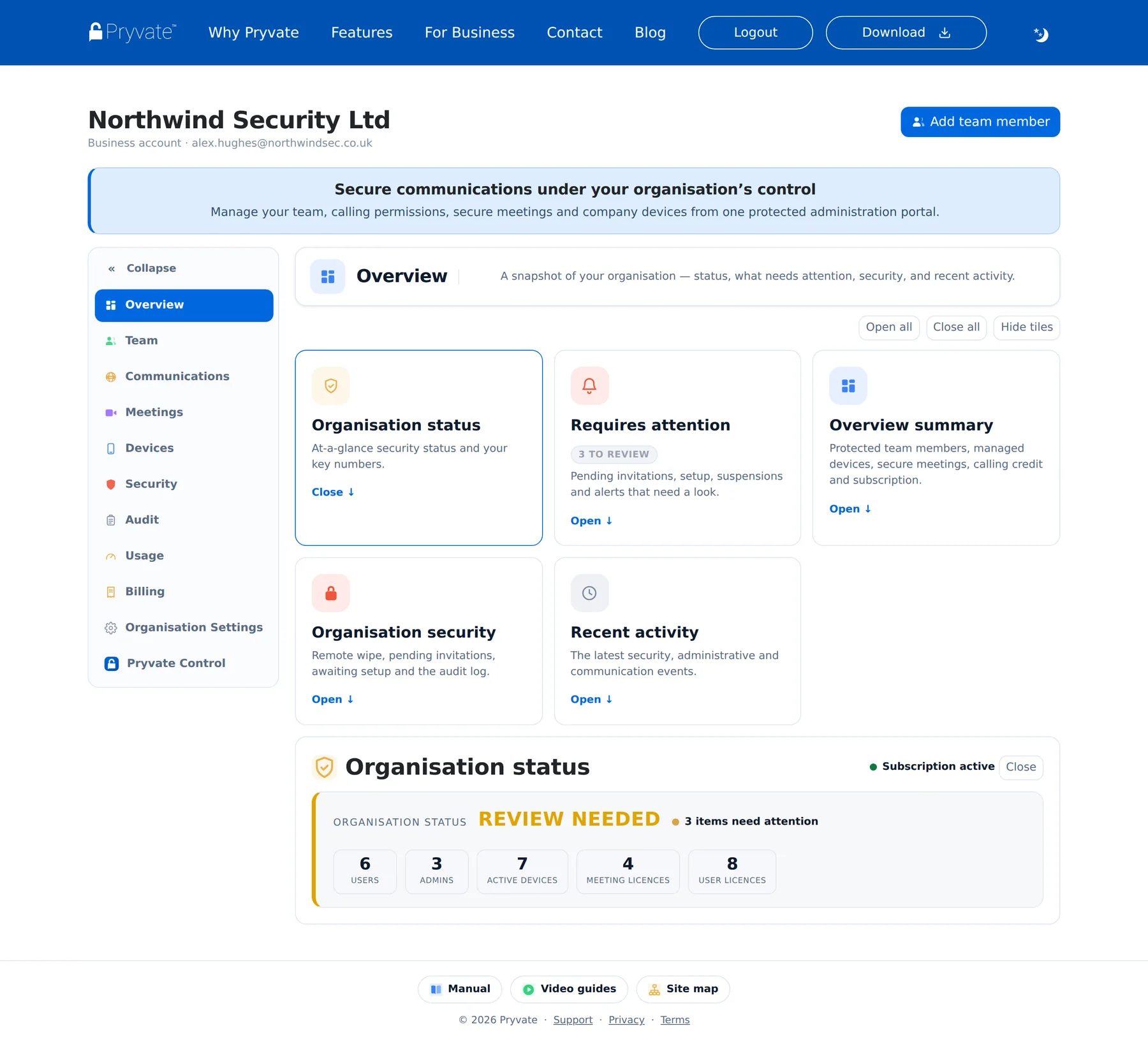
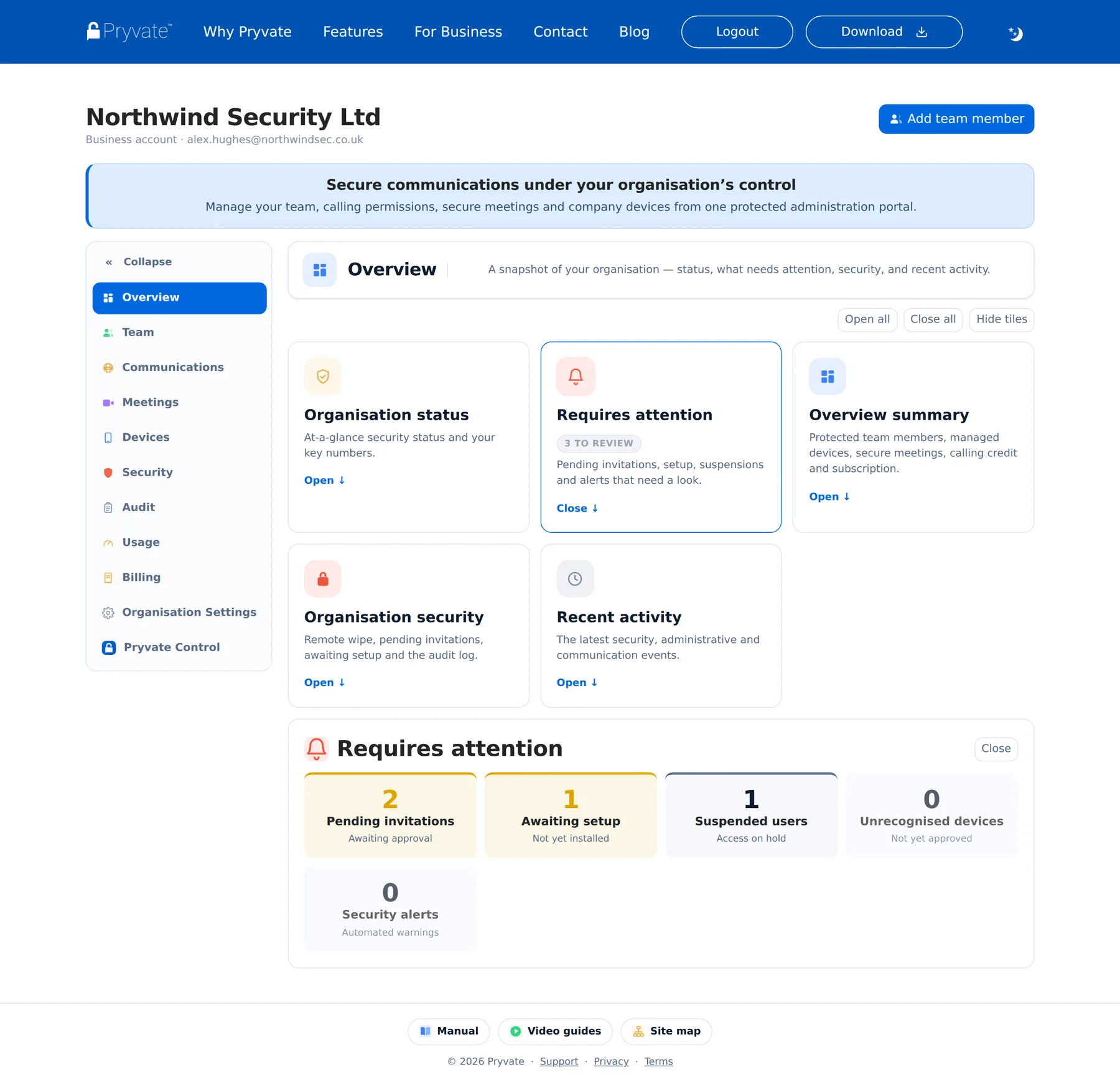
Overview is the daily starting point: the organisation's status strip (users, admins, devices, licences), a Requires attention tile that counts pending invitations, members awaiting setup, suspensions and alerts, a security tile, and the most recent activity. Anything listed there links to the area where you deal with it.
The moon icon at the right of the top bar switches the portal to dark mode on your device; the sun switches back.
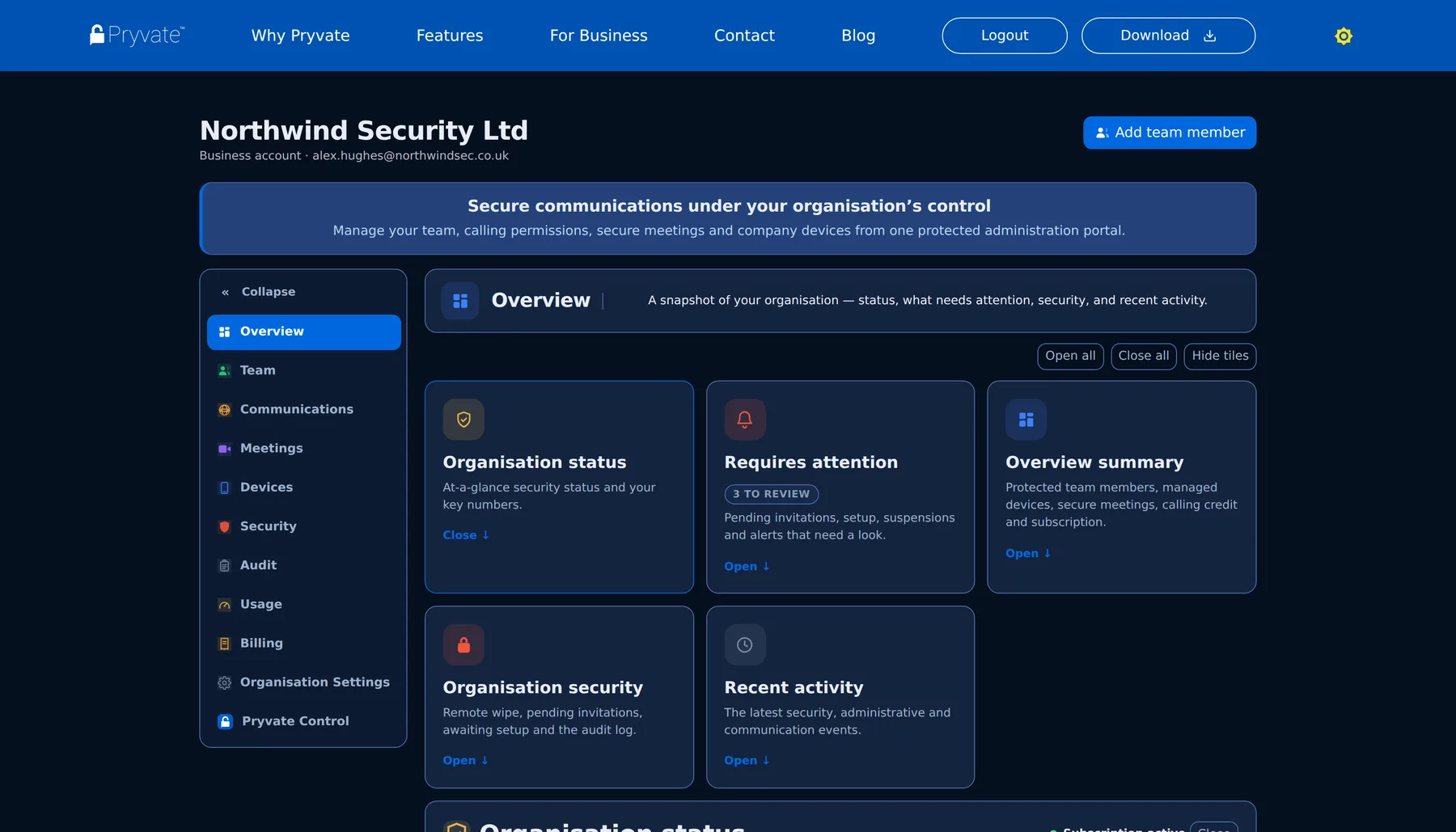
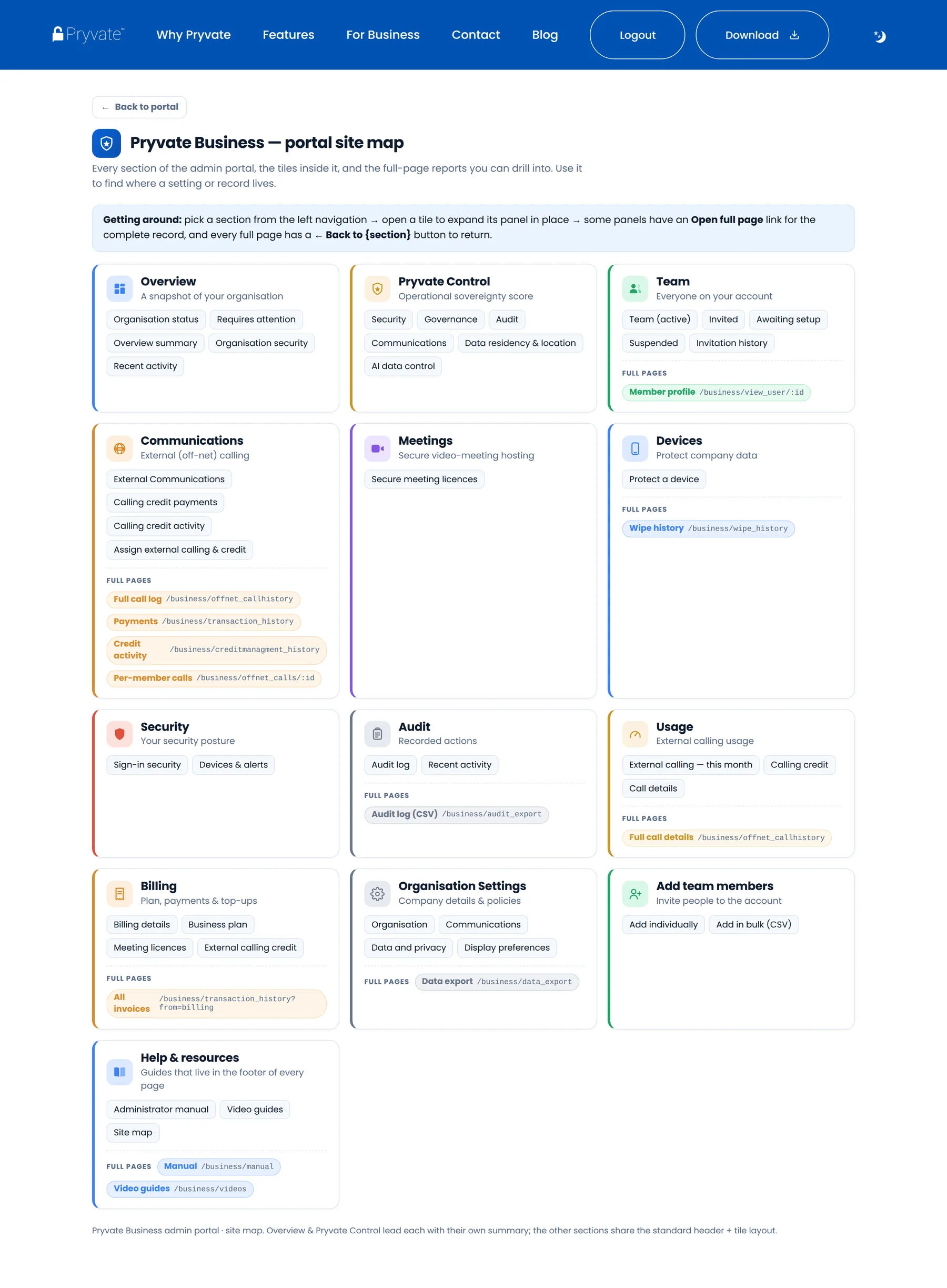
The footer of every page carries the Manual (this document), the Video guides — short walkthrough videos of everything in this manual — and, once you are signed in, a Site map listing every page of the portal. Neither the manual nor the video guides need a sign-in.
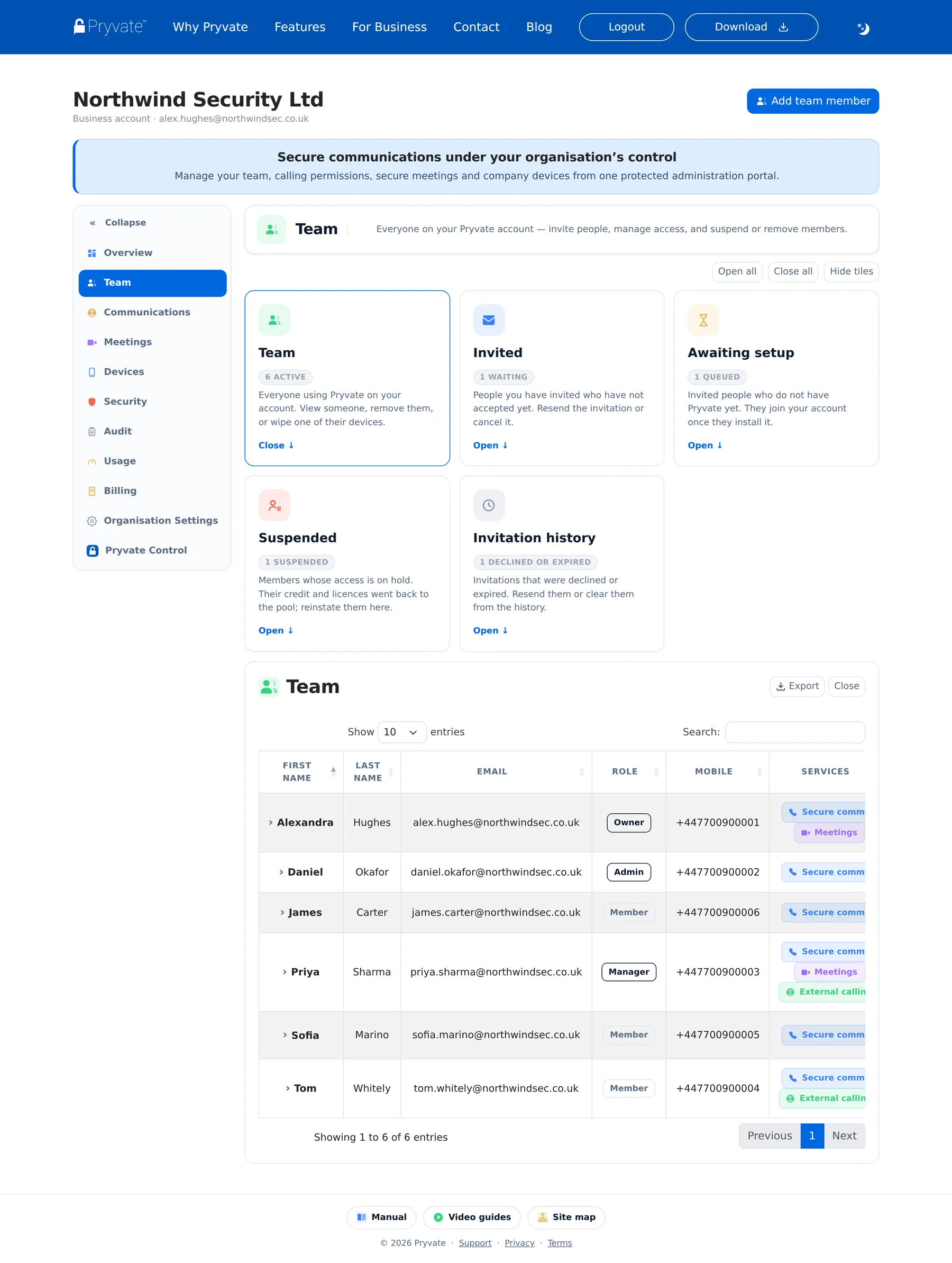
1.5The Team lists
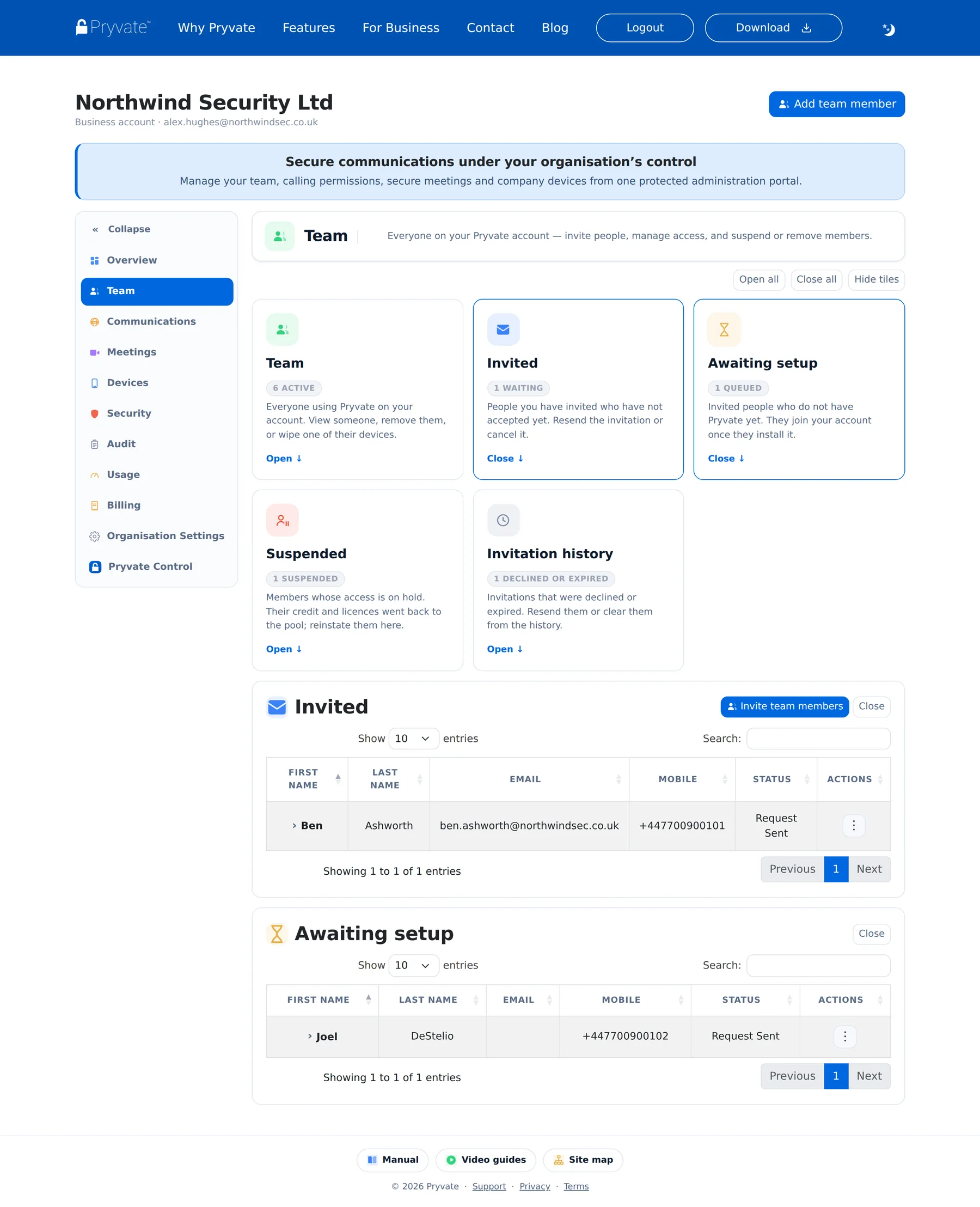
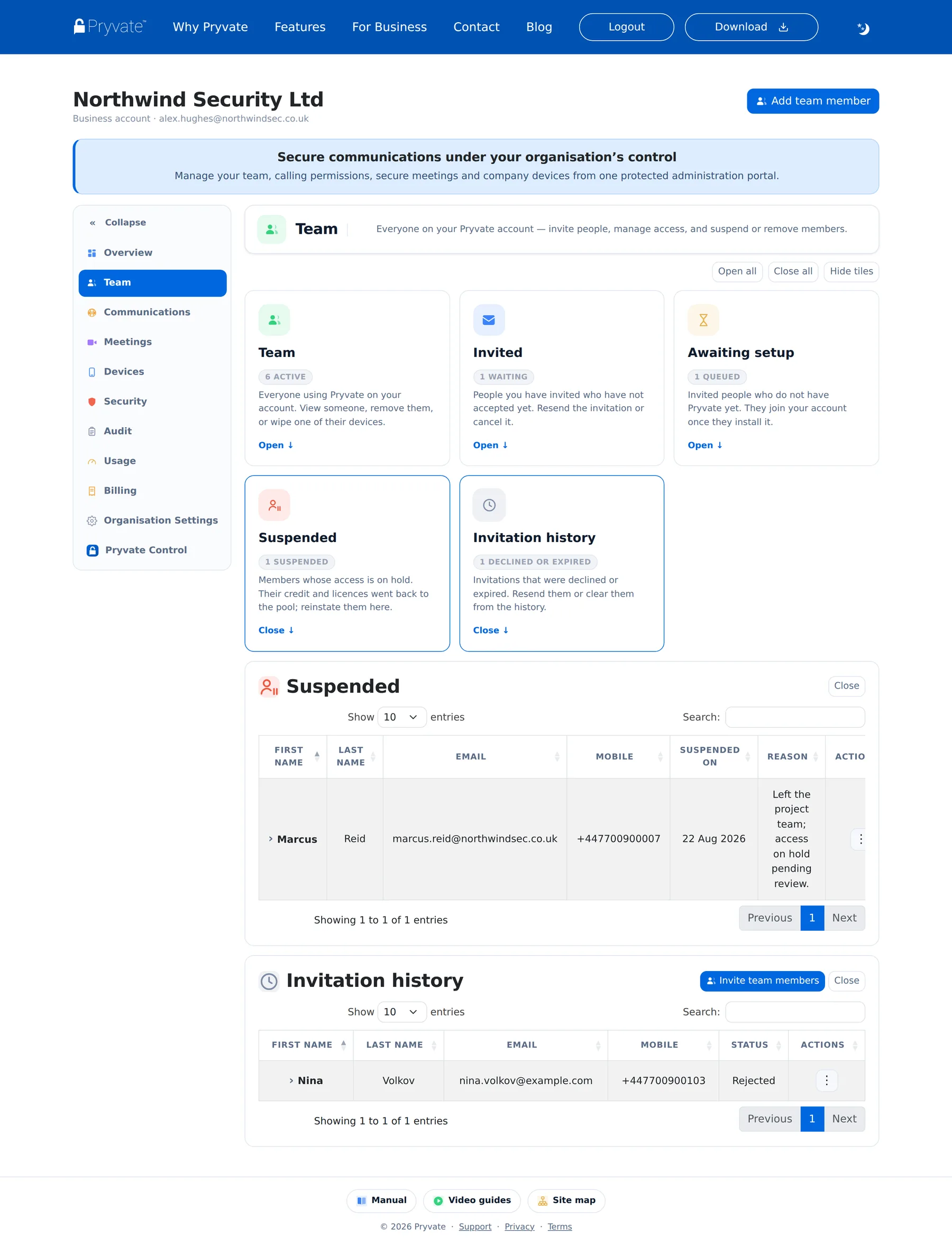
Team is where everyone on your account lives, in five lists. Every list shows the same identifying columns — first name, last name, email, mobile — so people are easy to find wherever they currently sit:
- Team — active members. Role, services, device count, status and the date of their latest external call, with a row menu of actions. Click a name to open their row details; Export downloads the list as CSV.
- Invited — people already on Pryvate whose invitation is waiting for an answer. Resend or delete the invitation from the row menu.
- Awaiting setup — people you invited who are not on Pryvate yet. They join automatically the moment they install the app and register with the invited number.
- Suspended — members whose access is on hold, with when and why. Their calling credit and meeting licence returned to your pools at suspension; reinstate them from the row menu.
- Invitation history — invitations that were declined or expired. Resend one or clear it from the history.
1.6Inviting people one at a time
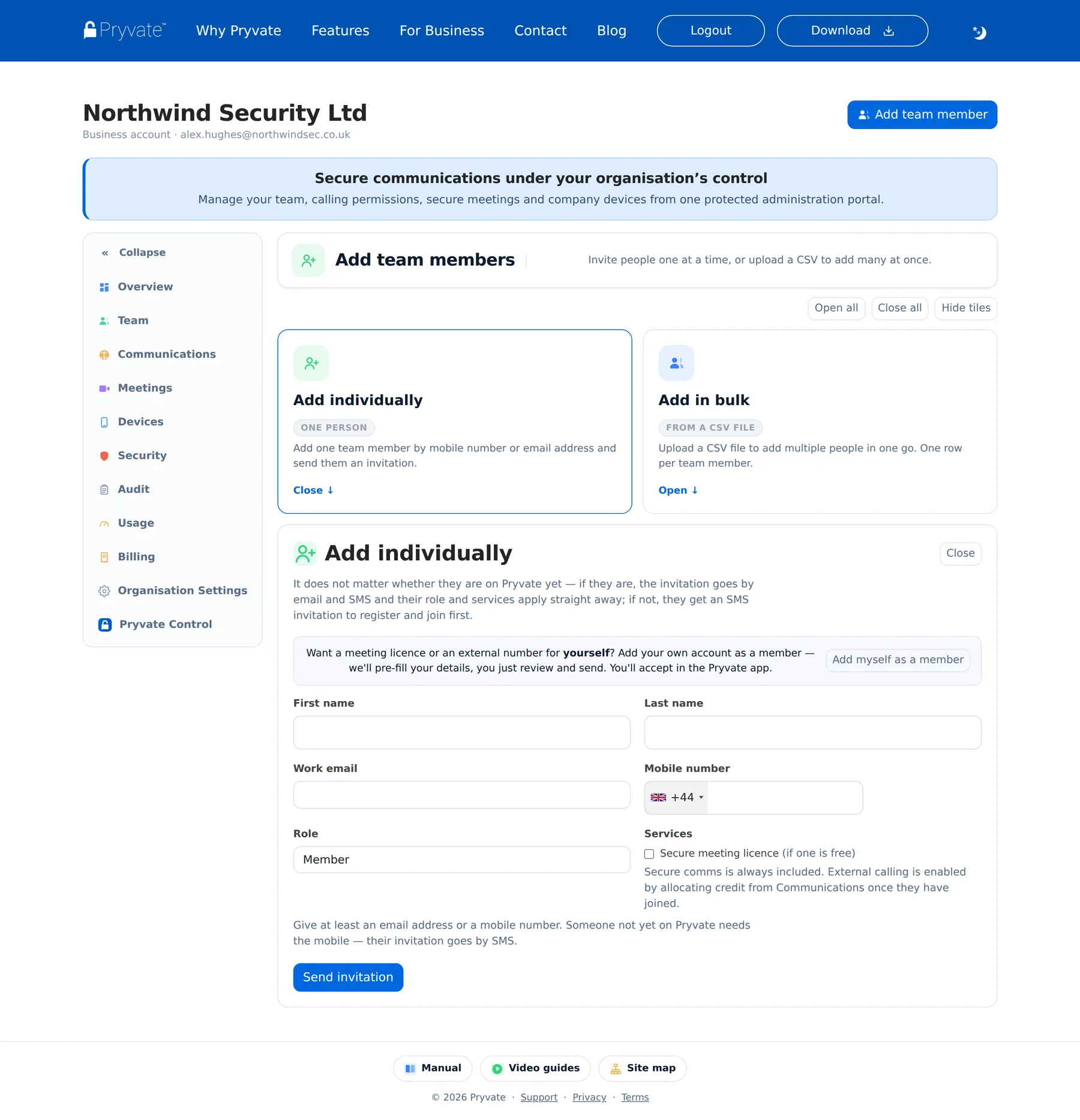
Open Add team members (or the Add team member button at the top of any page) and use Add individually. It does not matter whether the person is on Pryvate yet — the portal works it out and sends the right kind of invitation.
- Enter their first and last name.
- Give at least one way to reach them: a work email, a mobile number, or both. Someone not yet on Pryvate must have the mobile — their invitation goes by SMS. Pick the country with the flag menu and type the number without the leading zero.
- Choose their role — Member, Manager or Admin (section 1.9). Most people are Members.
- Tick Secure meeting licence if they should be able to host meetings and one is free.
- Select Send invitation. Invitations are valid for 24 hours, and a pending invitation holds a seat until it is accepted, declined, expired or deleted.
1.7Inviting people in bulk
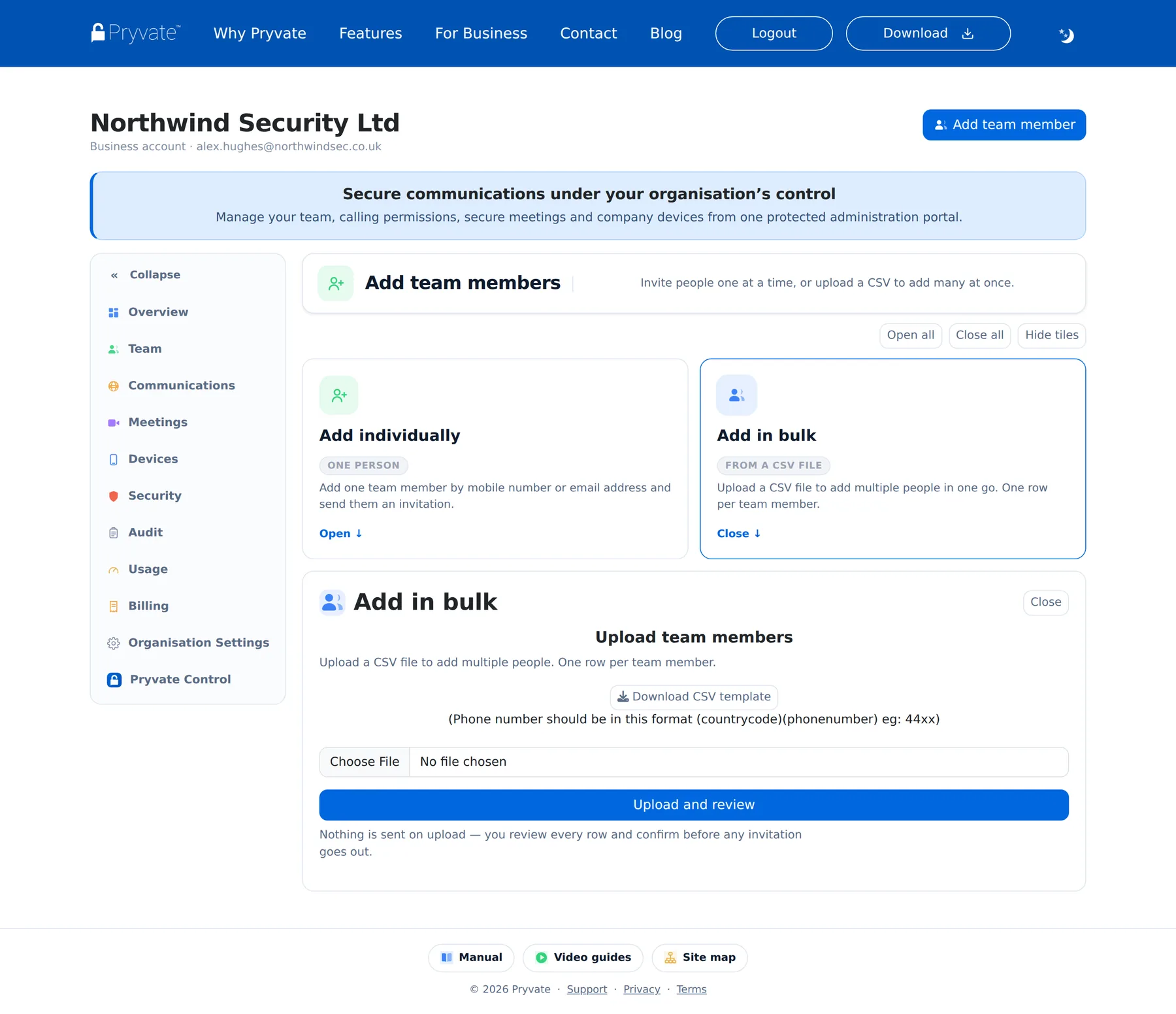
Add in bulk takes a CSV file — one row per person — and is a two-step, review-before-send flow. Download the template from the panel, fill it in, upload it, and the portal validates every row: duplicates inside the file, people already on an account, missing names, badly formatted numbers and seat limits are all flagged with a plain-English note per row. Nothing is sent yet.
When the preview looks right, confirm it and the portal sends every valid invitation in one go — email and SMS for people already on Pryvate, SMS for those who are not. Cancel discards the upload without sending anything.
447700900123.1.8What the person you invite sees
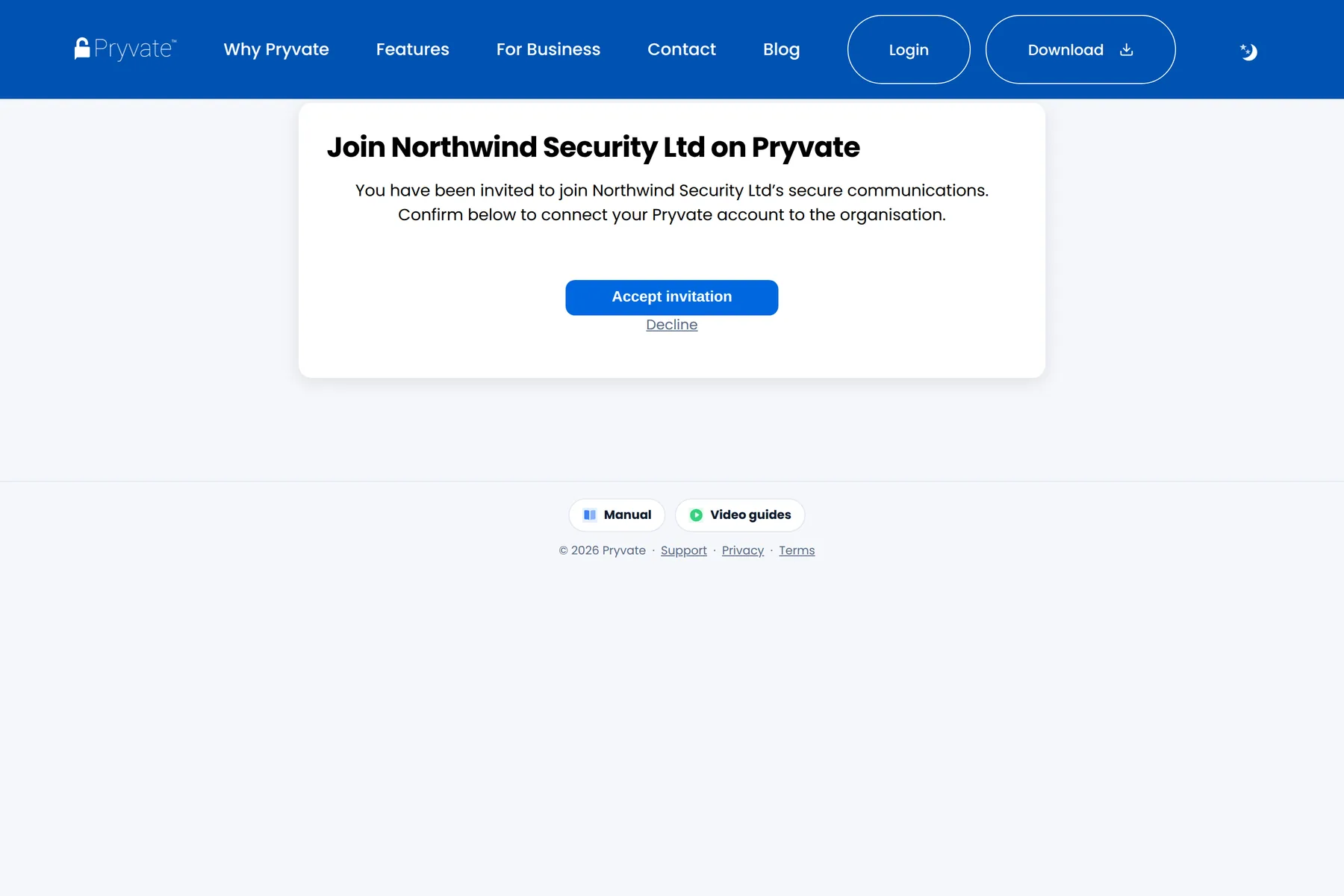
Already on Pryvate: they get an email and an SMS with an acceptance link. The link opens a page naming your company, where they prove they are human and choose Accept invitation or Decline. Accepting connects their existing Pryvate account to your organisation — they keep their number and their contacts; your company simply pays for the account from then on.
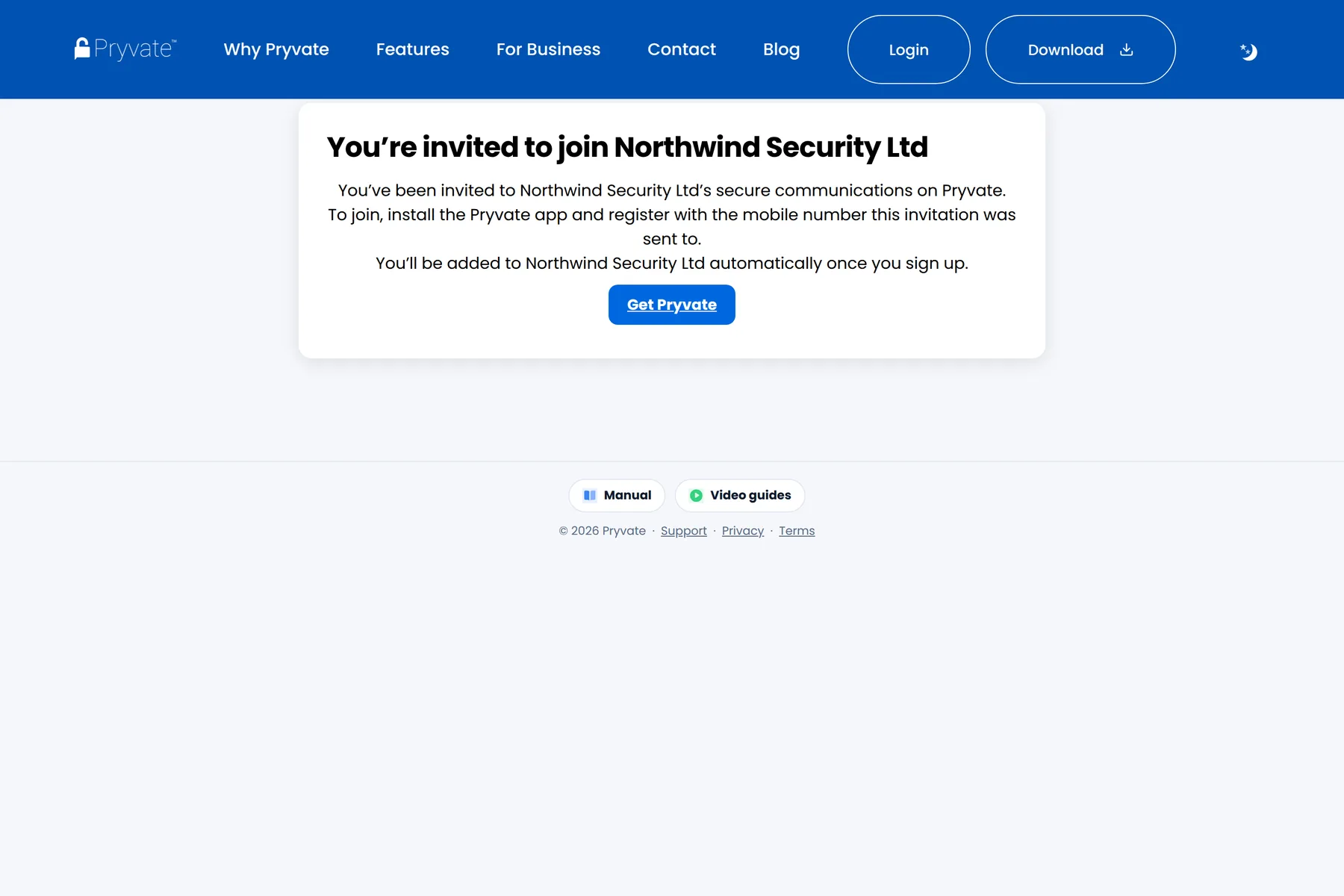
Not on Pryvate yet: their SMS link opens a page inviting them to install the app. They download Pryvate, register with the mobile number the invitation was sent to, and are added to your organisation automatically the moment registration completes — no further acceptance step. Until then they sit on your Awaiting setup list.
1.9Roles: Owner, Admin, Manager, Member
Administrator is used in this manual as a general term for someone authorised to administer part or all of Pryvate Business. Owner, Admin and Manager are specific Pryvate Business roles.
Every person on the account holds one role, shown on their row in the Team table and on their profile:
| Role | Who it is | What they can do |
|---|---|---|
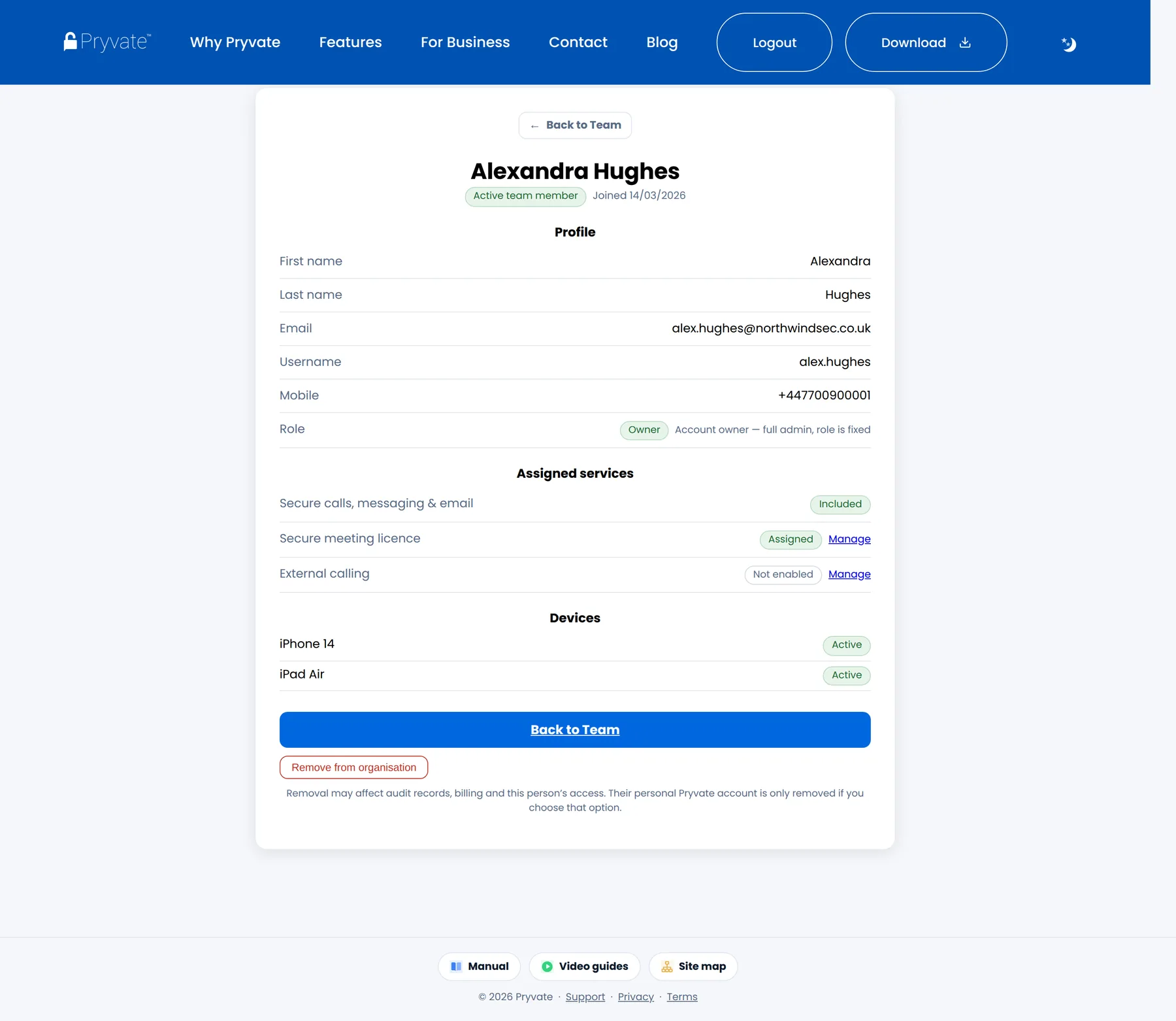
| Owner | The account itself — the identity the company registered with. If the owner self-invites (section 1.6), their member row is badged Owner. | Everything, including Billing and Organisation Settings. The owner's role is fixed — it cannot be demoted, made a manager, or edited by anyone. |
| Admin | Members you promote to Admin. | Full run of the portal alongside the owner. |
| Manager | A member given a restricted portal login of their own. | Only the portal sections you tick for them — never Billing or Organisation Settings (section 1.10). |
| Member | Everyone else. | Uses the Pryvate app; no portal access. |
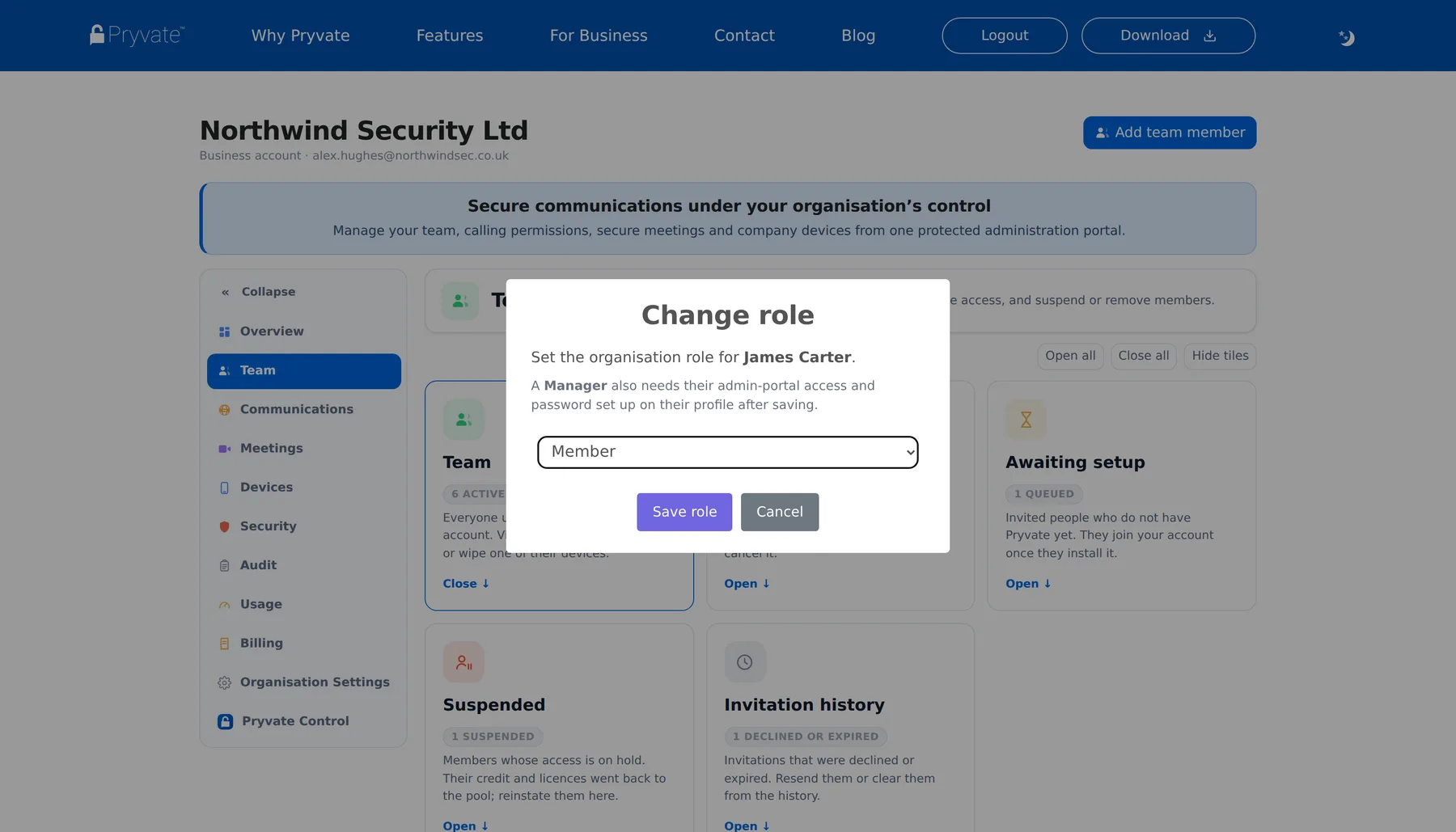
Change a role either from the member's profile page, or straight from the Team table: open the row menu (⋮) and choose Change role. A member's profile only shows the Manager-access sections while Manager or Admin is selected.
1.10Manager access to this portal
A Manager is a member who also signs in to this portal, limited to the sections you allow. Typical use: a team lead who invites people and hands out calling credit, without seeing Billing.
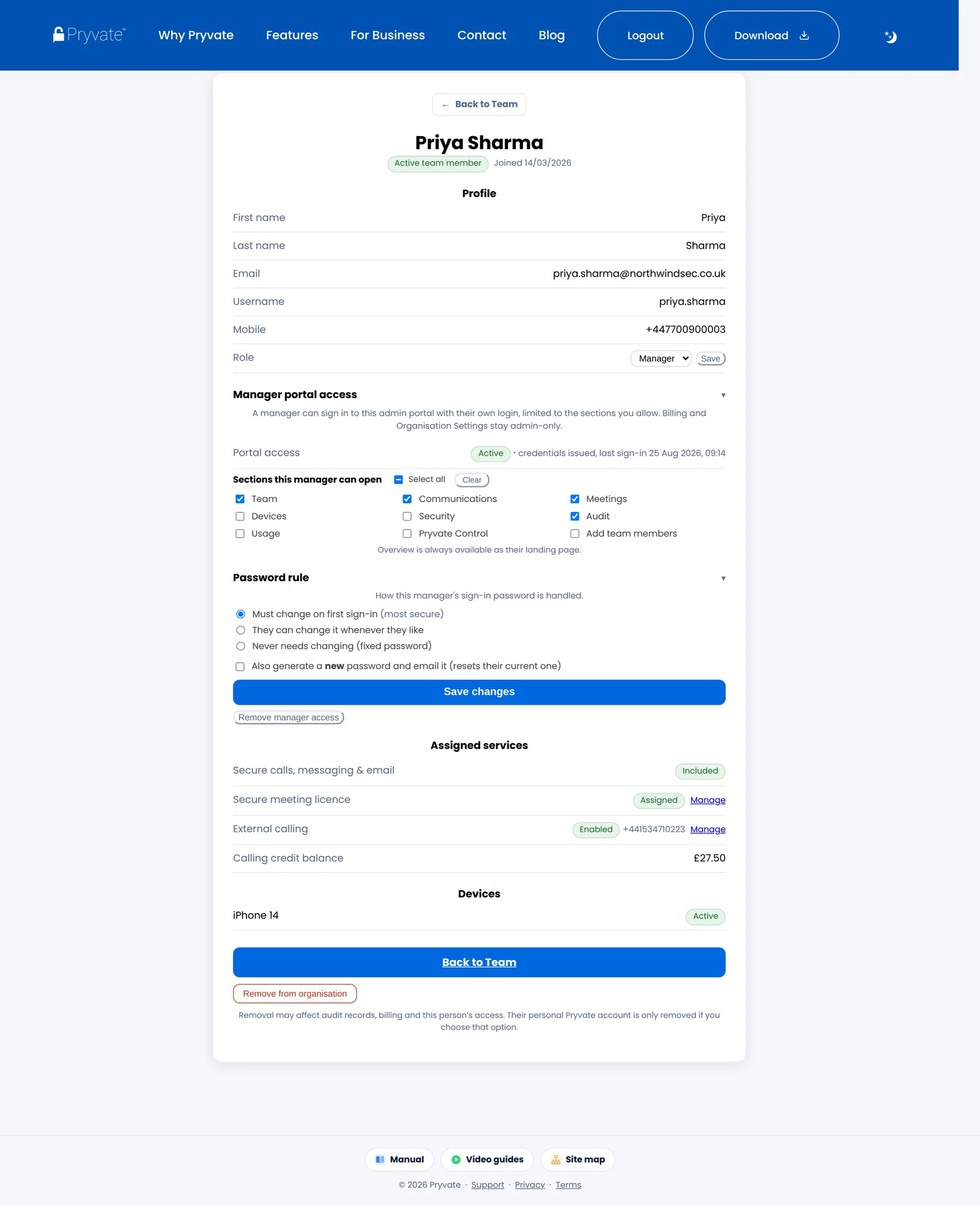
- Open the member's profile and set their role to Manager. The Manager portal access and Password rule sections appear (both collapsible).
- Tick the sections this manager may open — Team, Communications, Meetings, Devices, Security, Audit, Usage, Pryvate Control, Add team members. Select all and Clear do what they say; Billing and Organisation Settings are never offered.
- Choose their password rule: must change it on first sign-in (most secure), can change it whenever they like, or a fixed password that never changes.
- Save. The portal generates a 12-character password and emails their sign-in details to their work email.
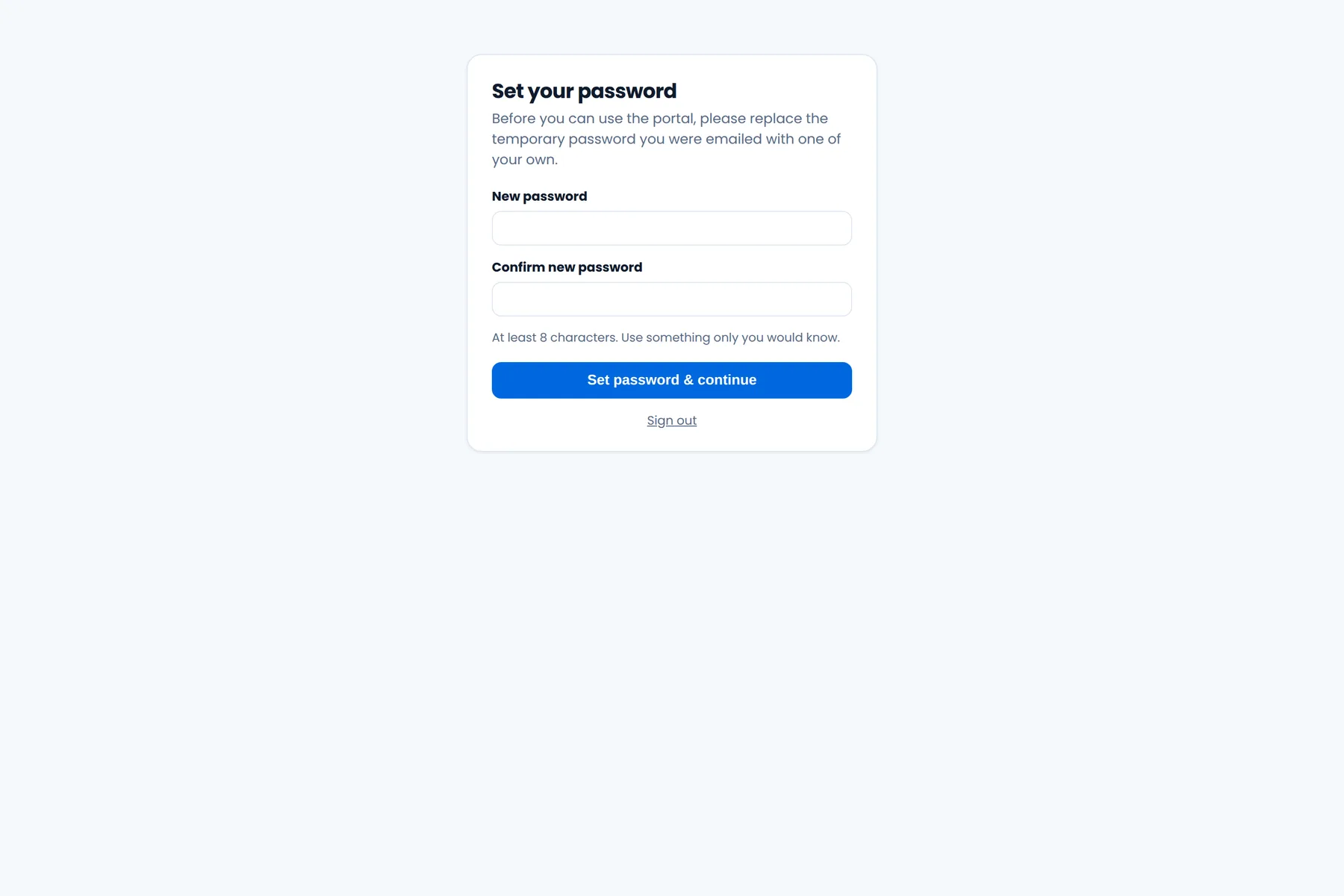
The manager signs in on the normal Business sign-in page. If their rule says so, their first sign-in forces them to set a password of their own before anything else opens. Inside the portal they see only the sidebar sections you allowed; everything else answers that the area is admin-only. Remove manager access on their profile sets them back to an ordinary member.
1.11Managing a team member
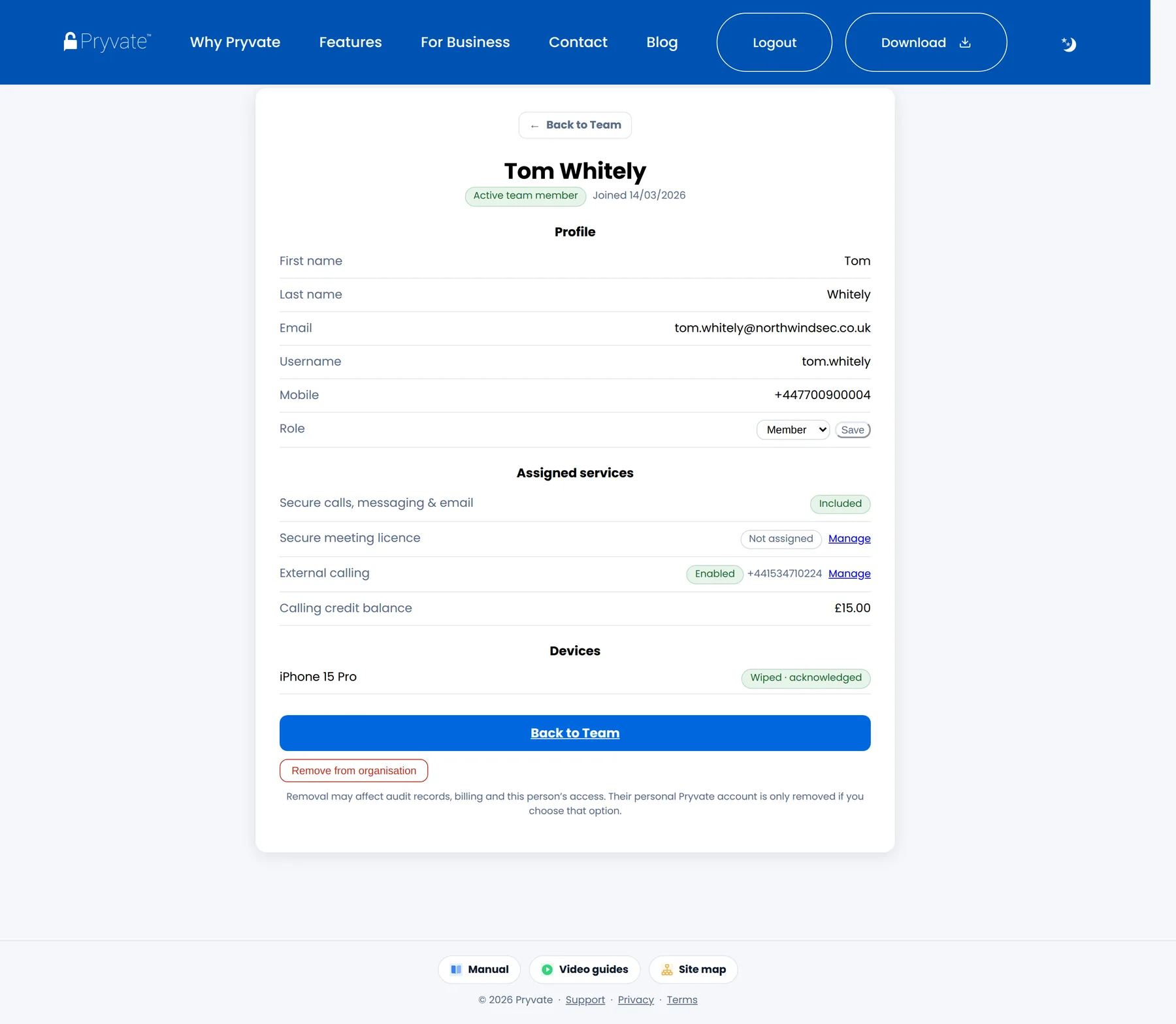
Click a member's name in the Team table for their row details, or choose Full profile for their page: contact details, role, assigned services (meeting licence, external calling and its number, calling credit balance), registered devices and their wipe status, and the removal actions.
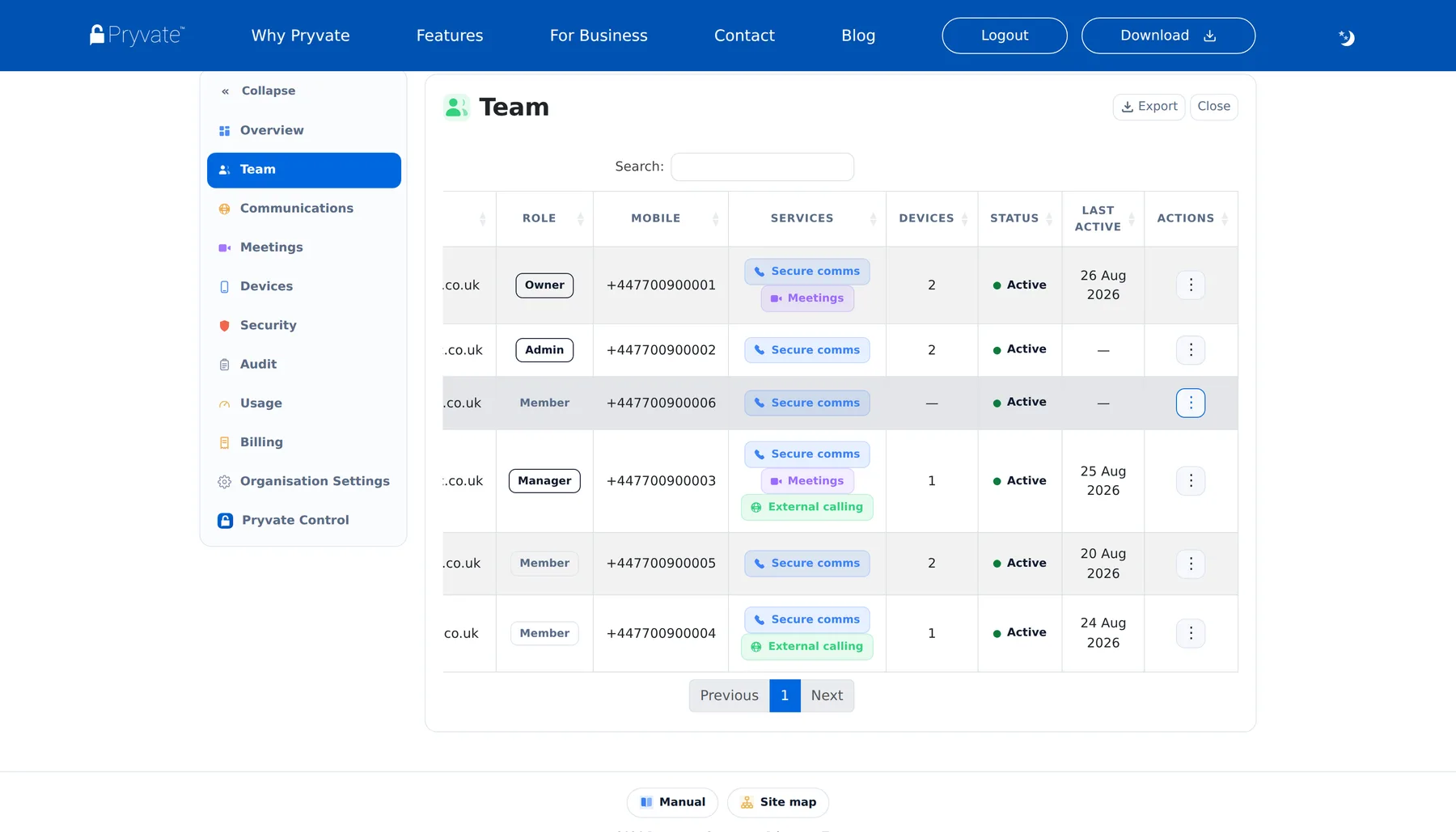
The row menu (⋮) on the Team table carries the quick actions: view details, change role, assign services, manage devices, suspend access, and remove from the organisation.
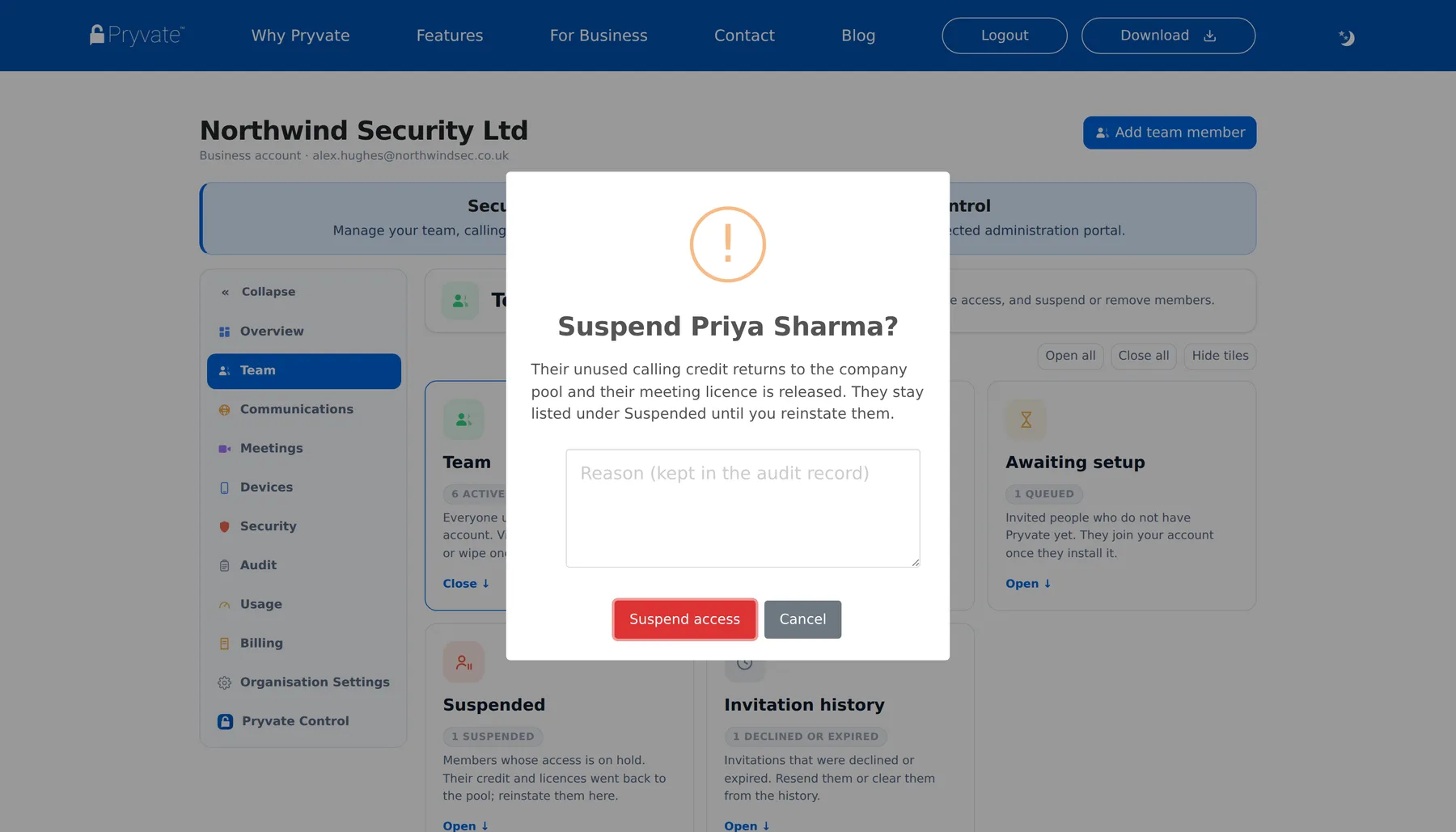
Suspending
Suspend access puts a member on hold without removing them: their unused calling credit returns to the company pool, their meeting licence is released, and they move to the Suspended list with the reason you give (kept in the audit record). Reinstate brings them back — re-assign credit and licences afterwards.
Suspension is a state, not an erasure: the membership and its history remain, and it is fully reversible — removal (below) is not. It blocks the member's access to Pryvate Business — your organisation's services — but does not stop them signing in to the standard Pryvate app as a private individual. A remote-wipe request already sent, or sent while they are suspended, remains valid throughout.
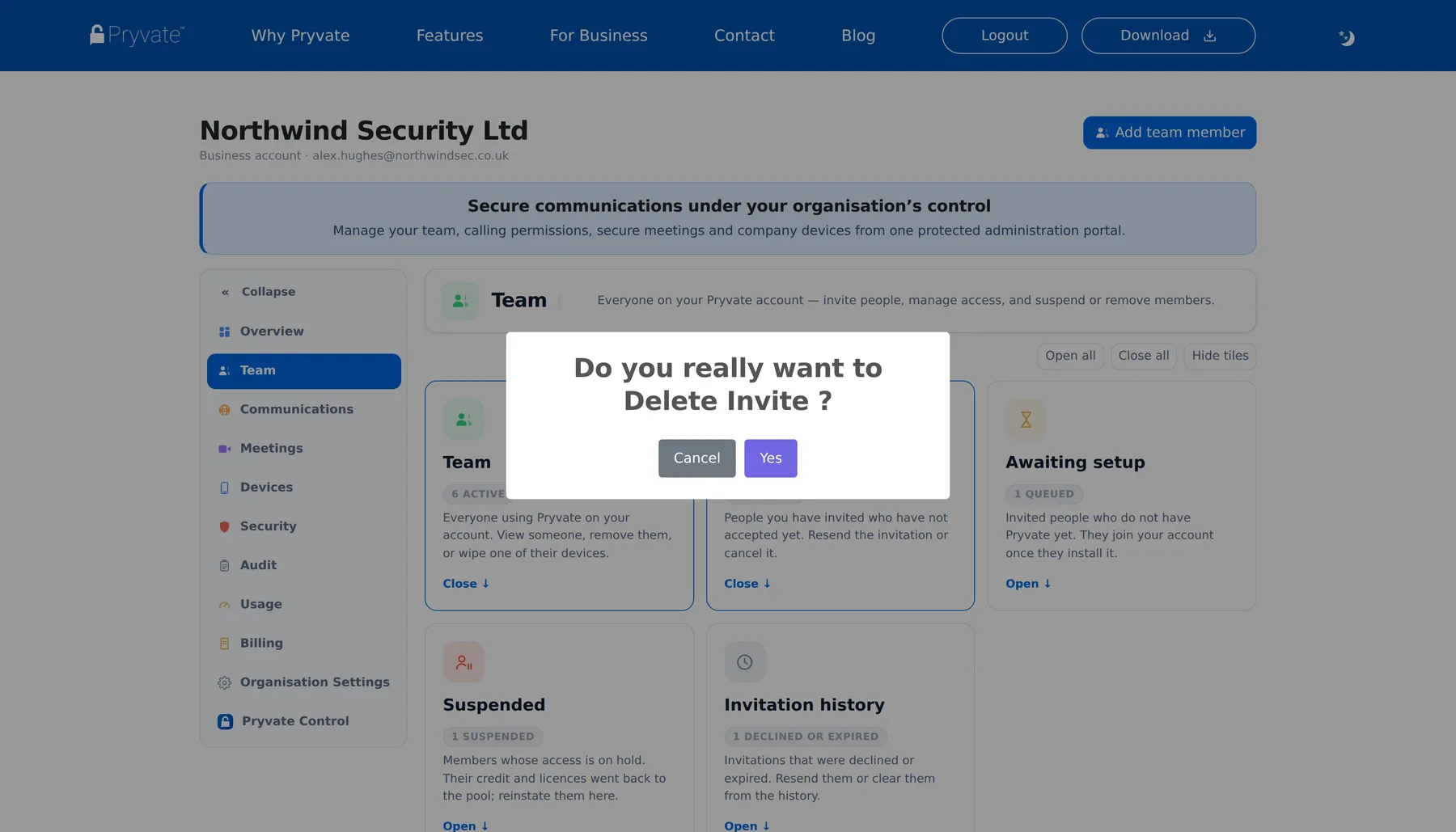
Deleting an invitation
On the Invited or Awaiting setup lists, the row menu's Delete invitation withdraws a pending invitation and frees its seat. The portal confirms before deleting and reports “Invitation deleted” when done.
Removing
Remove from organisation frees the member's seat and leaves their personal Pryvate account intact — choose Also delete Pryvate account only if the account itself should be destroyed. Removal cannot be undone from the portal. The administrative record survives it: the member's suspensions, wipes and other logged actions stay in Audit after they are gone.
Offboarding a leaver
When somebody leaves, four things return to organisational control — Access, Devices, Resources, Record — and the order matters. Confirm each step's outcome before the next:
- Verify first. The person, the effective time, and what your policy authorises. Not every departure carries the same urgency — a routine leaver, an immediate risk and a disputed exit each follow your organisation's own process.
- Access — suspend. Their access stops at once, reversibly; unused credit and their meeting licence return to the pool, and your reason is kept in the audit record.
- Devices — wipe where authorised. Send a remote wipe for each registered device that holds company data (section 1.14). The request stays valid while they are suspended and completes when the device next connects.
- Resources — confirm the recovery. The credit and licence counters show what suspension returned to the pool; their external number is released at removal (or when you unassign it).
- Record — remove per policy. When your policy calls for full removal, open their profile and choose Remove from organisation (their personal Pryvate account is only deleted if you explicitly choose that). Then confirm the final status in Team, and review Audit — the suspension, the wipe and the removal all remain on the record.
1.12External calling & credit
Communications is where team members get the ability to call ordinary phone numbers, paid for from one company credit pool. Top up the pool under Billing; the summary strip shows the organisation balance, what is allocated out, what remains, and how many people have external calling switched on.
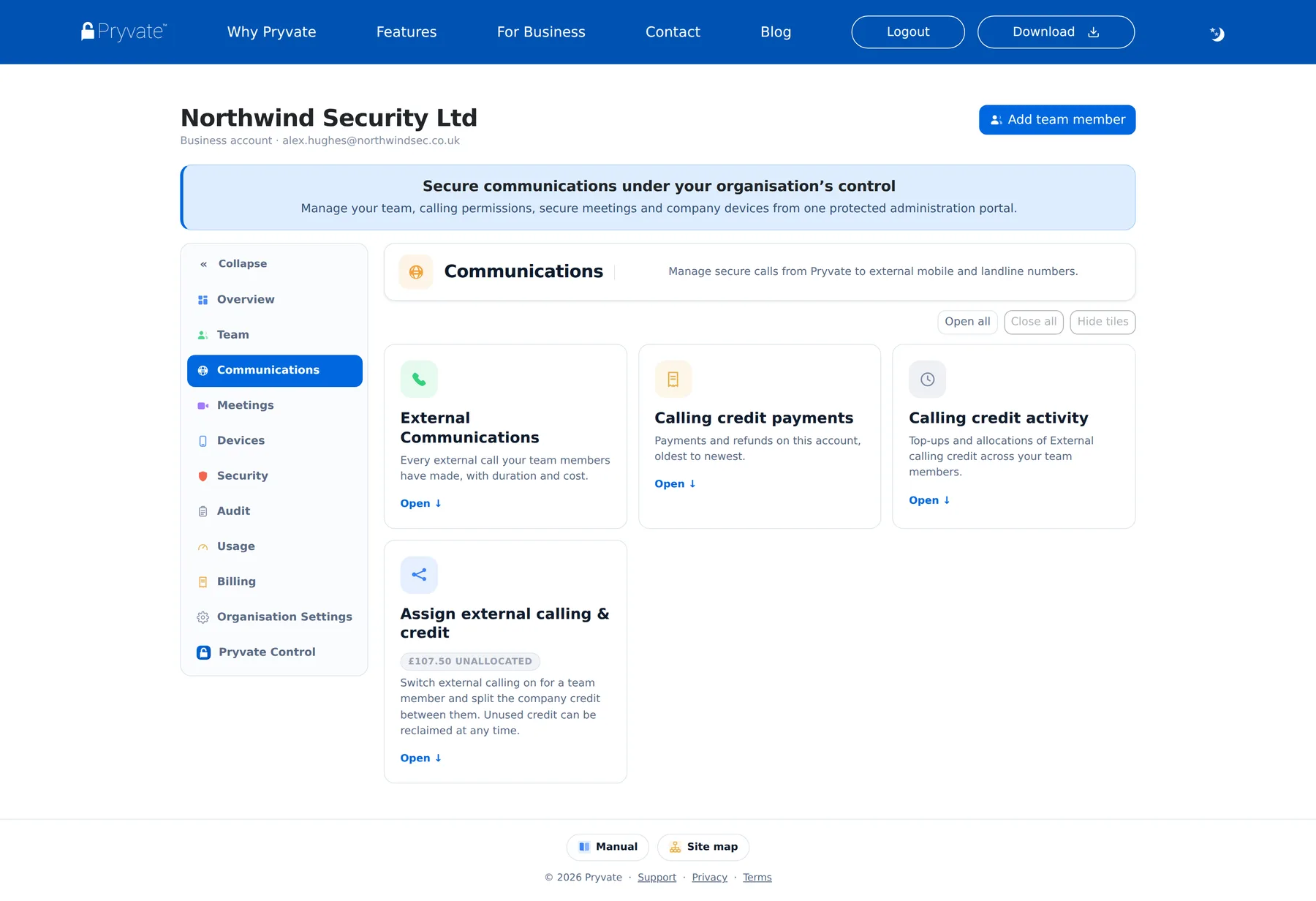
Open Assign external calling & credit for the member table: an On/Off pill per person, their external number (DDI), their balance, and the actions.
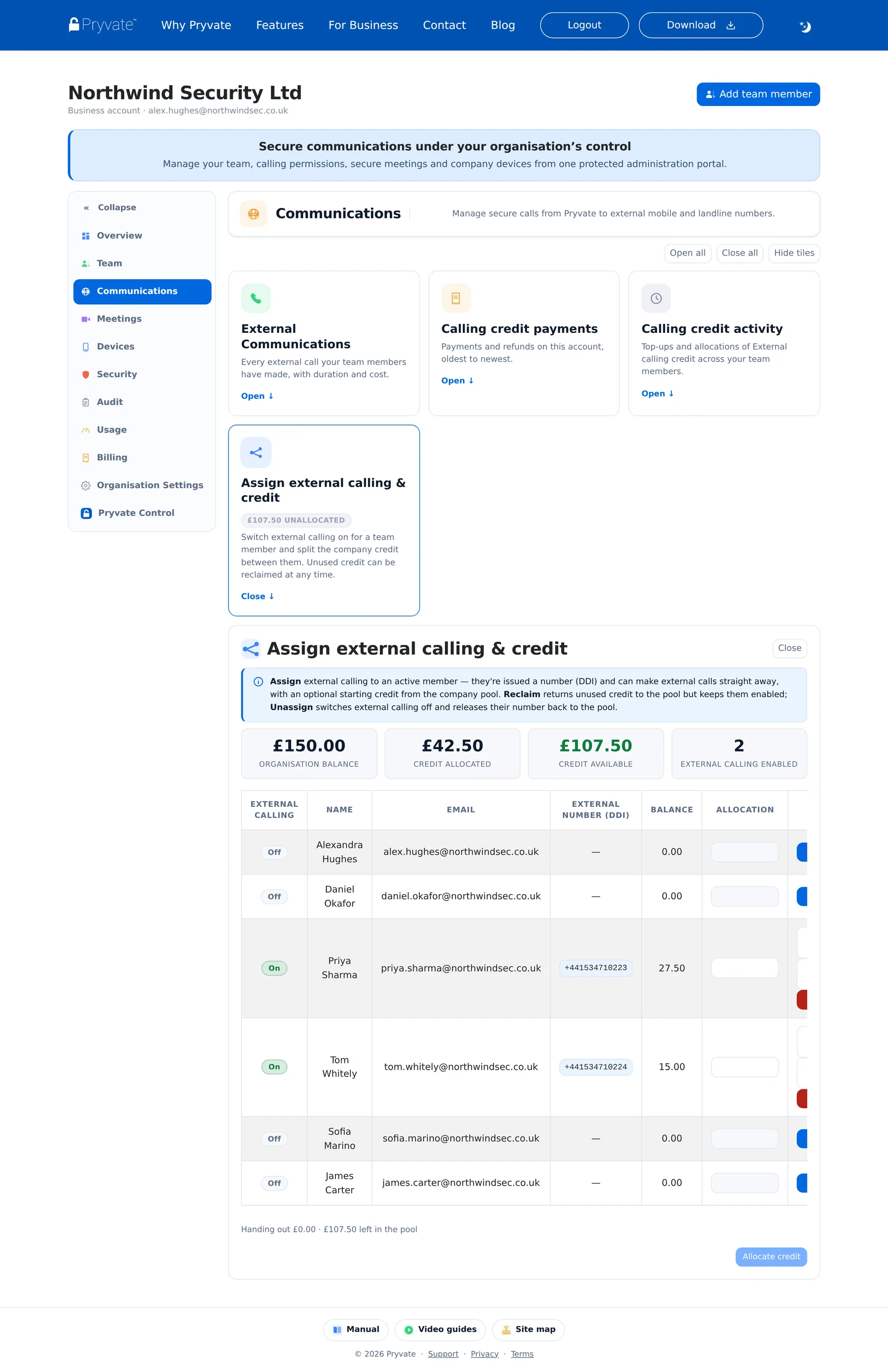
The four actions
- Assign — switches external calling on for an active member: the portal claims a spare external number (DDI) for them, sets an optional starting credit from the pool, and they can make external calls straight away. The number may show Pending for the first few minutes.
- Allocate credit — the amount boxes on assigned rows top up members' balances from the pool; Allocate credit saves the lot. Each allocation is capped per member — set the cap under Organisation Settings, and the portal warns you before saving an amount that would exceed it.
- Reclaim all / Reclaim part — pulls unused credit back to the pool. Reclaim all takes the member's whole remaining balance; Reclaim part takes exactly the amount you enter and leaves the rest with them. Either way the member keeps external calling and their number, and anything already spent stays spent.
- Unassign — switches external calling off entirely: their number is released back to the shared pool and any remaining credit returns to the company. This cannot be undone — assigning again issues a fresh number.
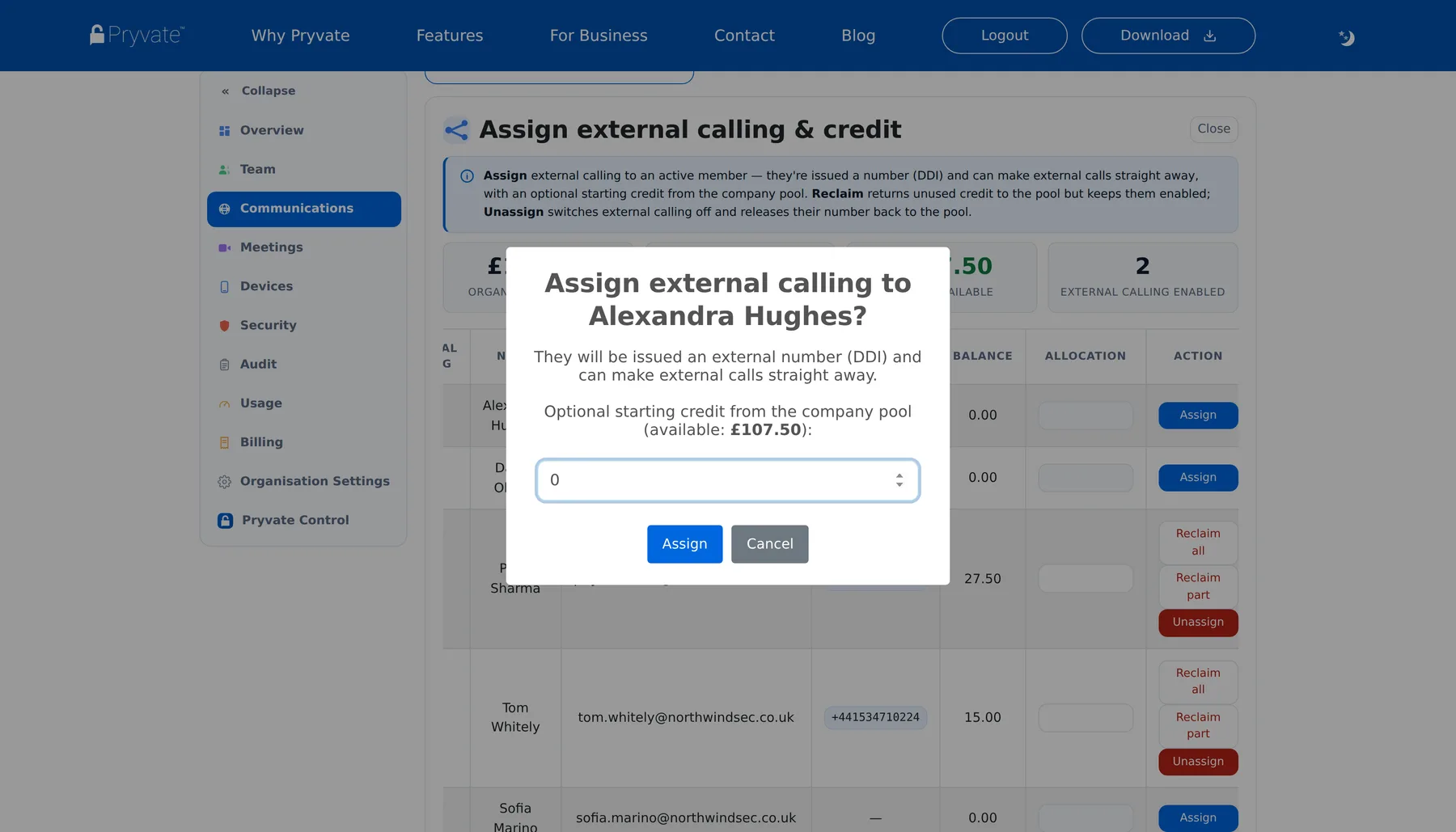
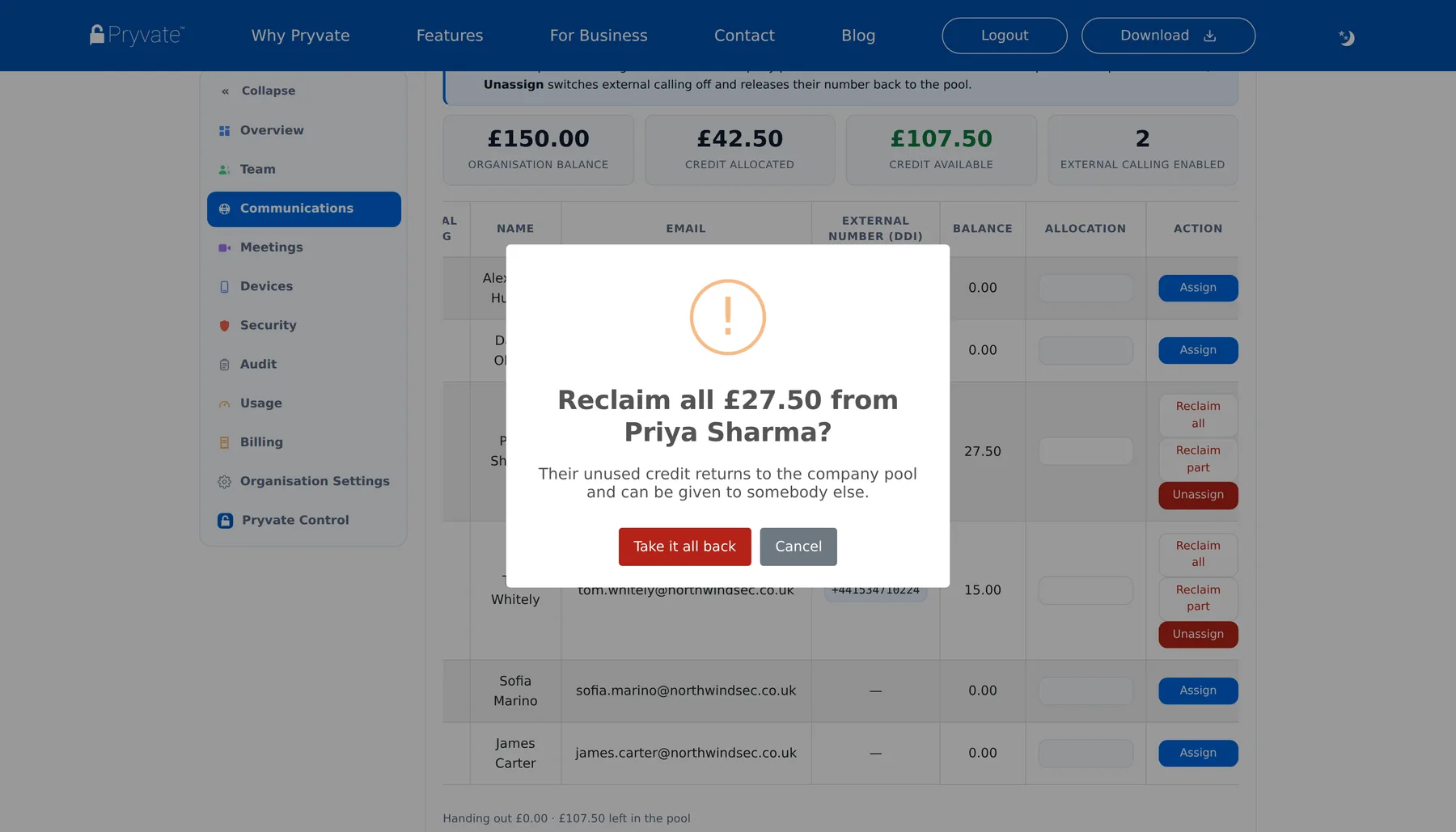
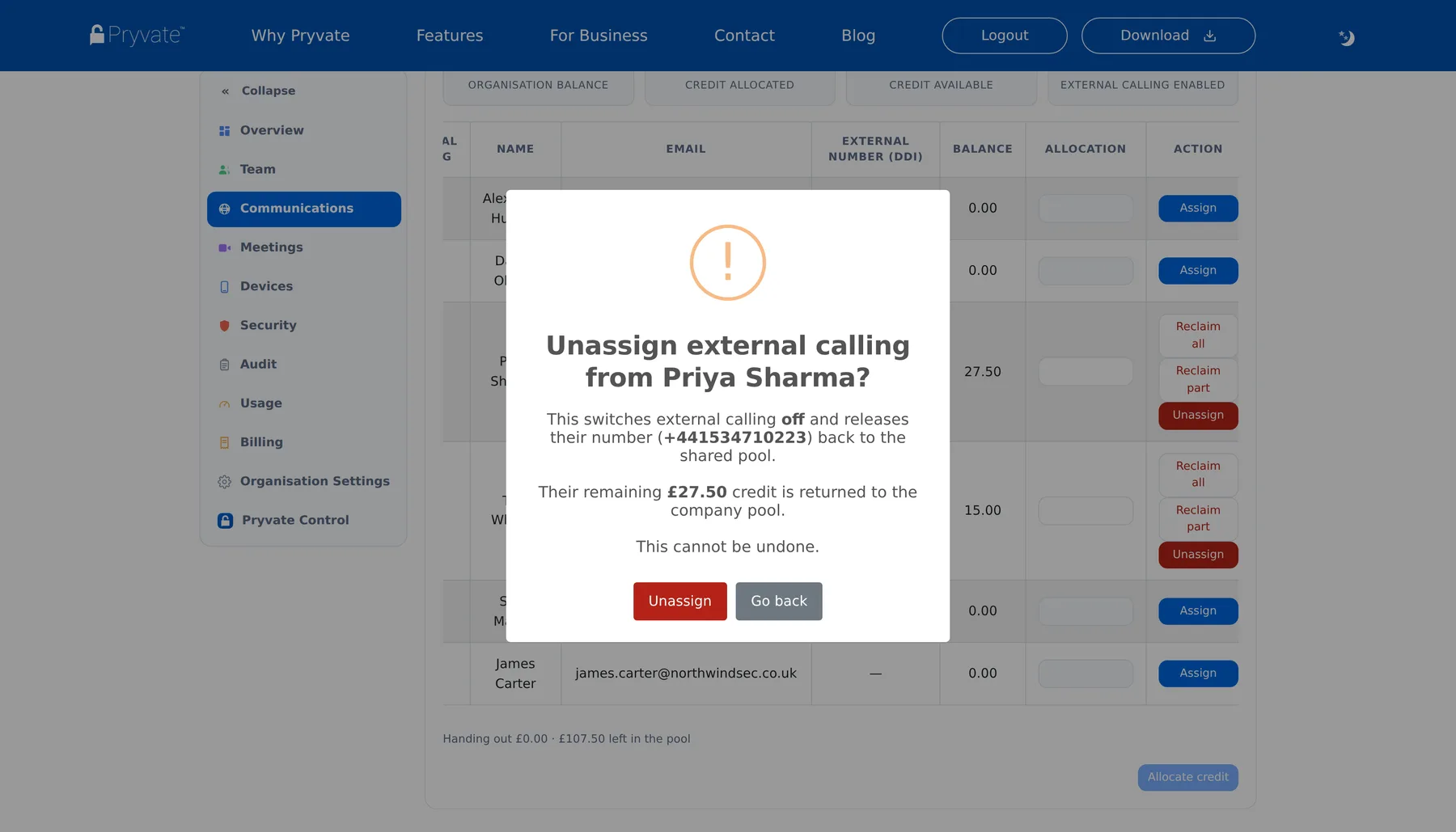
Every assign and unassign is logged with member, number, credit and timestamp, so a call on any external number can always be traced to whoever held that number at the time (section 1.16). External calling can be switched off organisation-wide under Organisation Settings.
1.13Secure meeting licences
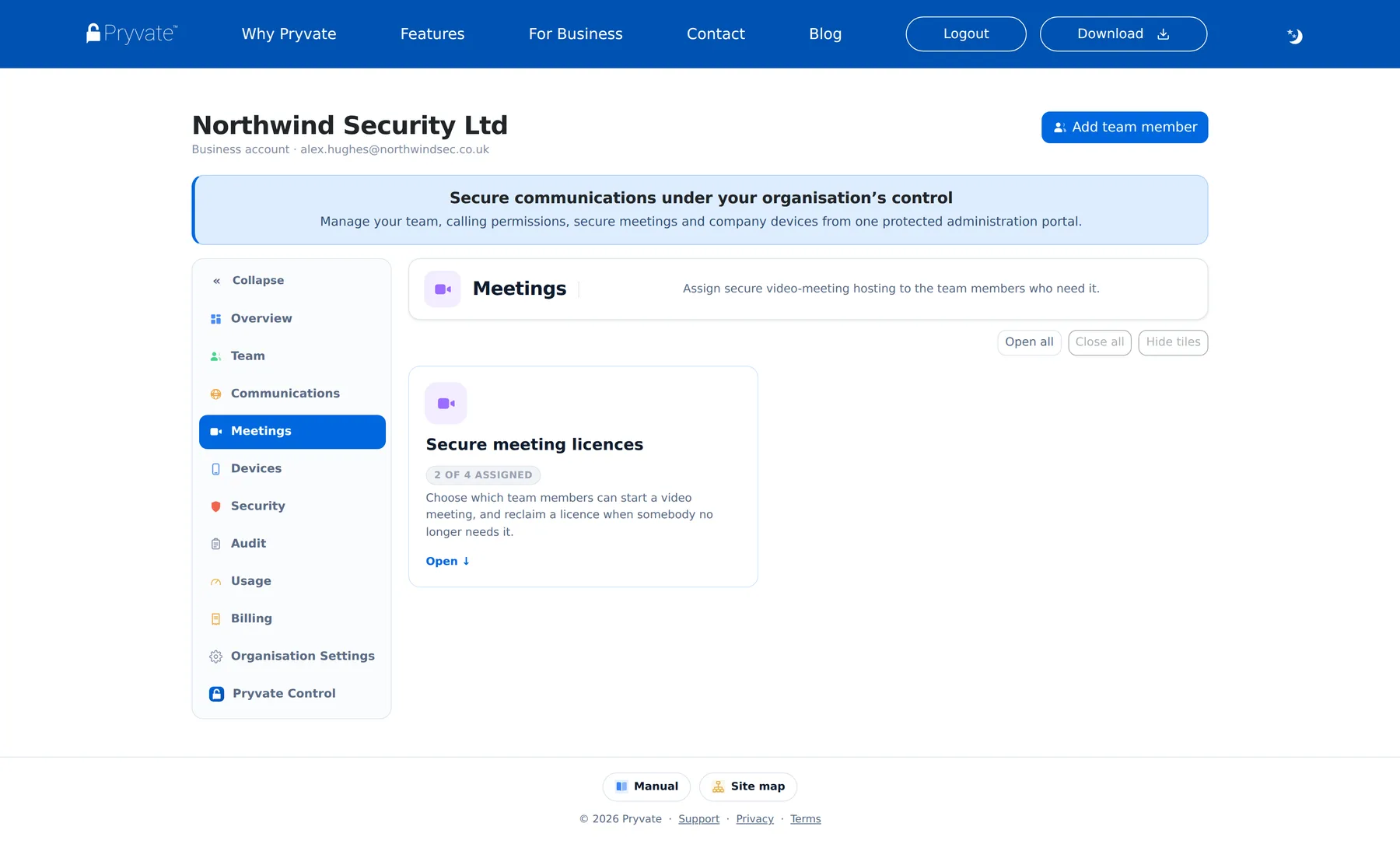
Anyone on your account can join a secure video meeting; a meeting licence (host seat) is only needed to start one. Meetings shows how many licences you have bought, hold and have free, with a member table to Give seat or Reclaim licence per person. Buy more under Billing; a licence taken back returns to your pool immediately and can go to somebody else.
1.14Devices & remote wipe
Devices lists every member with their registered devices and wipe status. If a phone is lost, stolen or leaving with its owner, send a remote wipe: pick the member, pick the device, confirm. Only Pryvate's own data is erased — messages, call history, contacts and keys — never photos or other apps. The instruction waits for the device to next come online, and the device acknowledges back when it is done; the table shows Wipe sent and then Wiped · acknowledged.
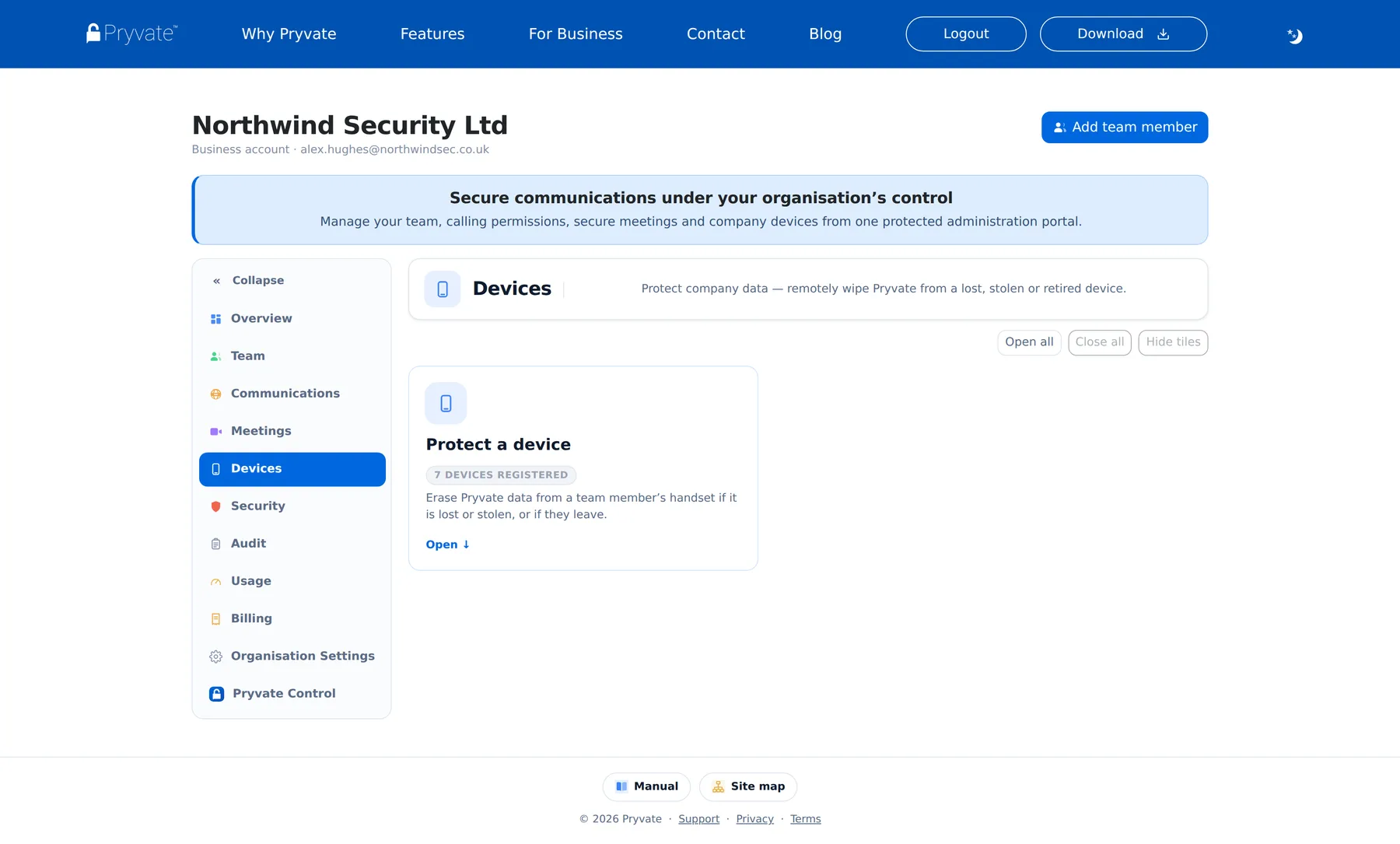
Treat the confirmation as the deliberate step it is: you select exactly one device (or explicitly every device), give a reason — kept in the audit record — and type WIPE to confirm. Once sent, a wipe cannot be cancelled. Read the status precisely, too: Sent is a request, not a completion. If the device is offline, completion stays pending until it reconnects, and the status becomes acknowledged only when the device confirms the erasure. For a lost device, consider suspending the member's access as well (section 1.11).
1.15Organisation security
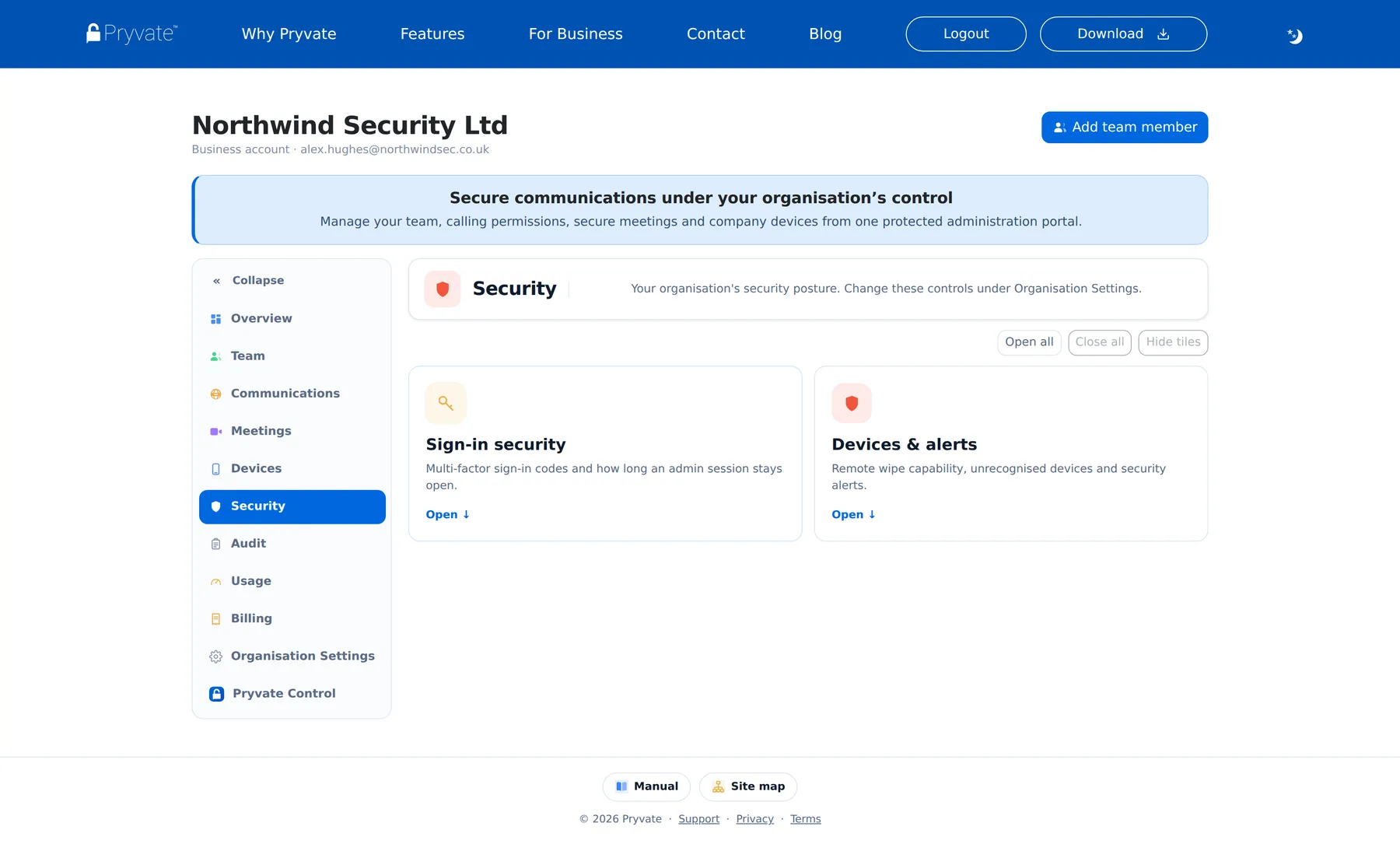
Security gathers the organisation-wide protections:
- Sign-in codes (MFA) — require a six-digit emailed code on every portal sign-in.
- Session timeout — sign administrators out automatically after a period of inactivity you choose.
- Device security — the remote-wipe summary across the company, with a shortcut to Devices.
1.16Audit
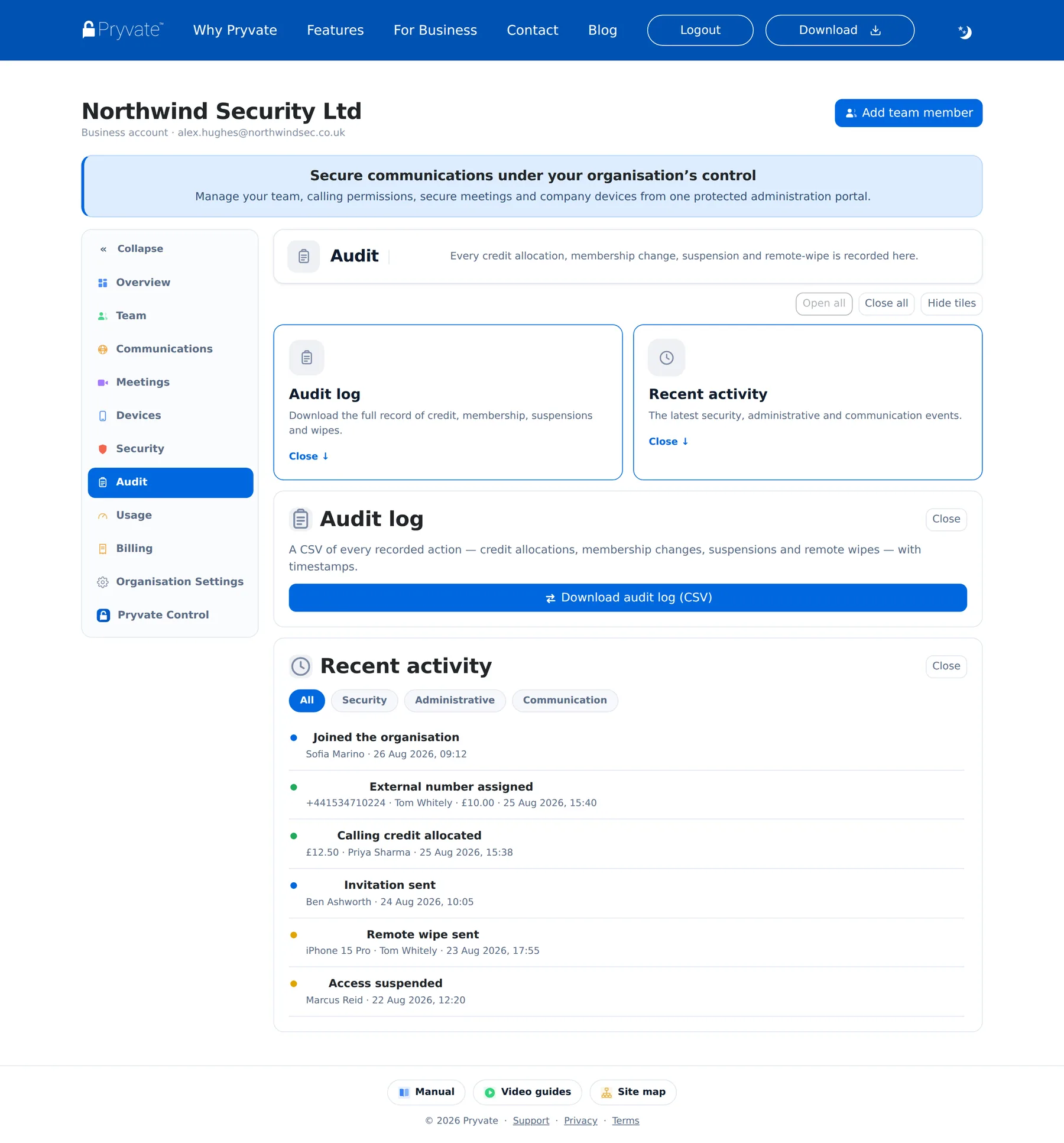
Audit is the organisation's memory: invitations sent and accepted, roles changed, credit allocated and reclaimed, external numbers assigned and released, suspensions, wipes — each with who, what, when. The activity feed groups events by kind (administrative, communication, security); Export downloads the full administrative log as CSV for your records or a compliance request.
Each entry names the action, its target and the timestamp (shown in your local time), recorded under the administrator who was signed in when it happened — managers use their own credentials, so their actions carry their own name. The CSV export is a snapshot: it reflects the record at the moment you download it. The log is visible to the owner and admins, and to managers only where you have granted them the Audit section.
1.17Usage
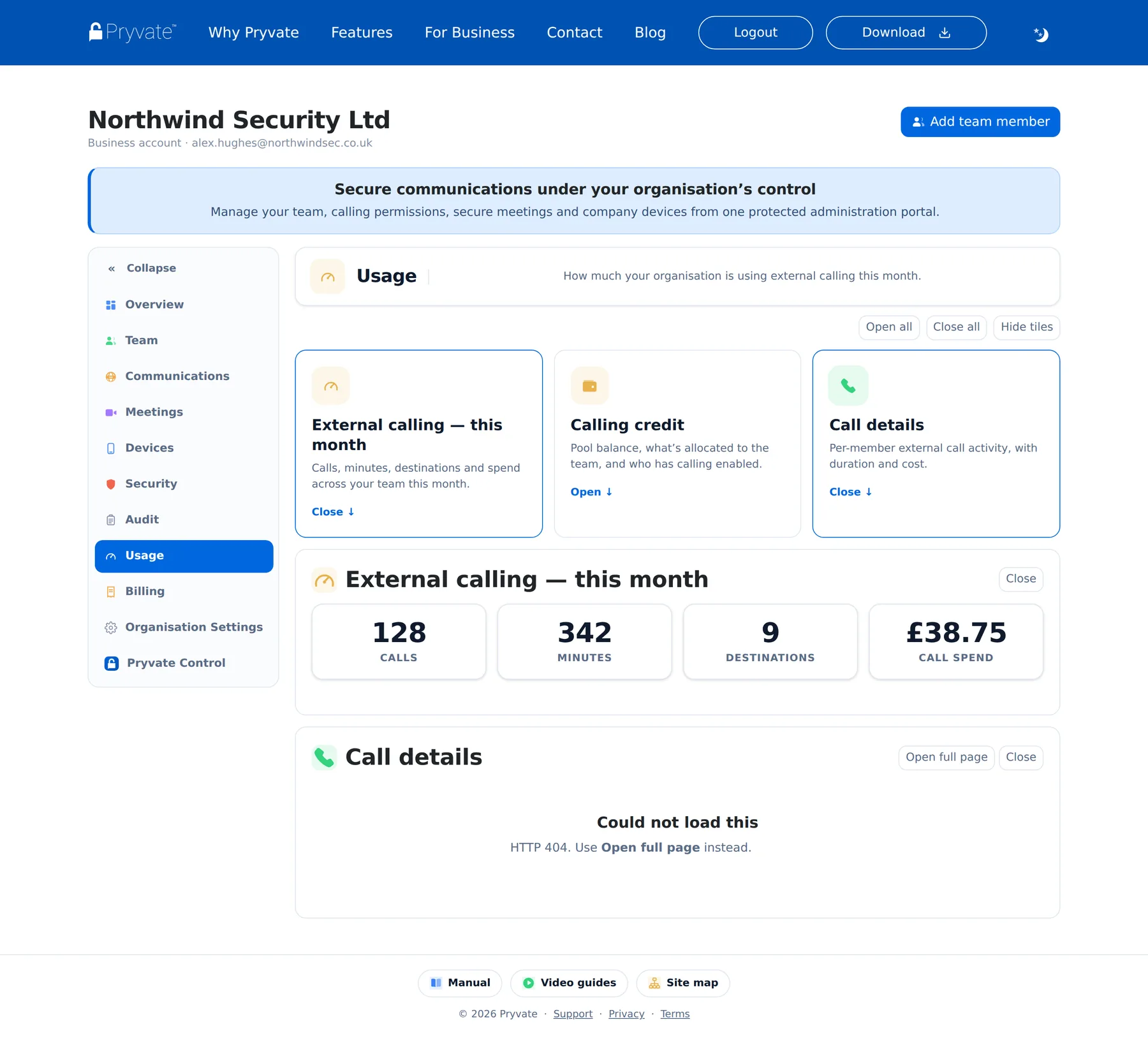
Usage reports the month's external calling — calls, minutes, destinations and spend — plus the call history and credit-movement views. Reports cover external (Offnet) activity only: encrypted Pryvate-to-Pryvate calls and messages are invisible by design.
1.18Billing
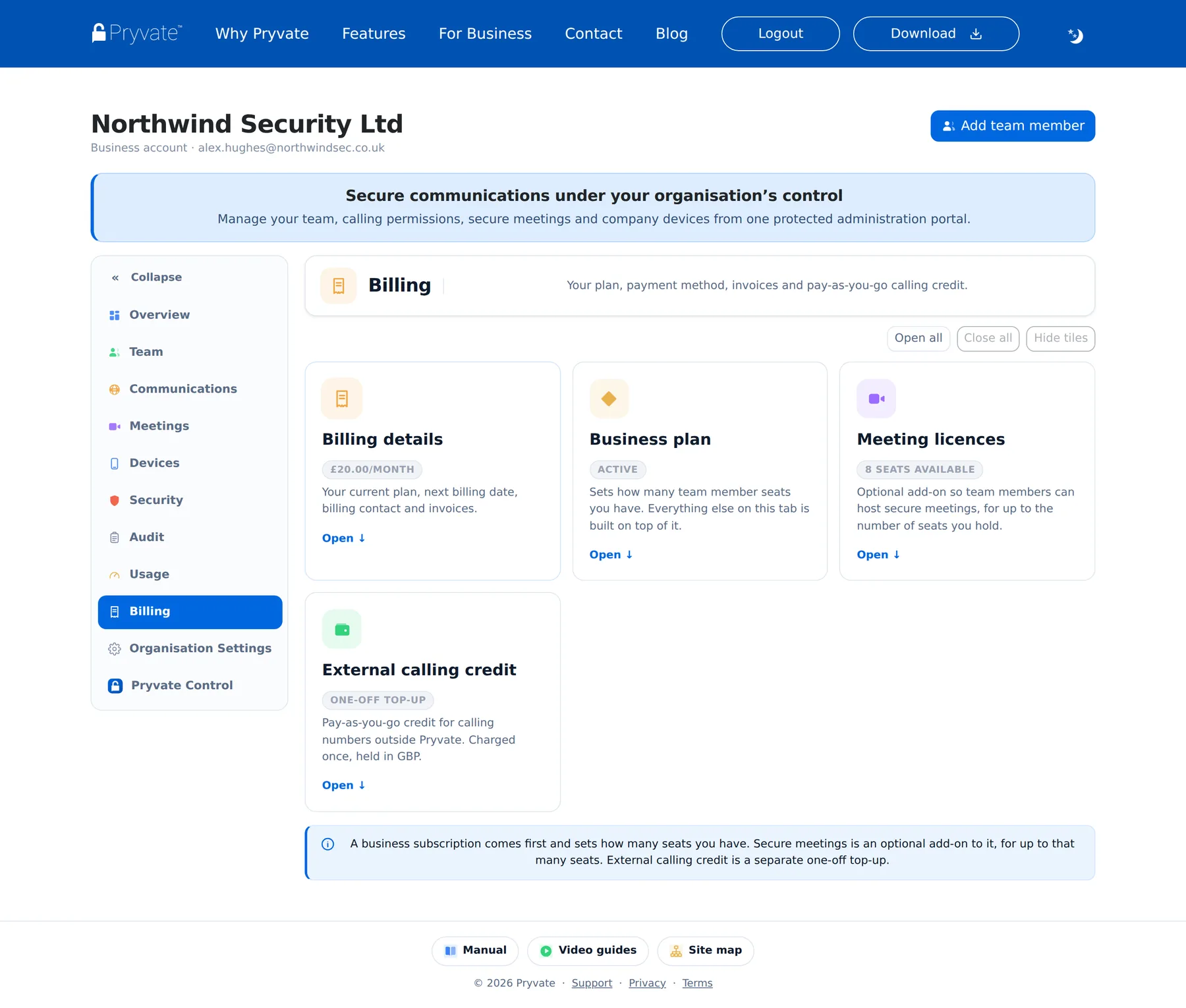
Billing holds the subscription and everything bought on top: team seats (the monthly PayPal subscription), meeting licences, and one-off top-ups of external calling credit. The current monthly payment, invoice details and PO reference live here too, along with the transaction history and refund requests.
1.19Organisation settings & Pryvate Control
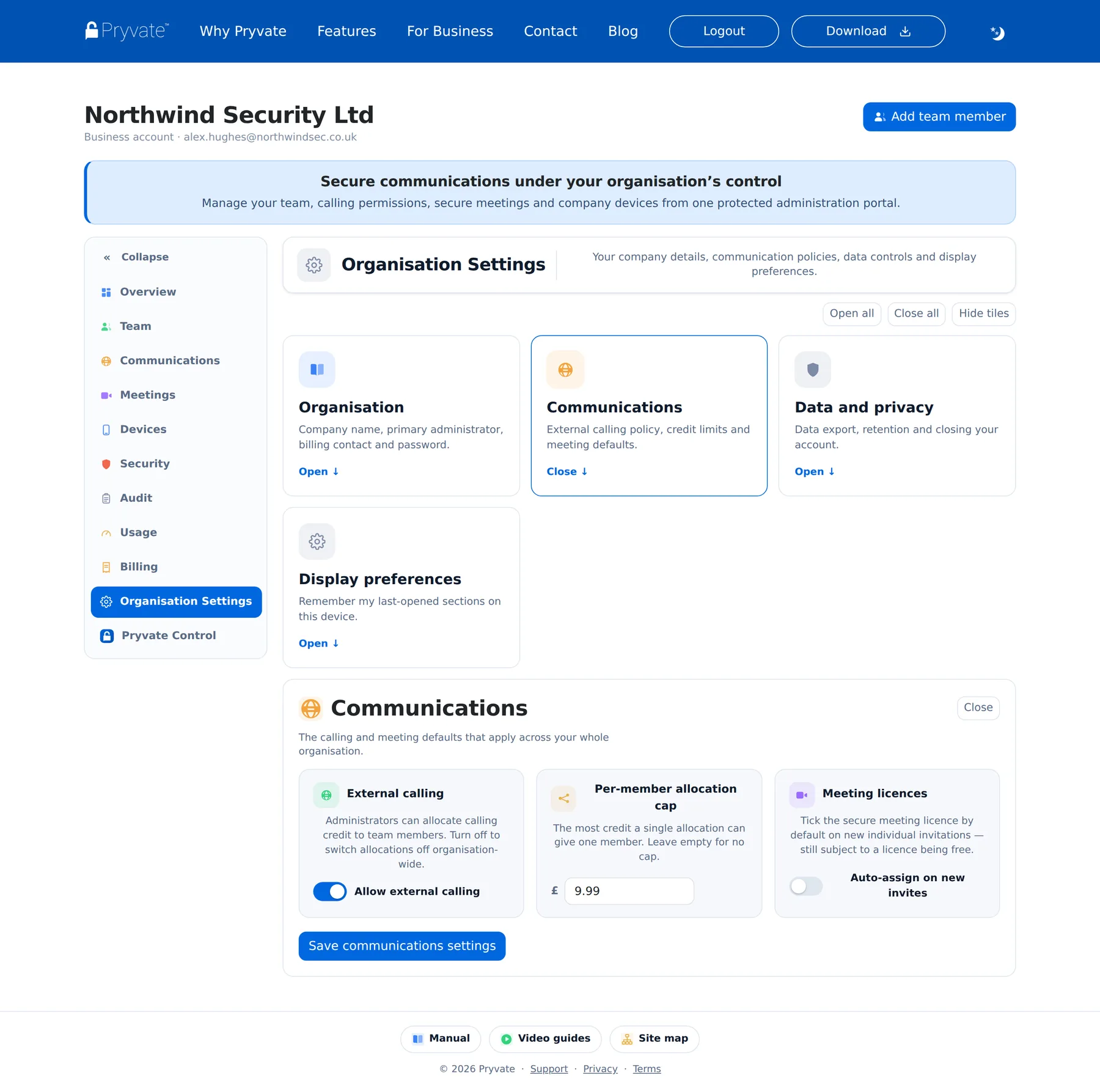
Organisation Settings (owner and admins only) carries the company details and the defaults that shape everyone else's experience: the external-calling policy and per-member credit cap, the meeting-licence auto-assign default, security preferences, and display options.
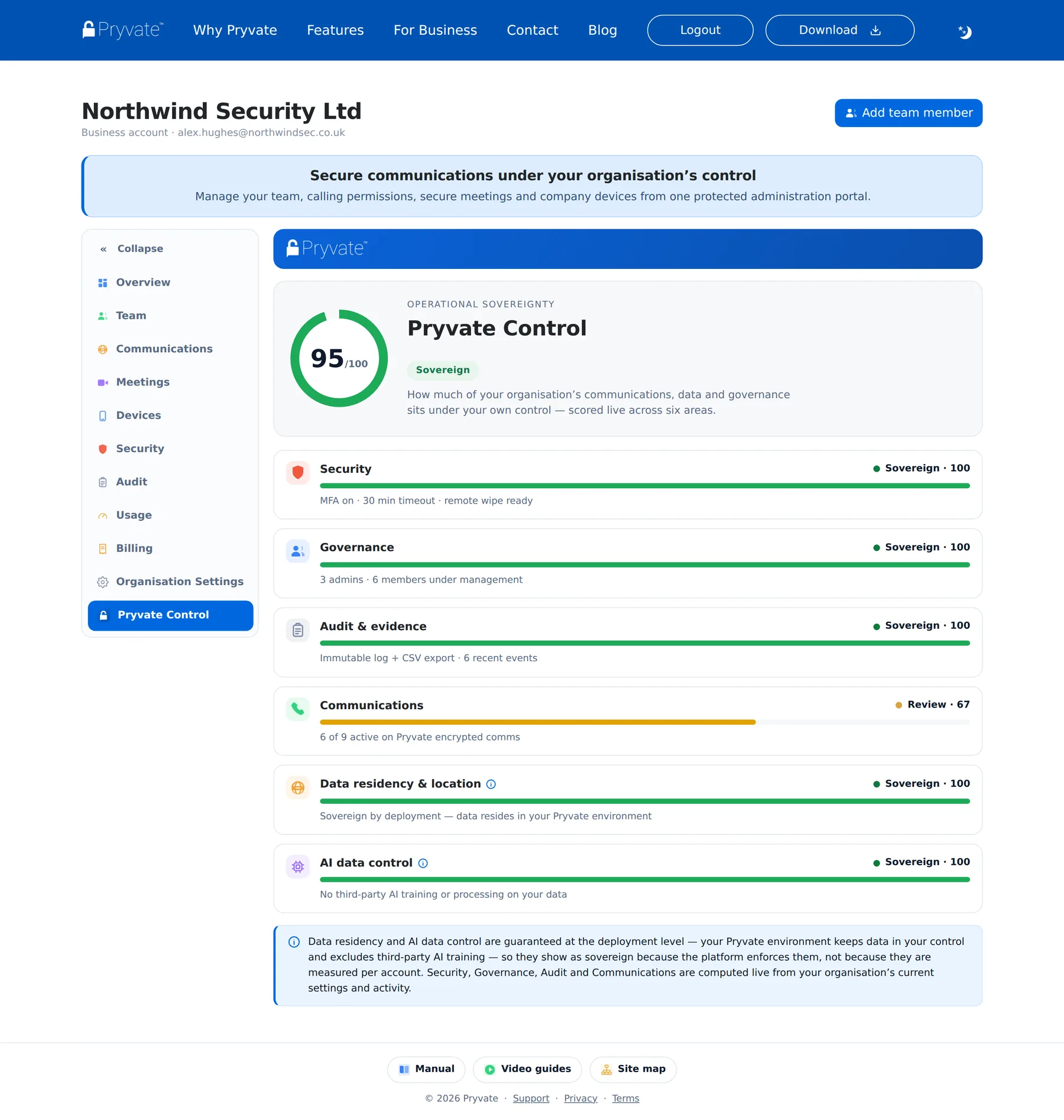
Pryvate Control is the portal's operational control indicator: it summarises selected administrative and operational controls into one score out of 100, helping you spot the areas that need attention. Six areas contribute. Security, Governance, Audit & evidence and Communications are computed live from your organisation's current settings and activity each time the page loads, with Security carrying the greatest weight. The Data residency and AI data-control indicators reflect the controls provided by the Pryvate deployment architecture and configuration — they are not calculated from day-to-day administrator activity. When an area reads lower, its note says why, and the fix is always an ordinary administrative action — for example, invitations still pending lower Communications until everyone is inside the encrypted environment.
The signed-in Site map in the footer lists every page of the portal in one place.
1.20Frequently asked questions
447700900123.Reference
What you need, what is visible to whom, the vocabulary, the messages Pryvate sends, and where to turn when something looks wrong.
2.1What you need
- To run the portal — a current browser on any computer; no installation. The portal lives at pryvatenow.com and works in light or dark mode.
- To register — a company name, a contact email, a username and password, a contact mobile number, and PayPal for the subscription.
- Your team — each member needs a smartphone for the Pryvate app and a mobile number that can receive the SMS invitation. Nothing else: members never use this portal.
- Managers — a work email address on their member record, for the credentials the portal sends them.
2.2Privacy and what is visible
Administrators govern the communications environment without becoming observers of the communications themselves. Pryvate's design keeps content out of everyone's reach, including yours. As an administrator you can see, per member: name, username, email and mobile (read-only), role, services held (meeting licence, external calling and its number), calling-credit balance and movements, registered devices and wipe status, and the administrative events in Audit. External calling reports show counts, minutes, destinations-by-count and spend.
You can never see: the content of any message or email, who a member talks to on Pryvate, Pryvate-to-Pryvate call audio or history, or anything on a member's device outside Pryvate's own data. A remote wipe removes only Pryvate's data and never touches the rest of the phone.
2.3Glossary
| Term | Meaning |
|---|---|
| SME Portal (previous name) | Earlier versions of the Pryvate Business administration portal may be referred to as the “SME Portal” in older documentation. It is the same product. |
| Seat | One member's place on the account. Bought monthly; pending invitations count against the total. |
| Owner | The master account the company registered with. Full control; role fixed. Badged Owner if self-invited as a member. |
| Admin | A member promoted to full portal access. |
| Manager | A member with a restricted portal login, limited to the sections ticked on their profile. Never Billing or Organisation Settings. |
| Member | An ordinary team member — uses the app, no portal access. |
| Meeting licence (host seat) | Lets a member start secure video meetings. Anyone can join without one. |
| External calling (Offnet) | Calling ordinary phone numbers from Pryvate, paid from the company credit pool. |
| DDI / external number | The real phone number issued to a member when external calling is assigned. Returns to the shared pool on unassign. |
| Assign / Unassign | Switch external calling on (number issued, optional starting credit) / off (number and remaining credit returned). |
| Allocate / Reclaim | Move calling credit from the pool to a member / back again. Reclaim leaves calling switched on. |
| Invitation | A request to join — valid 24 hours, holds a seat while pending, and creates nothing until accepted. Membership begins at acceptance (or, for someone new to Pryvate, when they register the app). |
| Suspend / Reinstate | Put a member's access on hold (credit and licence auto-returned) / bring them back. Reversible; blocks Pryvate Business access but not their standard Pryvate app sign-in. |
| Remove | End the membership and free the seat. Not reversible from the portal; the audit record survives it. The personal Pryvate account is only deleted if you explicitly choose that. |
| Remote wipe | Erase Pryvate's data from one of a member's devices. Irreversible once sent; Sent is a request, not a completion — the wipe waits for the device to come online and is acknowledged back when done. |
| Allocation cap | The per-member limit on any single credit allocation, set under Organisation Settings. The portal warns before an amount that would exceed it. |
| Pryvate Control | The operational control indicator — six control areas summarised into one score. Guidance for leaders, not a compliance certification. |
| Awaiting setup | Invited people not yet on Pryvate. They join automatically on registering the app with the invited number. |
| Sign-in code (MFA) | A six-digit emailed code required after the password, when Security says so. |
2.4Messages Pryvate sends
What your people receive, so nothing looks like phishing:
- Invitation (on Pryvate) — email “Pryvate Business Team Invitation” plus an SMS; both carry the acceptance link naming your company.
- Invitation (not on Pryvate) — SMS: “[Company] has invited you to join them on Pryvate. Accept here: …” — the link leads to the install page.
- Manager credentials — an email to the manager's work address with their username, generated password and the password rule you chose.
- Sign-in code — a six-digit code emailed at sign-in when MFA is on.
- Password reset — subject “Pryvate Business Portal — Password Reset”, with a temporary password and the reset link. The Single User portal's reset email has a different subject.
2.5Common problems
| Symptom | Cause and fix |
|---|---|
| “Please choose the country using the flag next to the mobile field…” | The number arrived without a country code — the portal refuses to store it (a code-less number can never receive its SMS). Pick the country from the flag menu and send again. |
| “An invitation has already been sent…” for someone you don't see listed | Check both pending lists — Invited (on Pryvate) and Awaiting setup (not yet on Pryvate) — and Invitation history. Delete the stale entry, then invite again. |
| Invitation stored but SMS not delivered | The failure reason is quoted in brackets in the portal's message. Usually a mistyped number. Delete the stored invitation, correct the number, resend. |
| “No team seats left” | Every seat is taken (pending invitations included). Add seats under Billing, or delete a pending invitation / remove a member. |
| Invite/allocation buttons do nothing | The subscription is not active — Billing shows the state. Payment first, then people. |
| Sign-in page asks for a mobile number | That is the personal portal. Administrator and manager details work only at pryvatenow.com. |
| An old bookmark opens a different-looking portal | Links to qa.pryvatemessenger.com belong to the retired version. Update the bookmark to pryvatenow.com. |
| Manager can't open a section | It isn't ticked on their profile — or it's Billing / Organisation Settings, which are always admin-only. Their first sign-in may also be waiting on a forced password change. |
| Reset email hasn't arrived | Check spam for “Pryvate Business Portal — Password Reset”, and make sure the request was made on the business portal, not the personal one. |
| External number shows Pending | Normal for the first few minutes after assigning. Credit can be allocated meanwhile. |
2.6Getting help
Email [email protected] for billing questions, refunds, accounts above 50 seats, or anything this manual doesn't answer. Prefer watching to reading? The Video guides cover every section of the portal in short videos, in the same order as this manual. Both the manual and the video guides live in the footer of every page and need no sign-in, so they can be passed to whoever takes over the account. The Site map (signed in) lists every page of the portal.
2.7Index of screens
| Figure | Screen | Section |
|---|---|---|
| 1 | Registration | 1.2 |
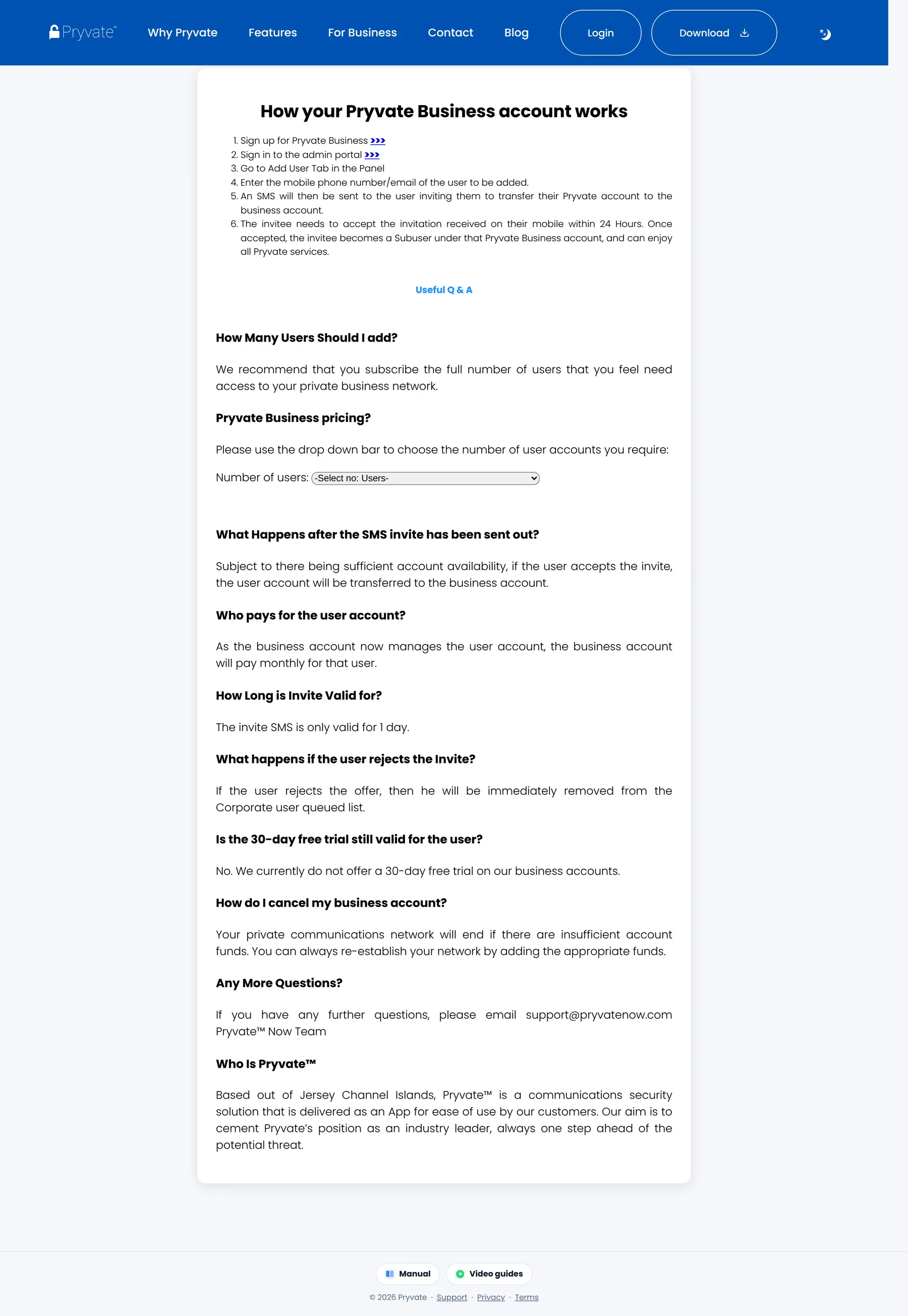
| 2 | Getting-started guide | 1.2 |
| 3 | Sign-in page | 1.3 |
| 4 | Sign-in code (MFA) | 1.3 |
| 5–6 | Password reset — request and new password | 1.3 |
| 7–9 | Overview, attention panel, dark mode | 1.4 |
| 10–12 | Team lists — active, invited/awaiting, suspended/history | 1.5 |
| 13 | Add individually | 1.6 |
| 14 | Add in bulk (CSV) | 1.7 |
| 15–16 | Invitee pages — accept, install | 1.8 |
| 17–18 | Change role, owner profile | 1.9 |
| 19–20 | Manager access, manager first sign-in | 1.10 |
| 21–24 | Member profile, row menu, suspend, delete invitation | 1.11 |
| 25–29 | Communications and the assign / reclaim / unassign flow | 1.12 |
| 30 | Meeting licences | 1.13 |
| 31 | Devices & remote wipe | 1.14 |
| 32 | Security | 1.15 |
| 33 | Audit | 1.16 |
| 34 | Usage | 1.17 |
| 35 | Billing | 1.18 |
| 36–38 | Organisation settings, Pryvate Control, site map | 1.19 |